---
title: Create an adaptive format microapp 2.0
description: Adaptive and responsive formats are two approaches used in design to optimize the user experience on tablet and mobile devices. While both techniques aim to make websites more mobile-friendly, they di
---
[Skip to content](https://support.tiled.co/create-an-adaptive-format-microapp-1#main-content)
English
Show submenu for translations
[Submit a request](https://support.tiled.co/kb-tickets/new)
![logo-horizontal\_w.png\]](https://support.tiled.co/hs-fs/hubfs/logo-horizontal_w.png?height=30&name=logo-horizontal_w.png)
Open main navigation
Close main navigation
- English
Show submenu for translations
- [Submit a request](https://support.tiled.co/kb-tickets/new)
Hi, how can we help you?
- There are no suggestions because the search field is empty.
1. [Support](https://support.tiled.co/)
2. [Builder 2.0](https://support.tiled.co/builder-2-0)
3. [Tiled Builder 2.0](https://support.tiled.co/builder-2-0#tiled-builder-2-0)
# Create an adaptive format microapp 2.0
## An adaptive format is a separate version of your microapp designed for a specific screen size — a mobile layout alongside your desktop one, for example. When someone opens the microapp, Tiled detects their device and shows the format that matches it.
### **Adaptive, Not Responsive**
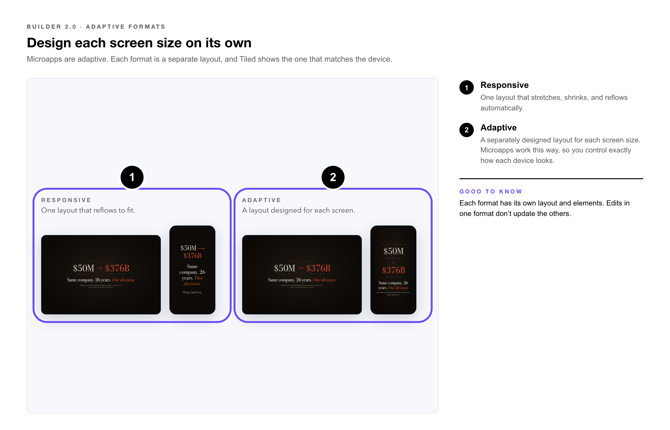
Websites usually handle different screens in one of two ways:
| **Approach** | **How It Works** |
| --- | --- |
| **Responsive** | One layout that stretches, shrinks, and reflows automatically to fit any screen. |
| **Adaptive** | A separately designed layout for each screen size. The right one is chosen when the content opens. |
[](https://support.tiled.co/hubfs/Adaptive%20Formats%20Callouts-1-adaptative-not-responsive.png)
Microapps are adaptive. That’s a deliberate choice: it gives designers full control over exactly how the microapp looks on each device, instead of leaving the layout to automatic reflow. The trade-off is that each format is designed on its own, with its own layout and elements.
Adaptive and responsive formats are two approaches used in design to optimize the user experience on tablet and mobile devices. While both techniques aim to make websites more mobile-friendly, they differ in their implementation and how they handle various screen sizes and resolutions. Microapps are adaptive, not responsive. This was an intentional decision to give greater control to designers about the tablet and mobile experiences they are creating.
Adaptive design involves creating multiple versions of a microapp tailored to specific device screen sizes. In other words, each adaptive format is designed independently, with its own layout and design elements. When a user accesses a microapp, the browser (or app) detects the device type and if an adaptive version is available will render the matching adaptive format.
### **Create an Adaptive Format**
---
**Creating a Format**
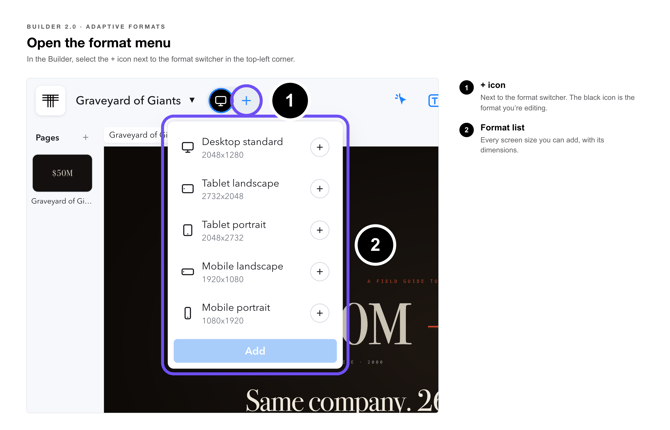
1\. **Open the microapp** — in the Builder.
[](https://support.tiled.co/hubfs/Adaptive%20Formats%20Callouts-2-open-format-menu.png)
2\. **Select the + icon** — in the top-left corner of the Builder.
[](https://support.tiled.co/hubfs/Adaptive%20Formats%20Callouts-3-choose-add.png)
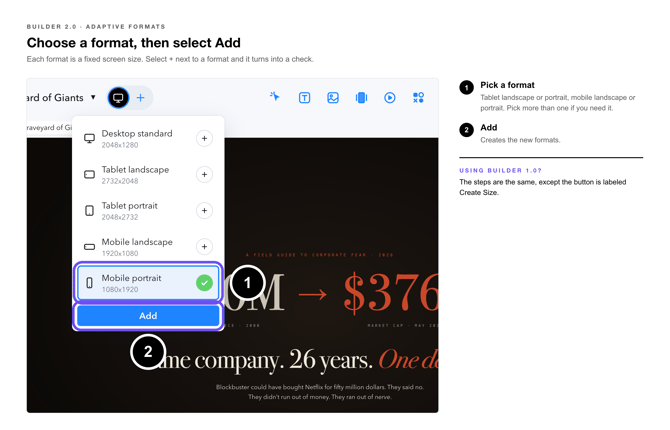
3\. **Choose the format** — you want to create.
4\. **Select Add.** — The new format is created.
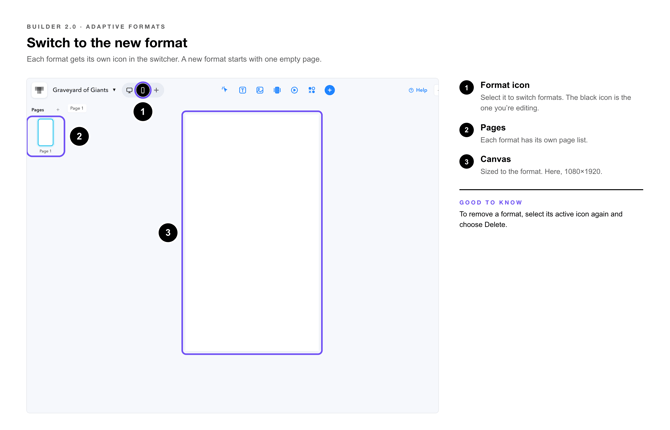
5\. **Switch to the new format** — to start designing it.
[](https://support.tiled.co/hubfs/Adaptive%20Formats%20Callouts-4-swtich-to-the-new-format.png)
| **Using Builder 1.0?** The steps are the same, except the button in step 4 is labeled Create Size. |
| --- |
### **Filling In a New Format**
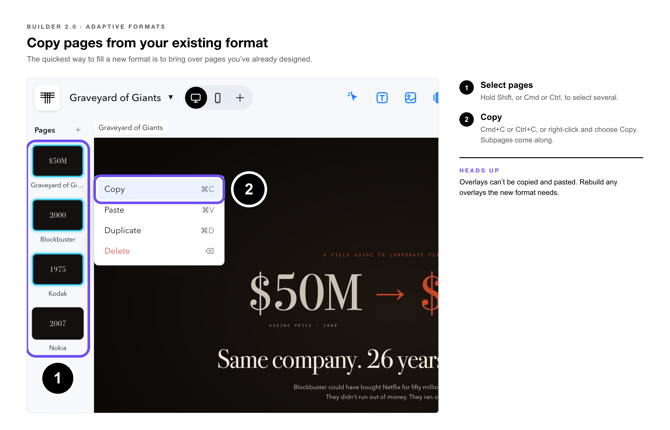
A new format starts out empty, so the quickest way to build it is to bring over pages you’ve already designed:
1\. **Select the pages** — in your existing format. Hold Shift, or Cmd or Ctrl, to select several.

2\. **Copy them** — with Cmd+C or Ctrl+C, or right-click and choose Copy.
[](https://support.tiled.co/hubfs/Adaptive%20Formats%20Callouts-5-copy-pages-from-exisiting-format.png)
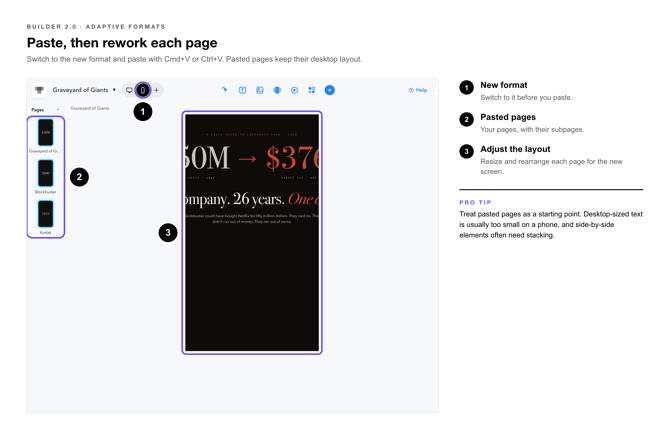
3\. **Switch to the new format** — and paste with Cmd+V or Ctrl+V, or right-click and choose Paste.
4\. **Adjust the layout** — resize and rearrange each pasted page for the new screen size.
Copying a page brings its subpages with it.
[](https://support.tiled.co/hubfs/Adaptive%20Formats%20Callouts-6-paste-adjust.png)
| **Heads Up:** Overlays can’t be copied and pasted. Rebuild any overlays the new format needs. |
| --- |
| **Pro Tip:** Treat pasted pages as a starting point, not a finished layout. Text sized for a desktop screen is usually too small on a phone, and side-by-side elements often need stacking. |
### **What Viewers See**
When someone opens your microapp, their browser or the Tiled app detects the device and shows the matching format, if you’ve created one.
### **When a viewer rotates their device**
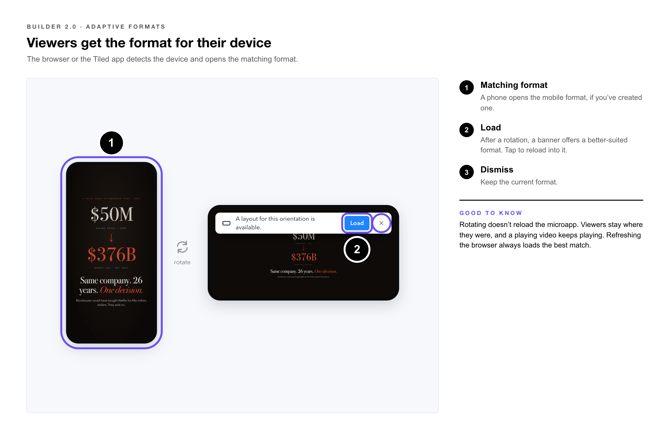
On a mobile browser, rotating the device doesn’t reload the microapp. Viewers stay where they were, and a playing video keeps playing. If a better-suited format exists for the new orientation, a banner offers to load it:
• **Tap the banner** — reload into the better-suited format.
• **Dismiss it** — keep the current format.
• **Refresh the browser** — at any time, to load the best match.
[](https://support.tiled.co/hubfs/Adaptive%20Formats%20Callouts-7-what-vieweres-see.png)
### **Where Formats Show Up Elsewhere**
| **Feature** | **What Formats Change** |
| --- | --- |
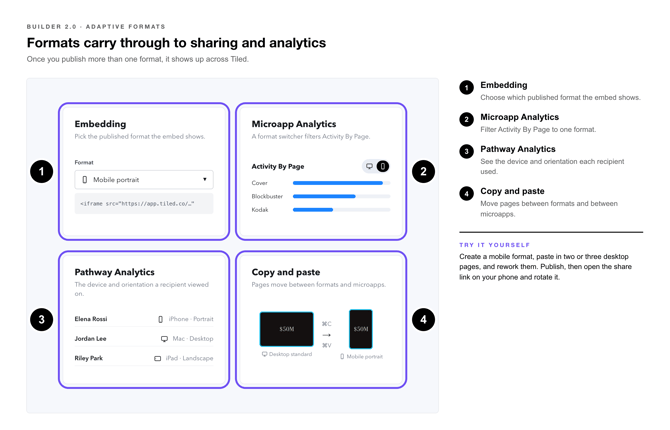
| **Embedding** | When you create an embed, you choose which published format the embed will show. |
| **Microapp Analytics** | For microapps with more than one format, a format switcher filters Activity By Page to one format. |
| **Pathway Analytics** | Shows the device and orientation a recipient viewed on. |
| **Copy and paste** | Pages can be copied between formats and between microapps. |
| **Try It Yourself:** Create a mobile format for an existing microapp, paste in two or three of your desktop pages, and rework them for a phone. Publish, then open the share link on your phone and rotate it to see the format switch. | |
### **[](https://support.tiled.co/hubfs/Adaptive%20Formats%20Callouts-8-where-formats-show-up.png)Common Questions**
| **Question** | **Answer** |
| --- | --- |
| **Why doesn’t my microapp resize to fit a phone automatically?** | Microapps are adaptive, not responsive. Each screen size gets its own designed format. Create a mobile format to control how the microapp looks on phones. |
| **Do I have to build each format from scratch?** | No. Copy pages from an existing format and paste them into the new one, then adjust the layout. Overlays need to be rebuilt. |
| **Do edits in one format update the others?** | No. Each format is designed independently. Change each format you want updated. |
| **A viewer rotated their phone and the layout didn’t change.** | The microapp doesn’t reload on rotation. If a better format exists, a banner offers to load it; the viewer can tap it or refresh the browser. |
| **Can I choose which format an embed shows?** | Yes. You pick from the microapp’s published formats when you create the embed code. |
**Related Articles**
• [**Copying and Pasting Pages Between Microapps**](https://support.tiled.co/copying-and-pasting-pages-between-microapps) — Moving pages between formats and microapps.
• [**Viewing Microapps on a Mobile Browser**](https://support.tiled.co/viewing-microapps-on-a-mobile-browser) — How microapps behave on phones and tablets.
• [**How to Embed a Microapp on a Webpage**](https://support.tiled.co/how-to-embed-a-microapp-on-a-webpage)— Choosing a format for an embed.
• [**Engagement: Microapp Analytics**](https://support.tiled.co/engagement-microapp-analytics) — Page-level data per format.
• [**Publish A Microapp**](https://support.tiled.co/publish-a-microapp-2.0) — Publishing so viewers see your formats.
- [Getting Started](https://support.tiled.co/getting-started#main-content)
- [Intro to Tiled](https://support.tiled.co/getting-started#intro-to-tiled)
- [Tiled Library](https://support.tiled.co/getting-started#tiled-library)
- [Tiled Builder](https://support.tiled.co/tiled-builder#main-content)
- [Tiled Builder](https://support.tiled.co/tiled-builder#tiled-builder)
- [Microapp Tiles](https://support.tiled.co/tiled-builder#microapp-tiles)
- [Personalization](https://support.tiled.co/tiled-builder#personalization)
- [Asset Library](https://support.tiled.co/tiled-builder#asset-library)
- [Best Practices](https://support.tiled.co/tiled-builder#best-practices)
- [Tiled Tiles](https://support.tiled.co/tiled-tiles)
- [Settings](https://support.tiled.co/settings#main-content)
- [Account Settings](https://support.tiled.co/settings#account-settings)
- [Library Settings](https://support.tiled.co/settings#library-settings)
- [Microapp Settings](https://support.tiled.co/settings#microapp-settings)
- [Sharing & Analytics](https://support.tiled.co/sharing-analytics#main-content)
- [Microapp Analytics](https://support.tiled.co/sharing-analytics#microapp-analytics)
- [Personalization](https://support.tiled.co/sharing-analytics#personalization)
- [Sharing Microapps](https://support.tiled.co/sharing-analytics#sharing-microapps)
- [Useful Resources](https://support.tiled.co/useful-resources#main-content)
- [Additional Guides](https://support.tiled.co/useful-resources#additional-guides)
- [Developer Tools](https://support.tiled.co/useful-resources#developer-tools)
- [Accessibility](https://support.tiled.co/useful-resources#accessibility)
- [Tiled Mobile App](https://support.tiled.co/useful-resources#tiled-mobile-app)
- [Seismic](https://support.tiled.co/useful-resources#seismic)
- [Authentication & Security](https://support.tiled.co/useful-resources#authentication-security)
- [Builder 2.0](https://support.tiled.co/builder-2-0#main-content)
- [Tiled Builder 2.0](https://support.tiled.co/builder-2-0#tiled-builder-2-0)
- [Microapp Tiles 2.0](https://support.tiled.co/builder-2-0#microapp-tiles-2-0)
- [Personalization 2.0](https://support.tiled.co/builder-2-0#personalization-2-0)
- [Asset Panel 2.0](https://support.tiled.co/builder-2-0#asset-panel-2-0)
- [Layers & Settings 2.0](https://support.tiled.co/builder-2-0#layers-settings-2-0)
- [FAQ](https://support.tiled.co/builder-2-0#faq)
- [Tiled Plugins](https://support.tiled.co/tiled-plugins#main-content)
- [Figma Plugin](https://support.tiled.co/tiled-plugins#figma-plugin)
- [Adobe XD Plugin](https://support.tiled.co/tiled-plugins#adobe-xd-plugin)
- [Sketch Plugin](https://support.tiled.co/tiled-plugins#sketch-plugin)
- [Integrations](https://support.tiled.co/integrations#main-content)
- [CRM & Marketing Automation](https://support.tiled.co/integrations#crm-marketing-automation)
- [Content & Asset Management](https://support.tiled.co/integrations#content-asset-management)
- [Collaboration & Communication](https://support.tiled.co/integrations#collaboration-communication)
- [New Releases](https://support.tiled.co/new-releases#main-content)
- [v66.0.0](https://support.tiled.co/new-releases#v66-0-0)
- [v65.0.0](https://support.tiled.co/new-releases#v65-0-0)
- [v64.0.0](https://support.tiled.co/new-releases#v64-0-0)
- [v63.0.0](https://support.tiled.co/new-releases#v63-0-0)
- [v62.0.0](https://support.tiled.co/new-releases#v62-0-0)
- [v61.0.1](https://support.tiled.co/new-releases#v61-0-1)
- [v60.0.0](https://support.tiled.co/new-releases#v60-0-0)
- [v59.0.0](https://support.tiled.co/new-releases#v59-0-0)
- [v58.0.0](https://support.tiled.co/new-releases#v58-0-0)
- [v57.0.0](https://support.tiled.co/new-releases#v57-0-0)
- [v56.0.0](https://support.tiled.co/new-releases#v56-0-0)
- [v55.0.1](https://support.tiled.co/new-releases#v55-0-1)
- [v54.0.0](https://support.tiled.co/new-releases#v54-0-0)
- [v53.0.0](https://support.tiled.co/new-releases#v53-0-0)
- [v52.0.0](https://support.tiled.co/new-releases#v52-0-0)
- [v51.0.0](https://support.tiled.co/new-releases#v51-0-0)
- [v50.0.0](https://support.tiled.co/new-releases#v50-0-0)
- [Uncategorized](https://support.tiled.co/uncategorized)
[](https://tiled.co)
Copyright © 2026, Tiled
```json
{
"@context" : "https://schema.org",
"@type" : "VideoObject",
"contentUrl" : "https://4720090.fs1.hubspotusercontent-na1.net/hubfs/4720090/video_assets/223758004091/inherited/web_optimized.mp4",
"dateModified" : "2026-10-06T16:36:43.727Z",
"duration" : "PT40S",
"height" : 1080,
"name" : "Adaptive Formats Animation",
"thumbnailUrl" : "https://4720090.fs1.hubspotusercontent-na1.net/hubfs/4720090/Adaptive%20Formats%20Animation.mp4/medium.jpg",
"uploadDate" : "2026-10-06T16:36:43.724Z",
"width" : 1920
}
```
```json
{
"@context" : "https://schema.org",
"@type" : "VideoObject",
"contentUrl" : "https://4720090.fs1.hubspotusercontent-na1.net/hubfs/4720090/create-adaptive-size.mov",
"dateModified" : "2024-09-27T17:01:36.816Z",
"duration" : "PT10S",
"height" : 844,
"name" : "create-adaptive-size",
"thumbnailUrl" : "https://4720090.fs1.hubspotusercontent-na1.net/hubfs/4720090/create-adaptive-size.mov/medium.jpg",
"uploadDate" : "2024-09-27T17:01:36.810Z",
"width" : 1692
}
```