![logo-horizontal_w.png]](https://support.tiled.co/hs-fs/hubfs/logo-horizontal_w.png?height=30&name=logo-horizontal_w.png)
Ambient motion adds a slow, continuous pan and zoom to an image. It brings still photography to life and draws the eye, without the file size of a video. You can use it on page backgrounds and on any image tile.
Turning On Motion
1. Select the image tile — on your page.
2. Open Motion — in the Properties panel, next to Sizing and Opacity.
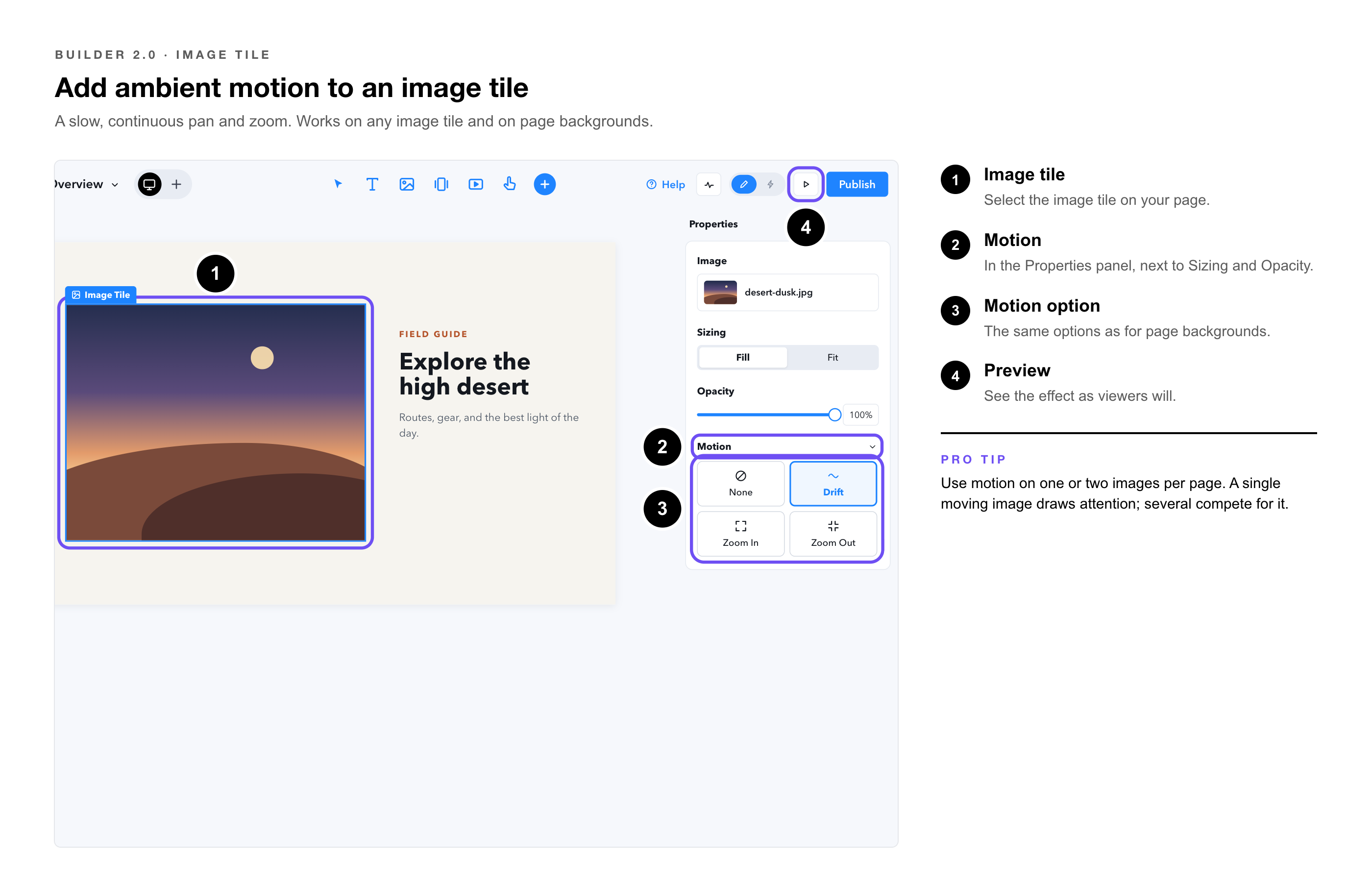
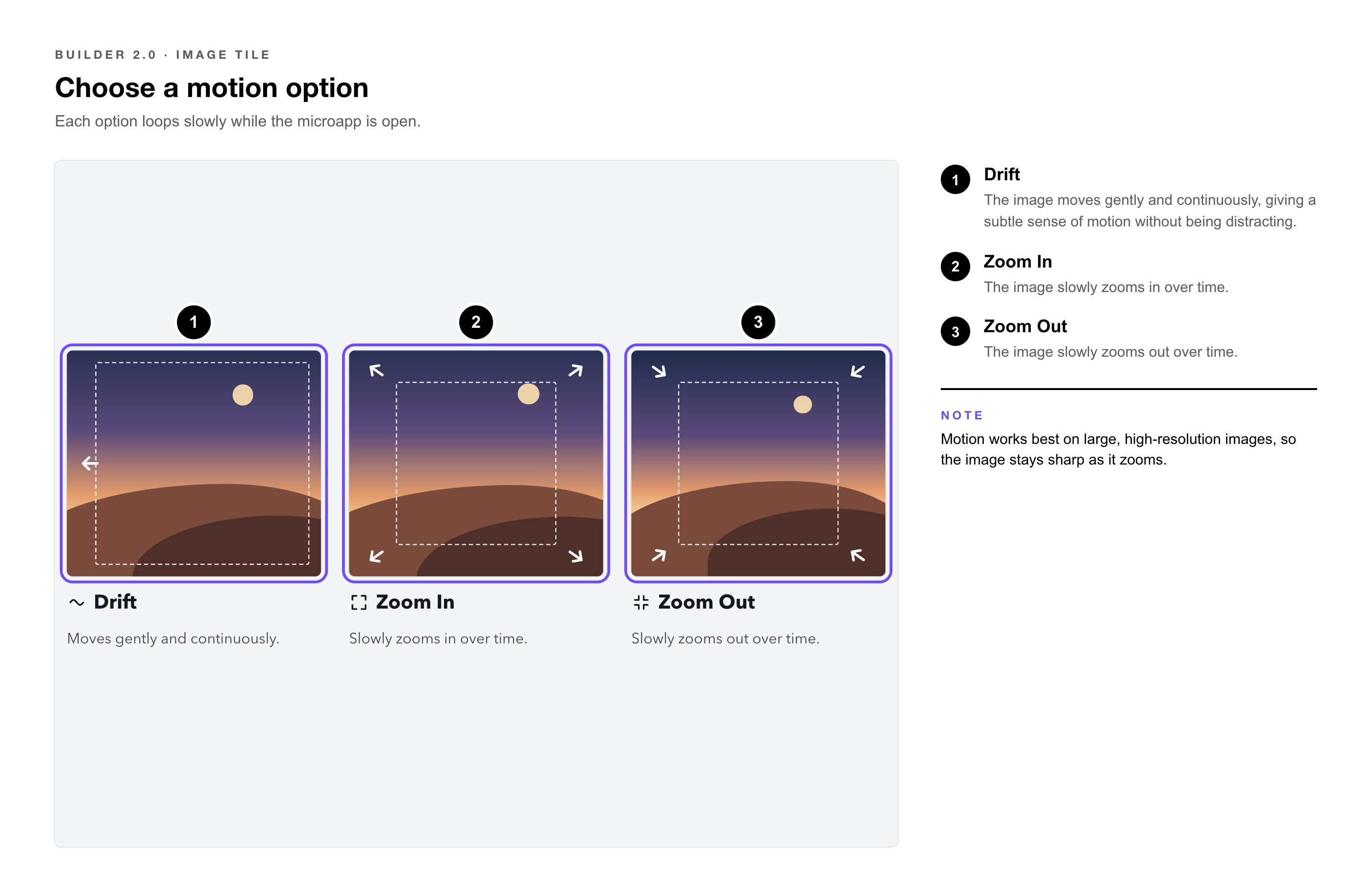
3. Choose a motion option. — The options are the same as for page backgrounds.
4. Preview — to see the effect as viewers will.
|
Pro Tip: Use motion on one or two images per page. A single moving image draws attention; several compete for it. |
|
Note: Motion works best on large, high-resolution images, so the image stays sharp as it zooms. |
• Image Tile 2.0 — Adding and styling images.
• Pages, Subpages, and Overlays — Page backgrounds, including background motion.