![logo-horizontal_w.png]](https://support.tiled.co/hs-fs/hubfs/logo-horizontal_w.png?height=30&name=logo-horizontal_w.png)
Overview
Bynder is a Digital Asset Management (DAM) platform customers use to store and govern brand assets: logos, images, video, and other creative files. The Tiled Bynder integration connects a Bynder account to Tiled's Asset Library, keeping approved assets in sync and ready for use in microapps, personalization, and AI-assisted content creation.
At a high level, the integration:
• Authorization: connects a Bynder account to Tiled using a secure, account-scoped OAuth 2.0 flow.
• Collection selection: the customer chooses which Bynder collections to bring into Tiled.
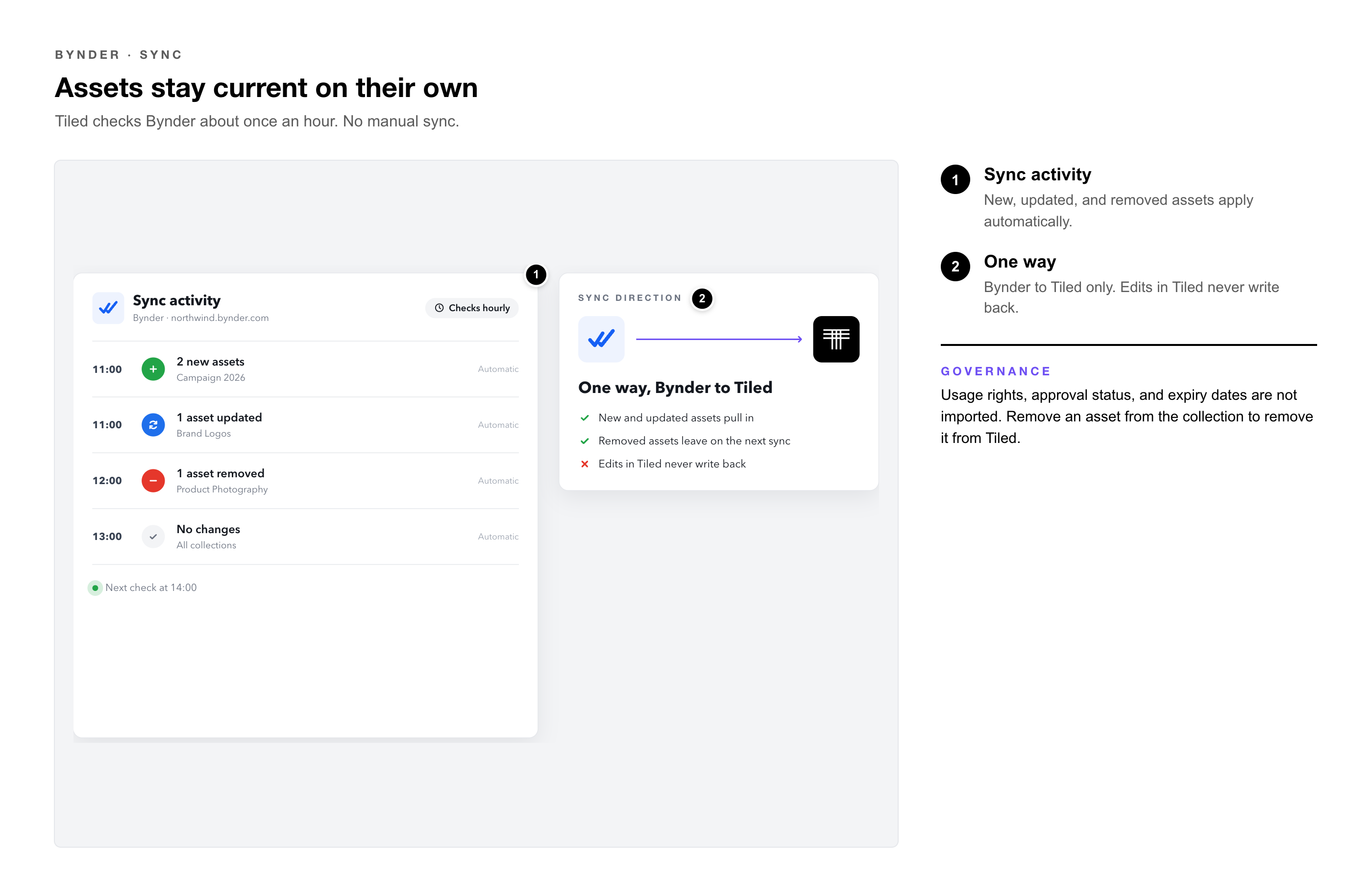
• Automatic sync: selected assets stay current on an hourly basis with no manual action required.
• Tag carry-over: Bynder tags import alongside assets and power personalized content in Tiled.
• AI access: synced assets are available to Tiled’s AI tools for use in microapp creation.
Setup Guide
Prerequisites
• Bynder: an active Bynder portal with administrator access, or access to a Bynder admin who can register an OAuth application.
• Tiled: a Tiled account with permission to manage the Asset Library and Account Settings.
Step 1: Register a Bynder Application
In the Bynder portal, register a new OAuth application for Tiled. Bynder's registration form asks for the following values. Enter them exactly as shown:
|
Field |
Value to Enter |
|
Redirect / Callback URL |
https://api.tiled.co/v2/integrations/dam/bynder/callback |
|
CORS Origin |
https://app.tiled.co |
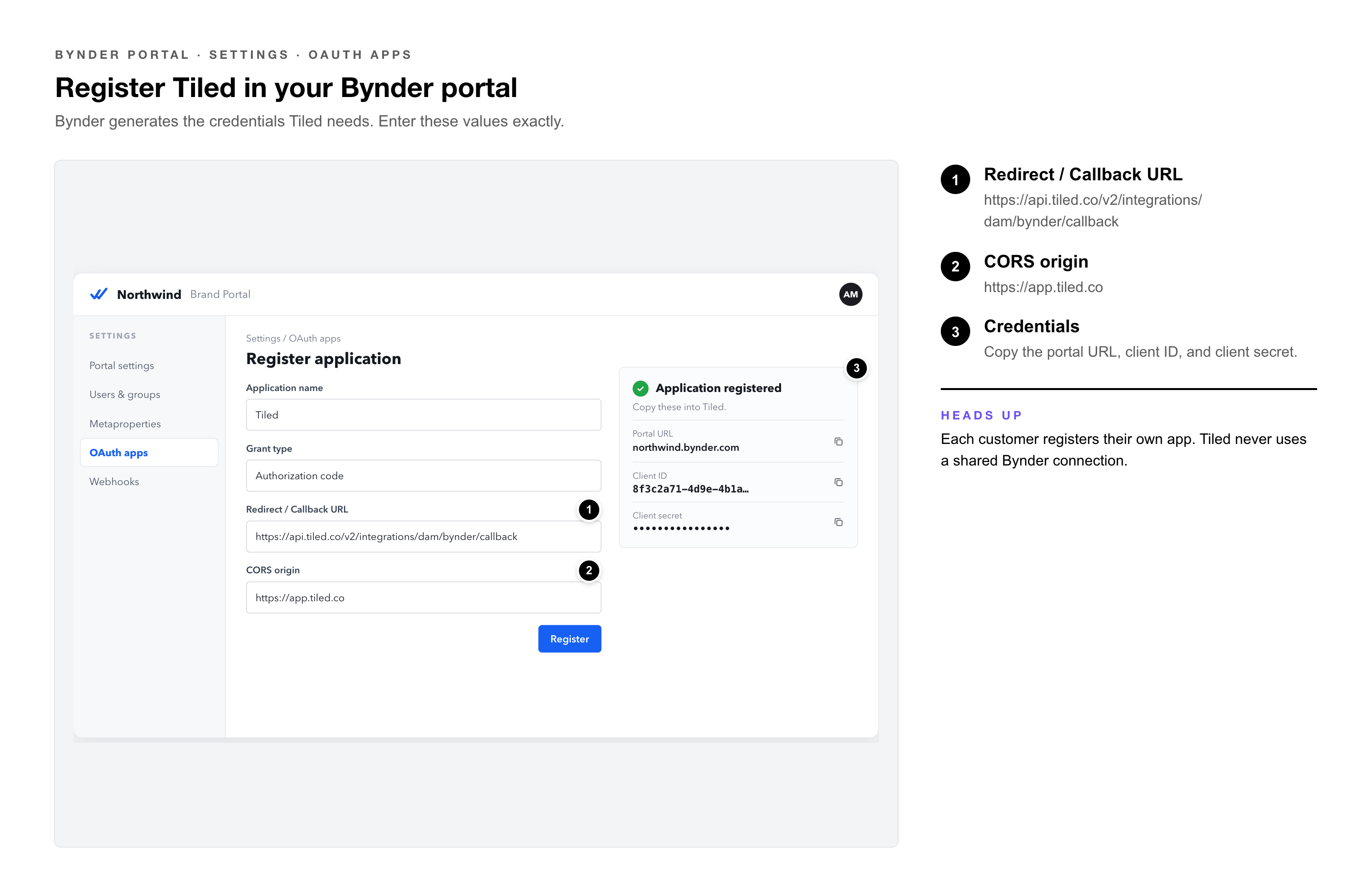 Once registered, Bynder generates three values needed for Step 2:
|
Value |
Where It Comes From |
|
Portal URL |
The customer’s Bynder domain |
|
Client ID |
Generated by Bynder on application registration |
|
Client Secret |
Generated by Bynder on application registration |
|
Note: These credentials belong to the customer’s own Bynder application registration. Tiled does not use a shared or global Bynder connection. Every customer authorizes their own dedicated integration. |
Step 2: Connect Bynder in Tiled
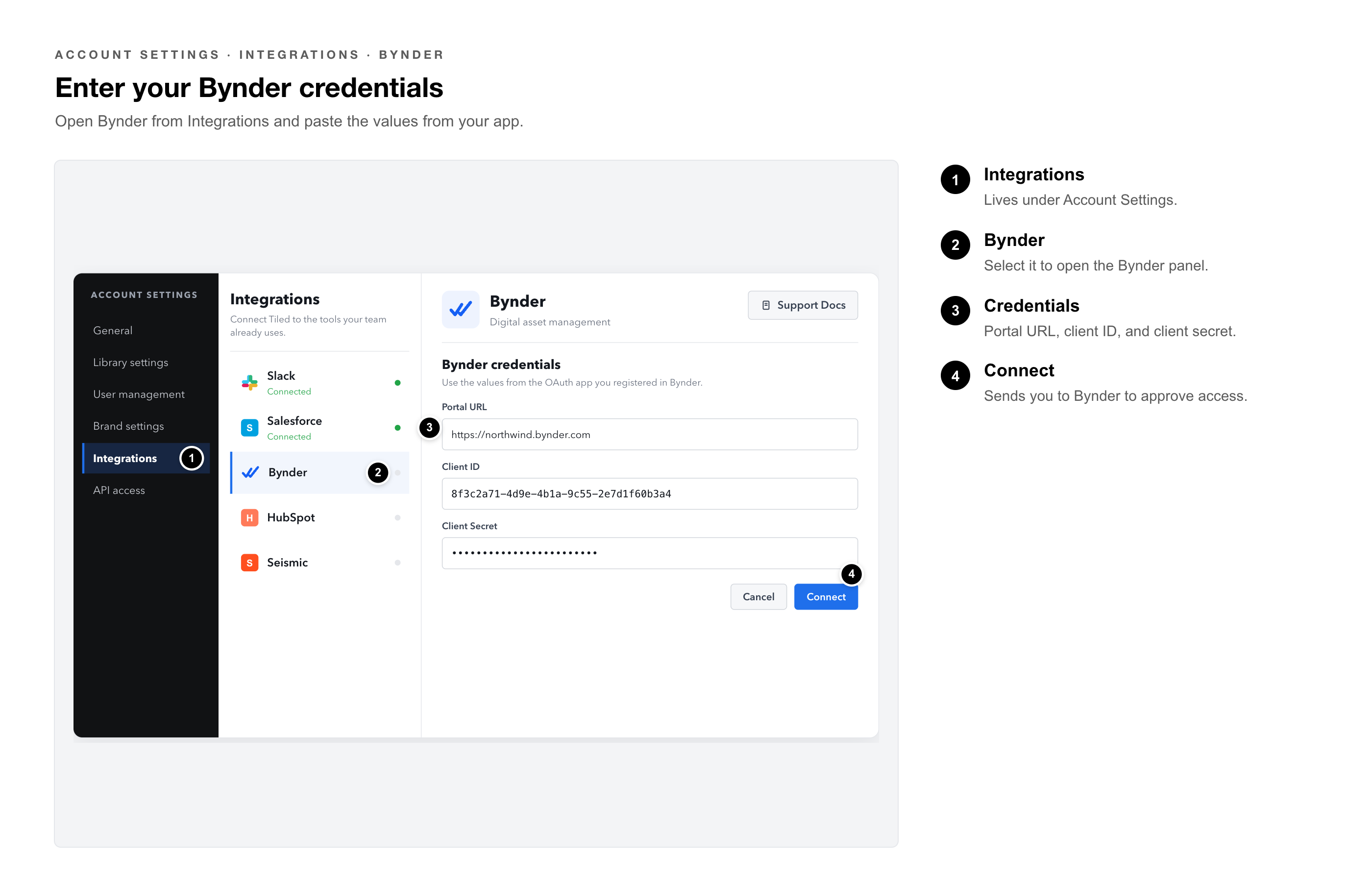
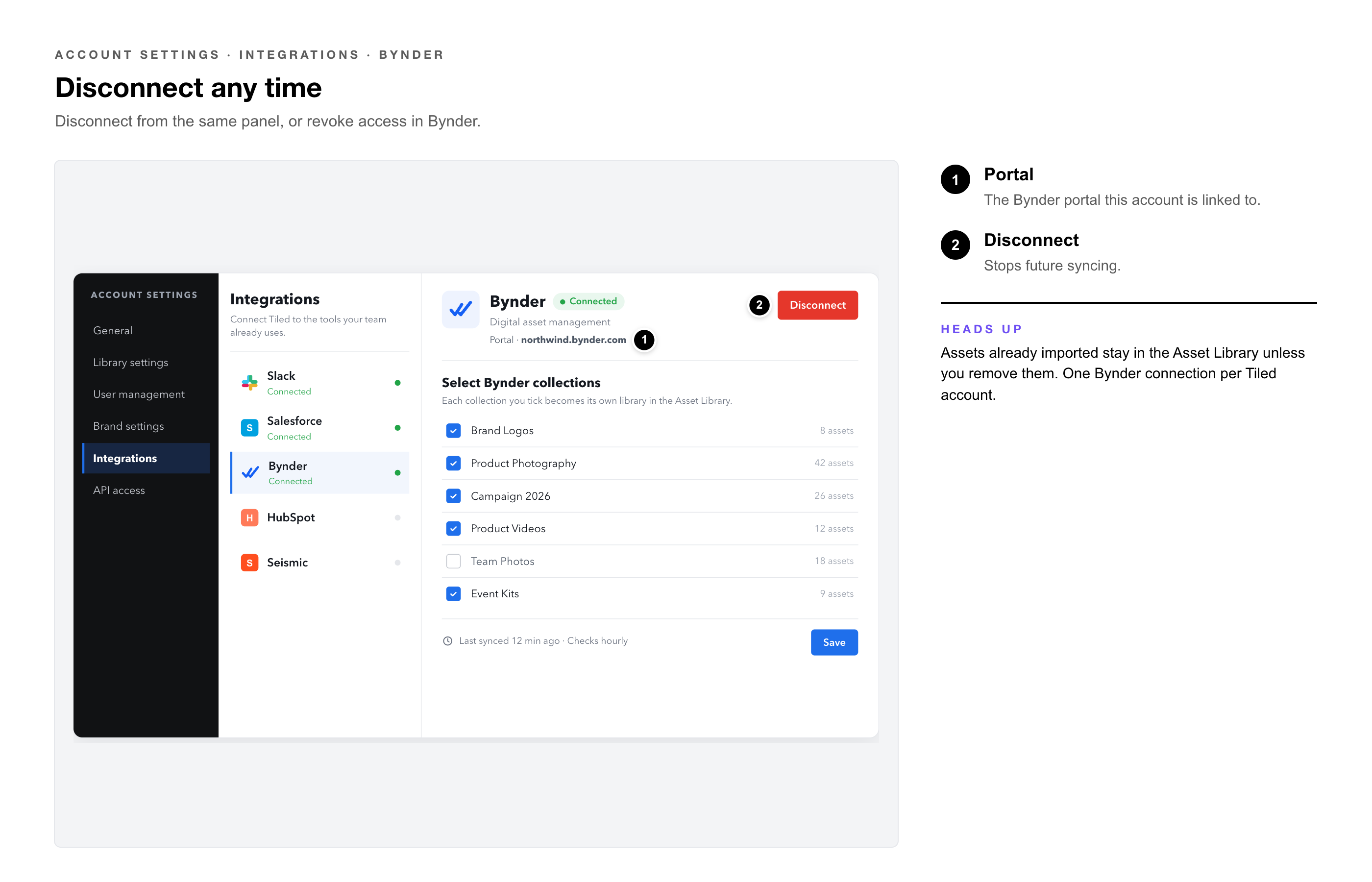
In Tiled, go to Account Settings → Integrations. Select Bynder from the list, then select Connect. Enter the Portal URL, Client ID, and Client Secret from Step 1.
Step 3: Authorize Access
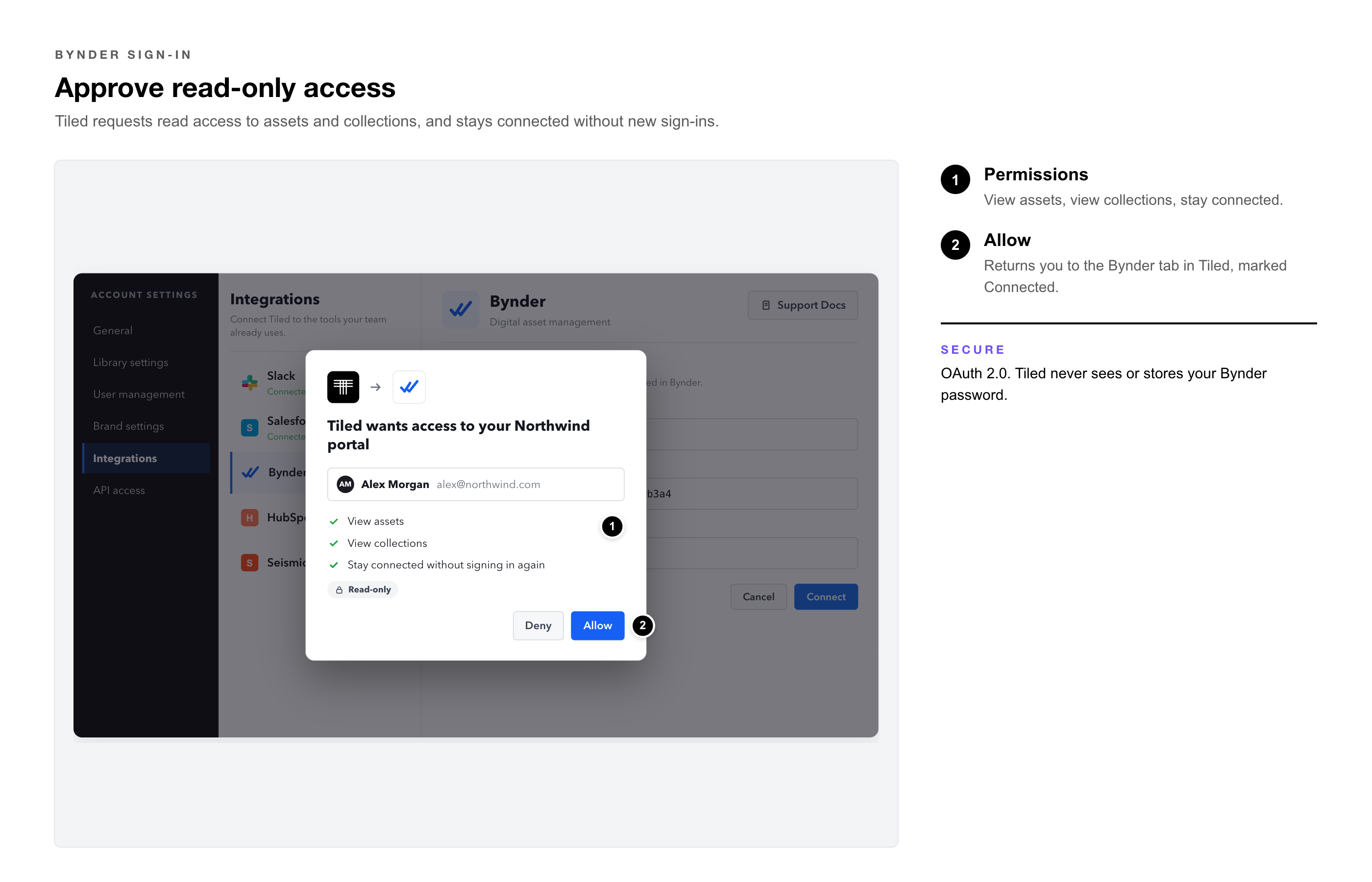
Tiled redirects to Bynder to sign in and approve access. Tiled requests read-only access to assets and collections, plus permission to maintain the connection without requiring sign-in again. After approval, Bynder redirects back to Tiled, landing on the Bynder tab of the Integrations page, and the connection is marked active.
Step 4: Choose Collections to Sync
On the Bynder tab of the Integrations page, the available Bynder collections appear directly below the connection details. Check which collections to bring into Tiled, then select Save. Each selected collection becomes its own library inside the Tiled Asset Library, marked with a Bynder badge.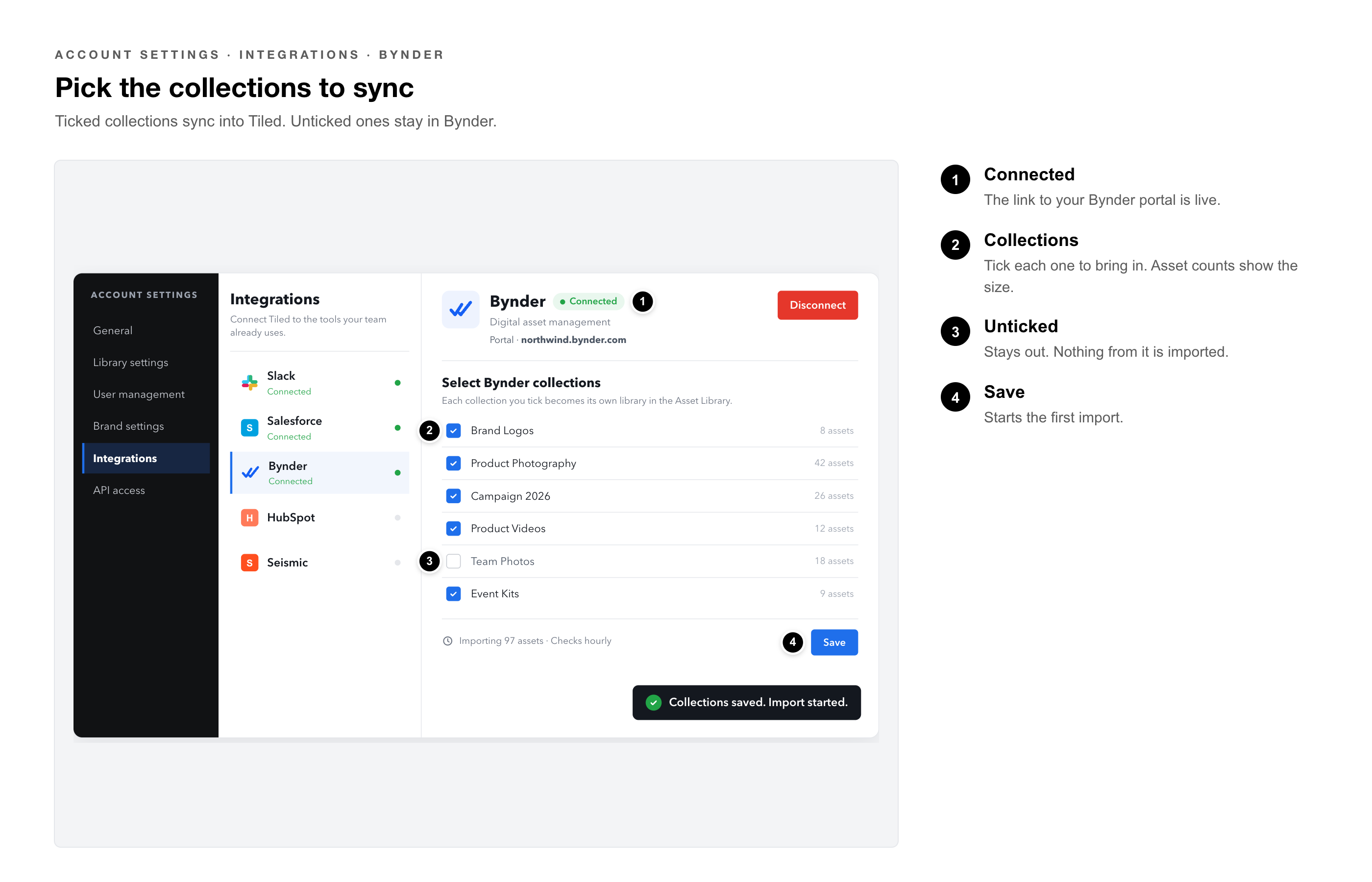
Step 5: Ongoing Sync
After a collection is selected, Tiled imports its assets. After the initial import, Tiled checks Bynder once per hour to keep the library current:
• New or updated assets in the selected collection pull into Tiled.
• Assets removed from the Bynder collection are removed from the corresponding Tiled library.
• No manual sync action is required. Sync runs automatically in the background.
Disconnecting
Disconnect Bynder at any time from Account Settings → Integrations → Bynder. Disconnecting stops future syncing. Assets already imported into Tiled remain in the Asset Library unless separately removed.
How the Integration Works
Authentication & Security
|
OAuth 2.0 authorization |
Tiled connects to Bynder using industry-standard OAuth 2.0. Tiled never sees or stores the customer’s Bynder password. |
|
Account-scoped credentials |
Each customer’s Bynder credentials are scoped to their own Tiled account and encrypted at rest. |
|
Access revocation |
Revoke access at any time from Tiled’s Integrations page or directly from the Bynder portal. |
What Gets Imported
|
Asset files |
Images, video, and other supported file types copy into Tiled’s own asset storage. Assets remain available in Tiled even if Bynder is temporarily unavailable. |
|
Bynder tags |
Tags import alongside each asset and become Tiled tags, available for search, organization, and personalization. |
|
Usage-rights metadata |
Not imported. See Governance & Brand Compliance below. |
Sync Direction
Sync runs one way: from Bynder into Tiled. Changes made in Tiled, such as renaming, re-tagging, or deleting a synced asset, do not write back to Bynder.
Personalization
Bynder-sourced assets work with Tiled’s personalization features the same way any other library’s assets do.
|
Tag-based matching |
Tags imported from Bynder match assets to a viewer’s profile or questionnaire answers automatically, enabling personalized content without manual tagging. |
|
Opt-in per library |
An admin turns on personalization for a synced Bynder collection before its assets appear in personalized microapps. |
|
AI-assisted personalization |
Once enabled, Tiled’s AI-assisted personalization draws from Bynder-sourced assets exactly as it would from any other tagged asset library. |
Governance & Brand Compliance
Bynder is often used to enforce brand and usage-rights governance. Be clear about what Tiled does and does not carry over today.
|
Current limitation: usage-rights metadata is not imported Tiled imports assets and general tags from Bynder, but does not currently import or enforce Bynder’s usage-rights, approval-status, or expiration-date metadata. If an asset is removed from a synced collection, it is removed from Tiled on the next sync. No other governance rules propagate automatically. |
Customers who rely on Bynder for usage-rights or approval workflows should continue managing those controls within Bynder. Removing an asset from the synced collection is the most reliable way to ensure it is also removed from Tiled.
AI & MCP Access
Assets synced from Bynder are available to Tiled’s AI-assisted tools.
|
What AI agents can do |
Browse, search, and use already-synced Bynder assets when building or updating microapps. |
|
What AI agents cannot do |
Search a customer’s Bynder library live, or manage the Bynder connection. Connecting, disconnecting, and changing which collections sync must be done by a person on Tiled’s Integrations page. |
|
Note: AI and MCP-based agent access to Tiled assets is available as part of Tiled’s AI tools rollout. For current availability details, contact your Tiled account team. |
Common Questions
|
Question |
Answer |
|
How often does Tiled check for new Bynder assets? |
About once per hour, automatically. No manual refresh is needed. |
|
Can I connect more than one Bynder portal? |
Each Tiled account supports one active Bynder connection at a time. |
|
What happens if access is revoked from the Bynder side? |
Sync stops. Reconnecting from Tiled’s Integrations page re-establishes the integration. |
|
Do synced assets stay in Tiled if I disconnect? |
Yes. Assets already imported remain in the Asset Library unless separately removed. Disconnecting stops future syncing. |
|
Are usage rights and expiration dates enforced in Tiled? |
Not currently. Tiled imports assets and tags but does not import or enforce Bynder’s usage-rights, approval-status, or expiration-date metadata. See Governance & Brand Compliance above. |