![logo-horizontal_w.png]](https://support.tiled.co/hs-fs/hubfs/logo-horizontal_w.png?height=30&name=logo-horizontal_w.png)
To create a microapp from a template in Tiled, open the Tiled Hub, click the blue plus (+) button, choose a template, name your microapp, and click Create microapp. This article covers two workflows: getting started from a template and updating a template after creation.
Before You Start
• Role — you need the Editor role or above to create microapps.
• Category — you’ll choose which library category the new microapp goes into, so have one in mind.
Getting Started from a Template
Choosing a Template
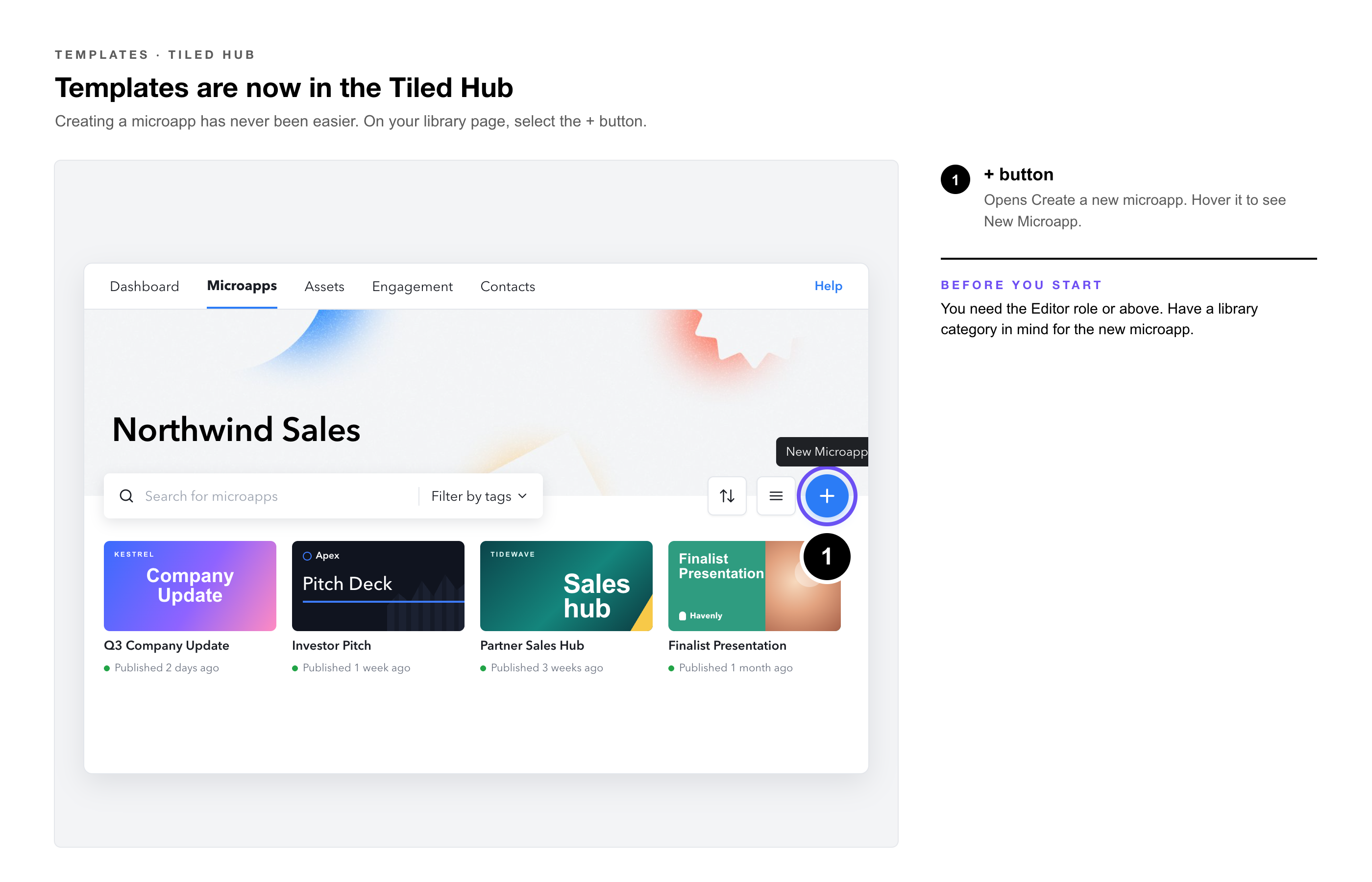
1. Select the + button — in the Tiled Hub. The Create Microapp dialog opens with the available templates.
2. Preview a template. — Hover over it and select View Template to open a full, interactive preview.
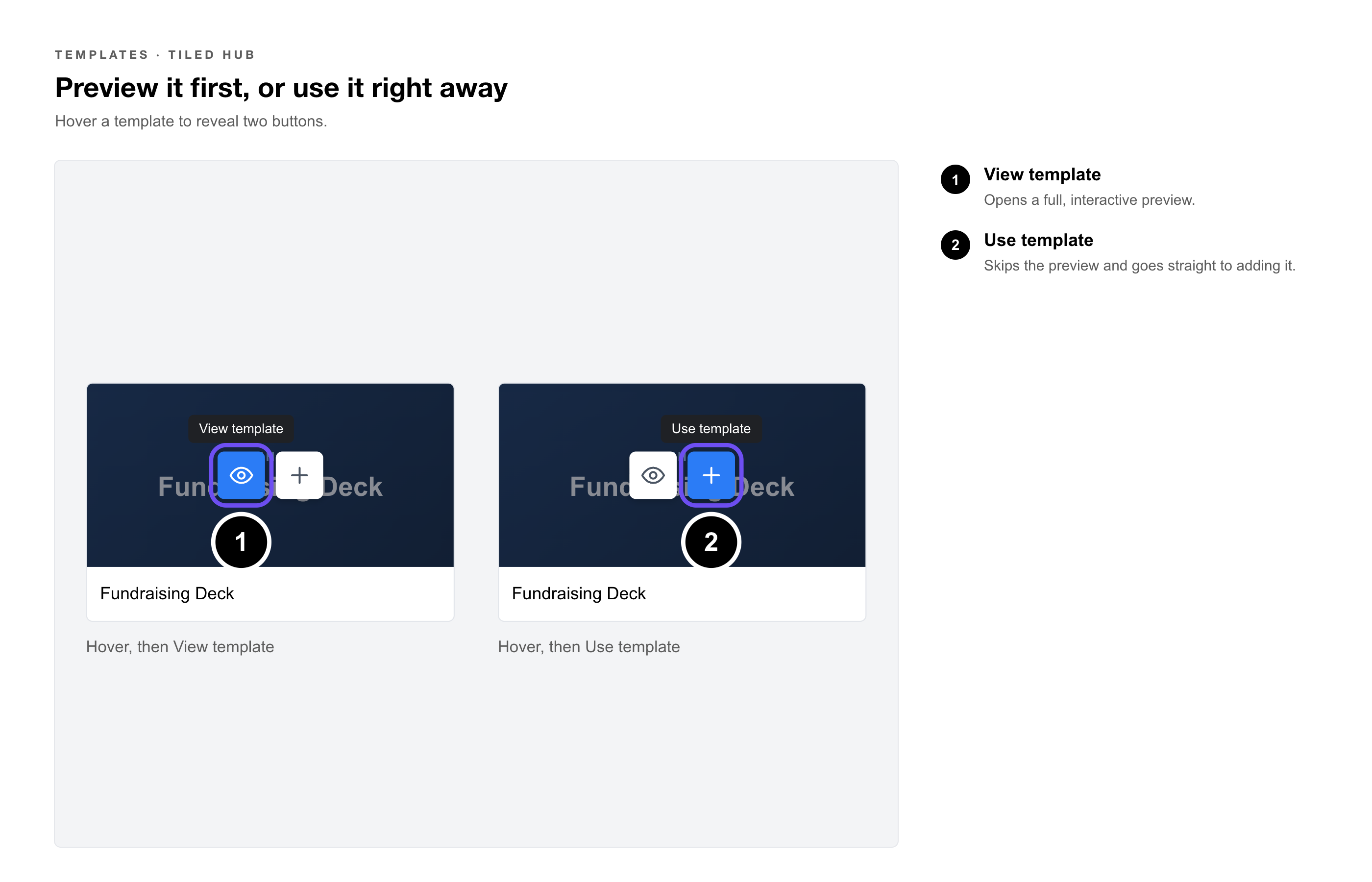
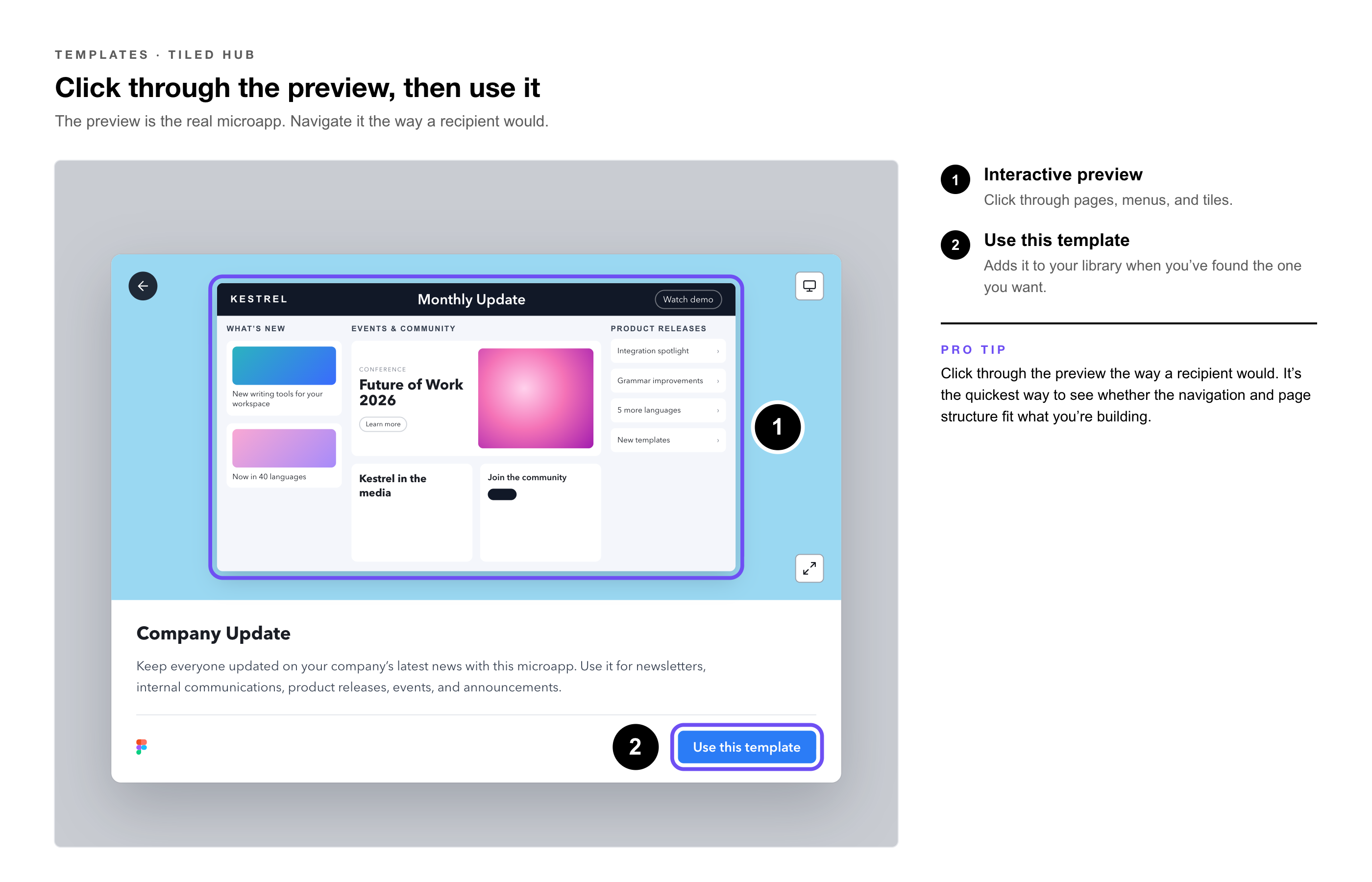
3. Select Use this template — when you’ve found the one you want. You can also select Use Template straight from the list by hovering over a template.
|
Pro Tip: Click through the preview the way a recipient would. It’s the quickest way to see whether the template’s navigation and page structure fit what you’re building, before you add it to your library. |
Adding It to Your Library
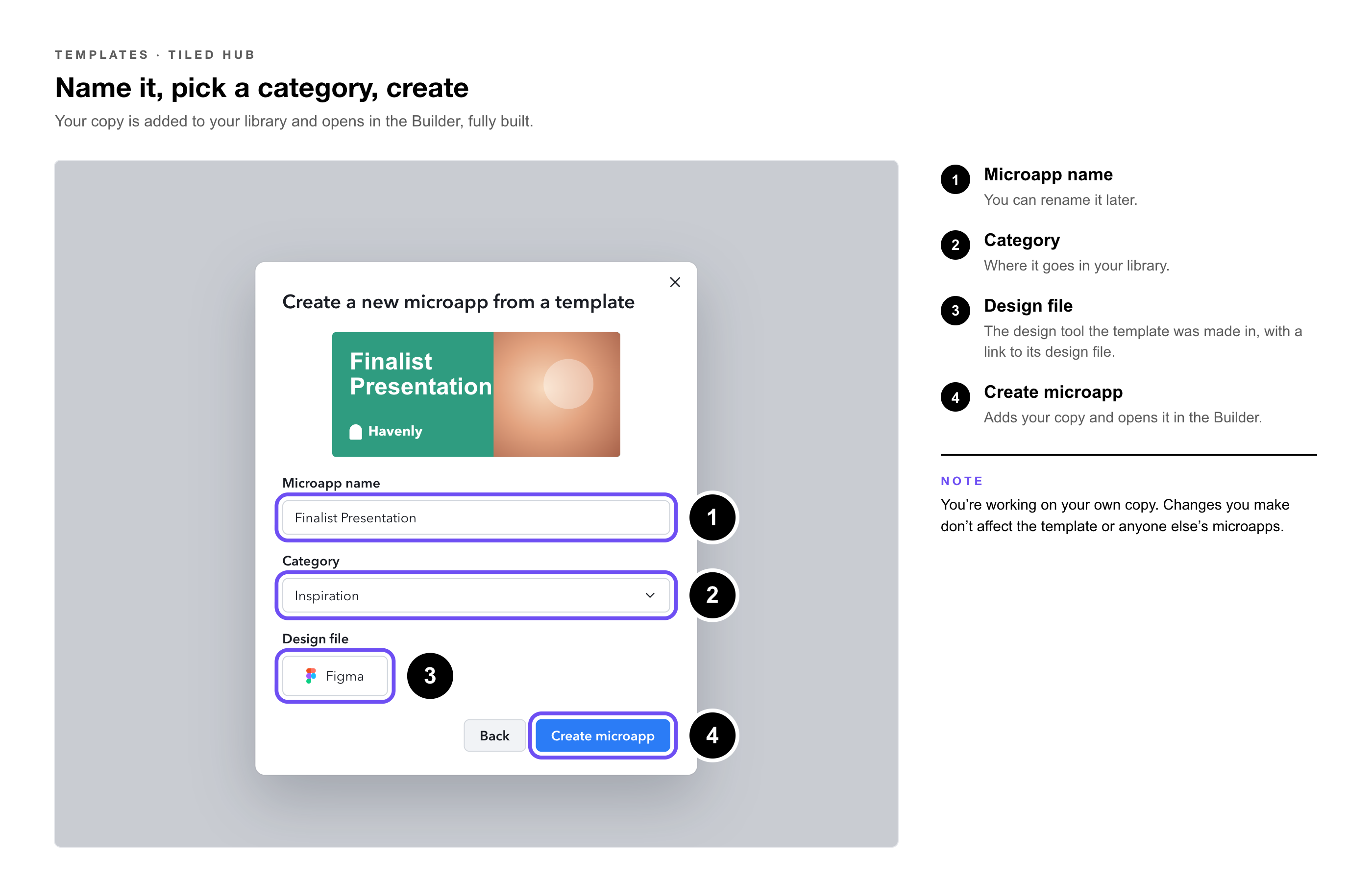
1. Name your microapp. — You can rename it later.
2. Choose a category — in your library.
3. Review the design details. — The dialog shows the design format the template was made in, along with a link to its design file.
4. Select Create microapp. — Your copy is added to your library and opens in the Builder, fully built.
|
Note: You’re working on your own copy. Changes you make don’t affect the template or anyone else’s microapps. |
Making It Yours
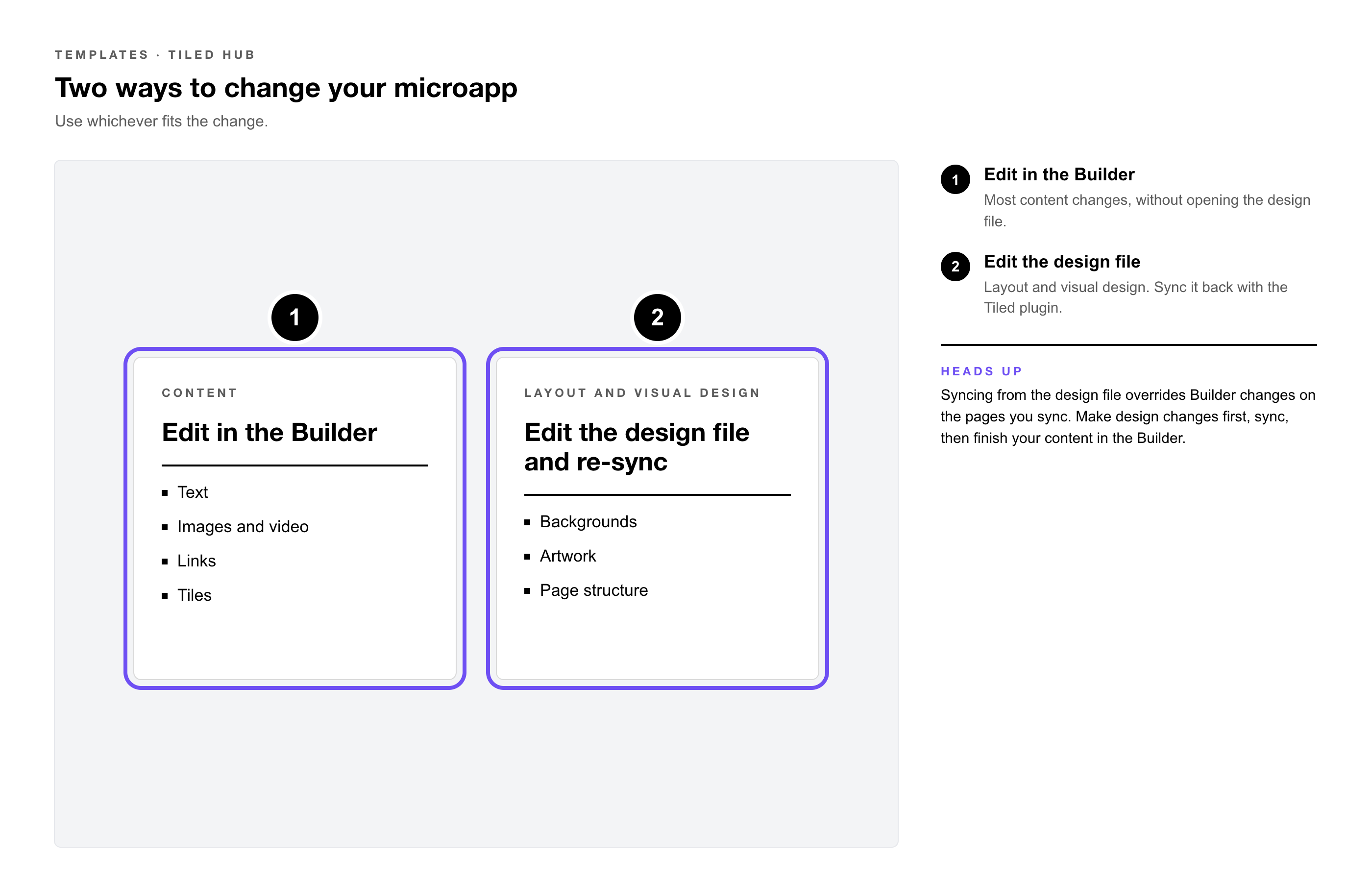
There are two ways to change a template microapp. Use whichever fits the change:
|
Approach |
Best For |
|
Edit in the Builder |
Text, images, video, links, and tiles. Most content changes can be made here without opening the design file. |
|
Edit the design file and re-sync |
Layout and visual design changes, such as backgrounds, artwork, and page structure. |
|
Heads Up: Syncing from the design file overrides changes made in the Builder on the pages you sync. Make design changes in the design file first, sync, then finish your content in the Builder. If a Builder change disappears after a sync, redo it in the design file instead. |
Finding the design file
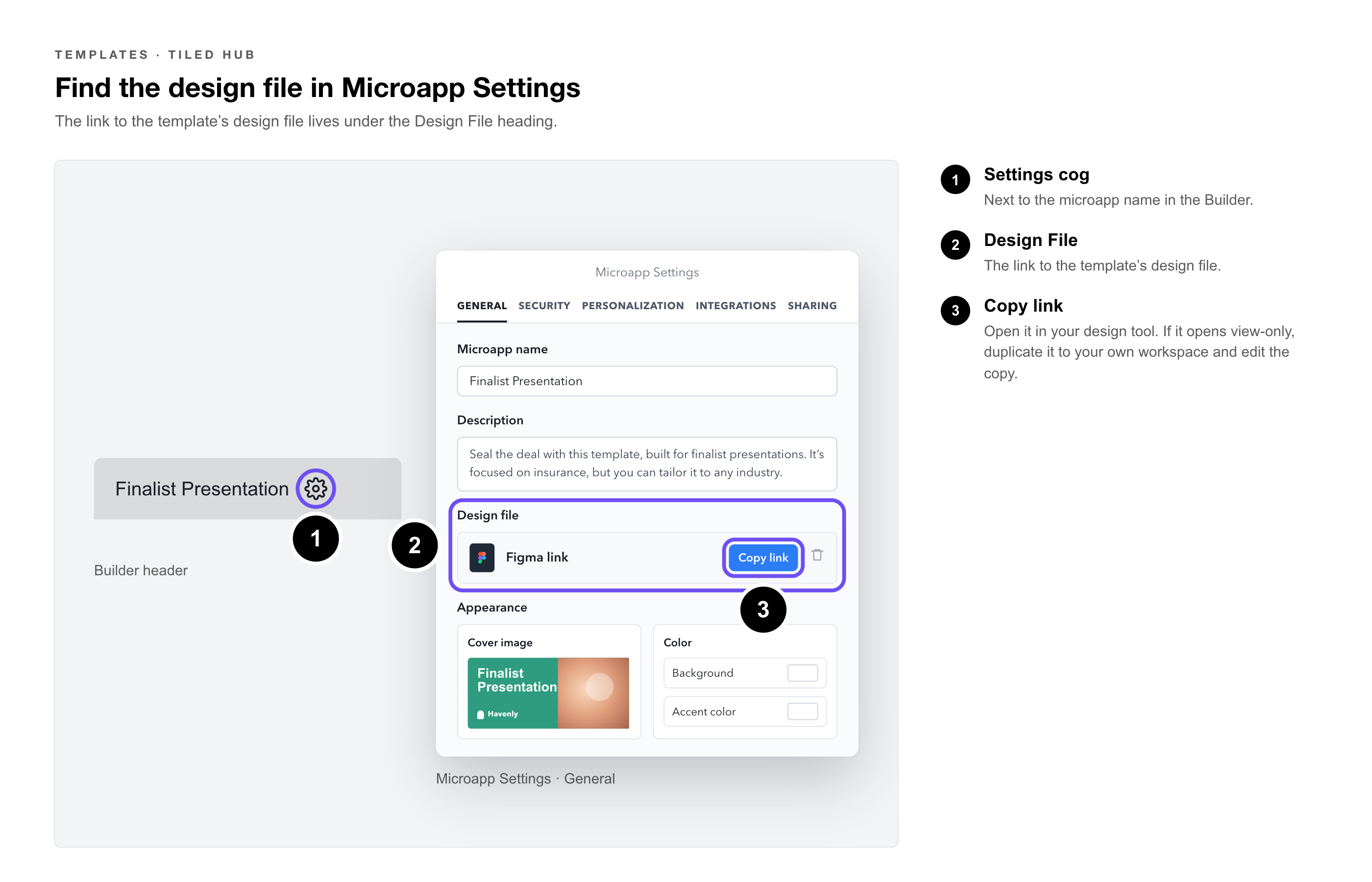
1. Open the microapp’s settings — by selecting the settings cog ⚙️ in the Builder.
2. Find the Design File heading. — The link to the template’s design file is listed there.
3. Open the design file — in your design tool. If it opens view-only, duplicate it to your own workspace and make your changes in the copy.
Syncing your changes
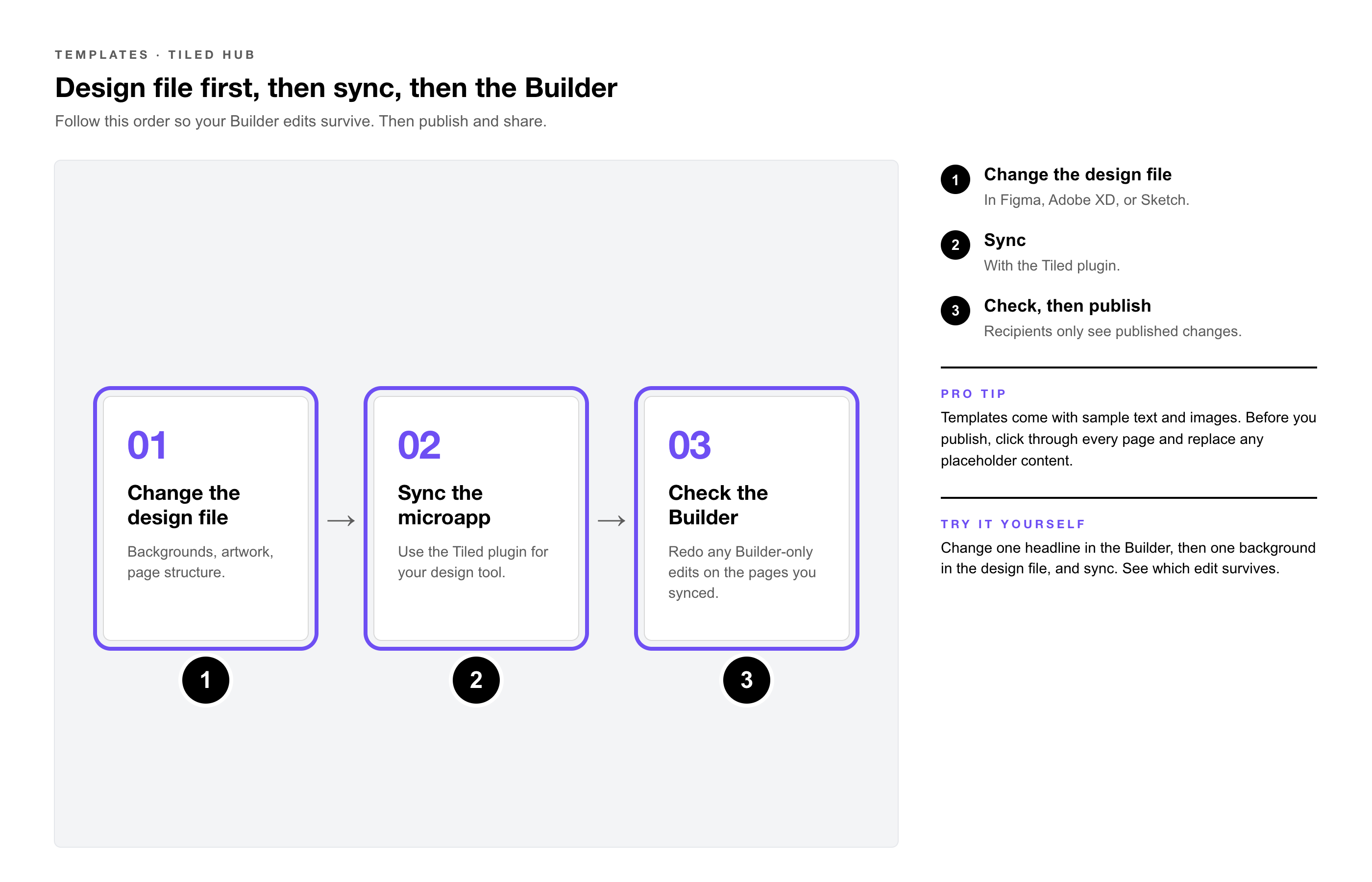
1. Make your changes — in the design file.
2. Sync the microapp — using the Tiled plugin for your design tool.
3. Check the result in the Builder — and redo any Builder-only edits on the pages you synced.
 Publishing and Sharing
When your microapp is ready, publish it, then share it. Recipients only see published changes.
|
Pro Tip: Templates come with sample text and images. Before you publish, click through every page in preview and replace anything that’s still placeholder content. |
|
Try It Yourself: Add a template to a test category, change one headline in the Builder, then change one background in the design file and sync. Seeing which edit survives the sync is the fastest way to learn the workflow. |
Common Questions
|
Question |
Answer |
|
Who can create a microapp from a template? |
Anyone with the Editor role or above. |
|
Does editing my microapp change the template? |
No. Creating from a template gives you your own copy in your library. |
|
Can I see a template before I use it? |
Yes. Hover over it and select View Template for a full, interactive preview. |
|
Do I have to use the design file? |
No. You can make all your changes in the Builder. The design file is useful for layout and visual design changes. |
|
Where do I find the design file later? |
Open the microapp’s settings from the cog in the Builder and look under the Design File heading. |
|
My Builder changes disappeared after I synced. |
Syncing from the design file overrides Builder changes on the pages you sync. Make those changes in the design file, or redo them in the Builder after syncing. |
Related Articles
• Syncing Designs With the Tiled Plugin — Installing the plugin and syncing from your design tool.
• Publish a Microapp — Making your changes live for recipients.
• Using the Share Form — Every way to share a microapp.
• Direct Share Links — Sharing with a specific person.
• Create an Adaptive Format Microapp — Adding layouts for other screen sizes.
• Account Settings: Roles — What each role can do, including who can create microapps.