![logo-horizontal_w.png]](https://support.tiled.co/hs-fs/hubfs/logo-horizontal_w.png?height=30&name=logo-horizontal_w.png)
Overview
Microapp page aggregation data is now exportable as a CSV file. When viewing page-level analytics for a microapp, an Export CSV option requests the data for a specific date range. The export processes in the background and is delivered to the requesting user by email.
How to Export Page Analytics
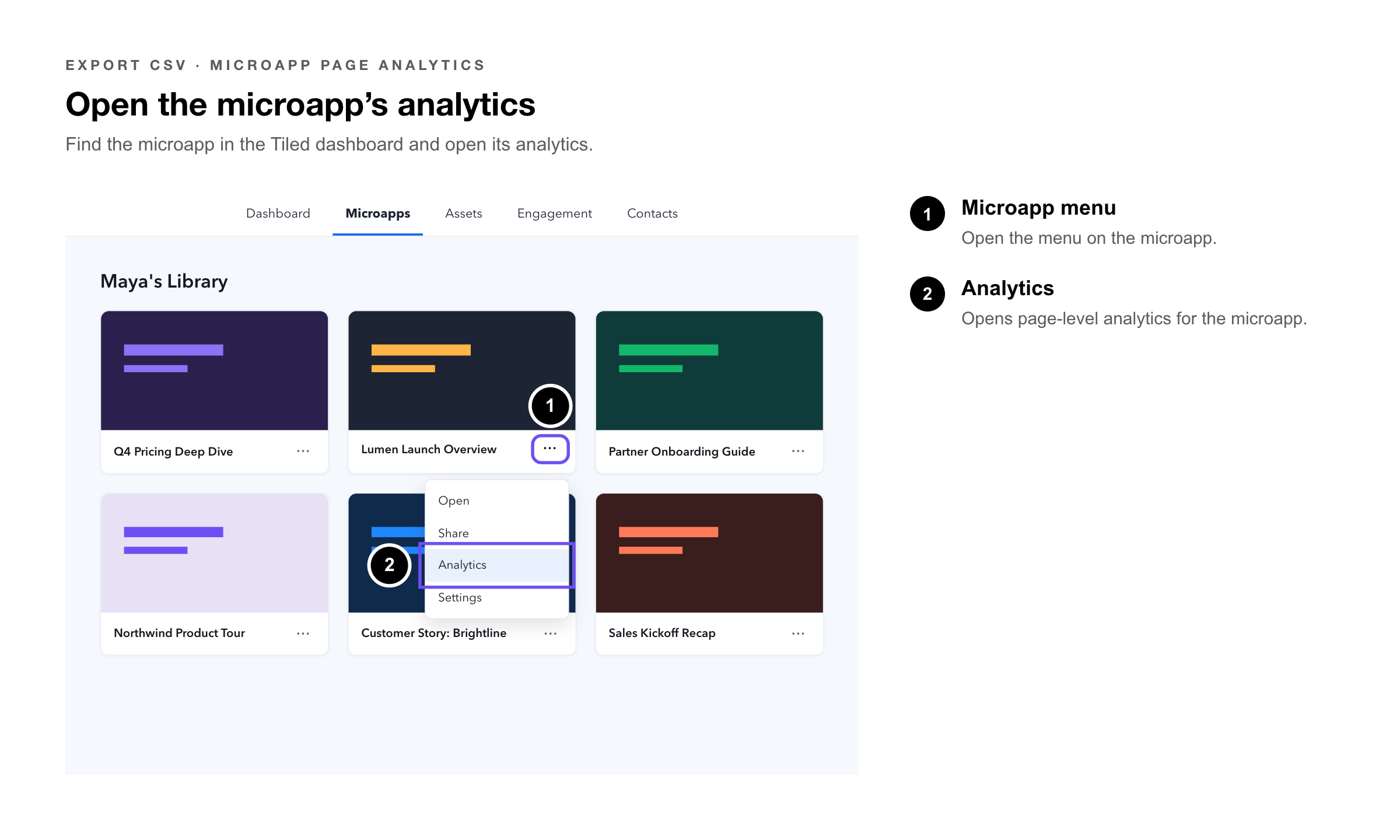
1. Open the microapp in the Tiled dashboard and navigate to its analytics.
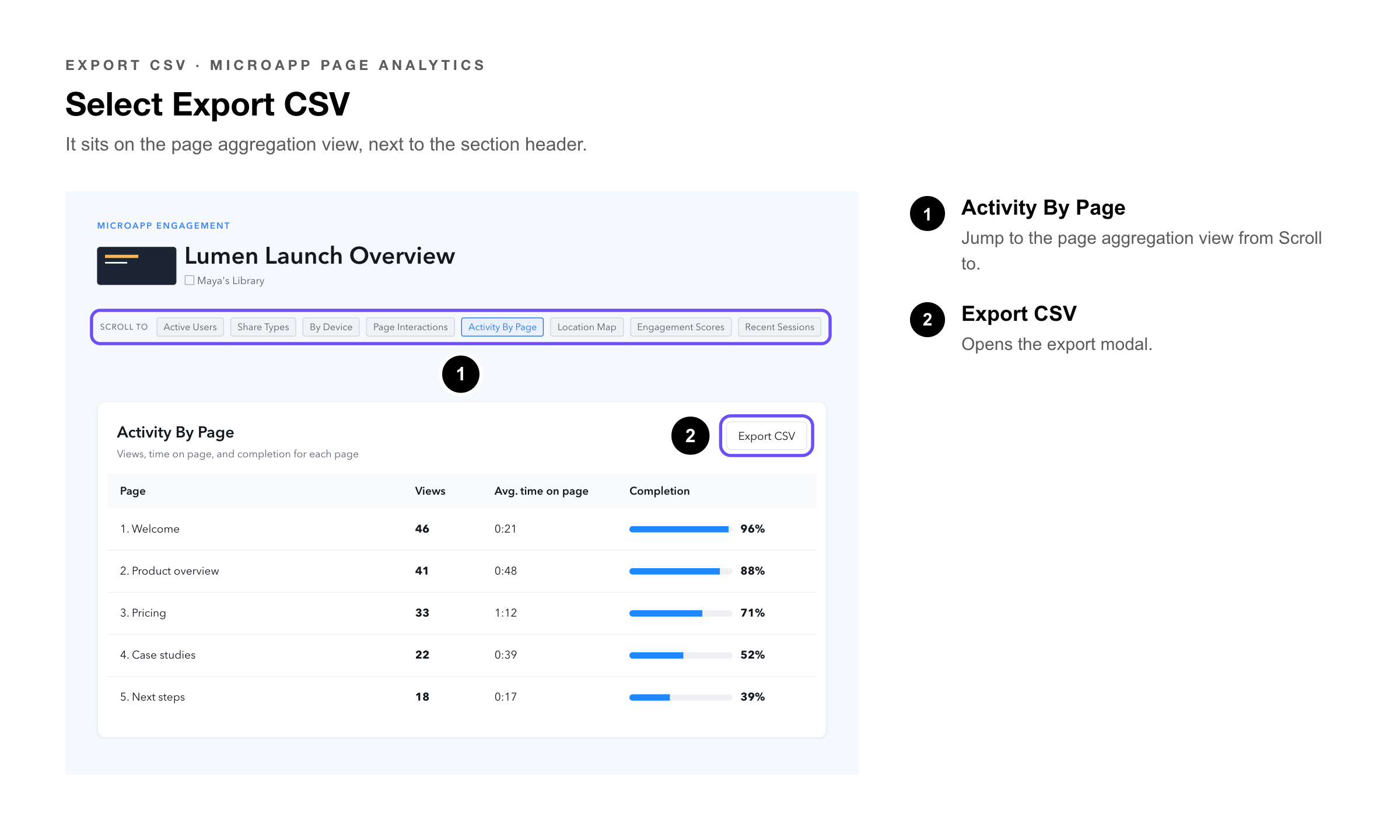
2. On the page aggregation view, select the Export CSV button.
3. In the modal that opens, set the date range for the export.
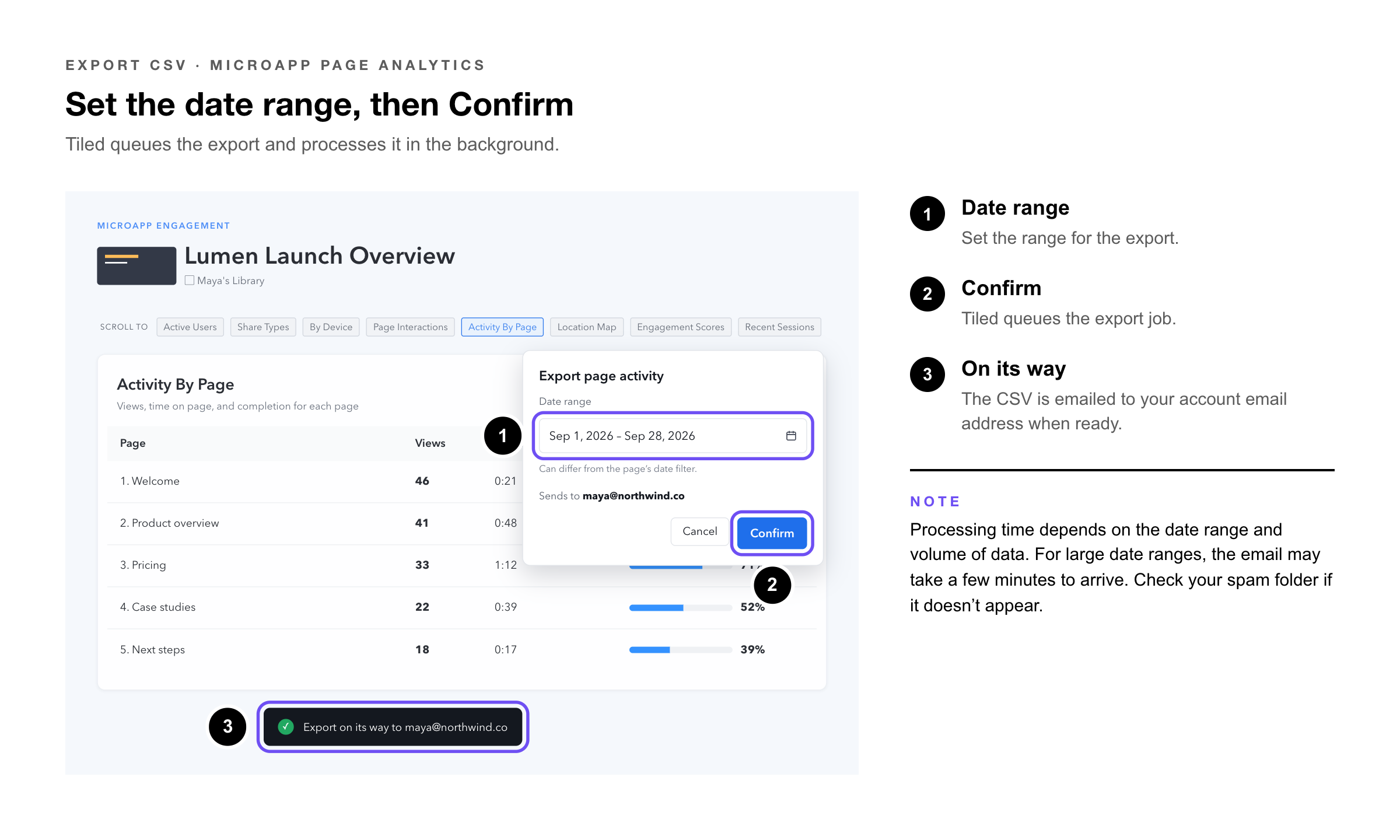
4. Select Confirm. Tiled queues the export job.
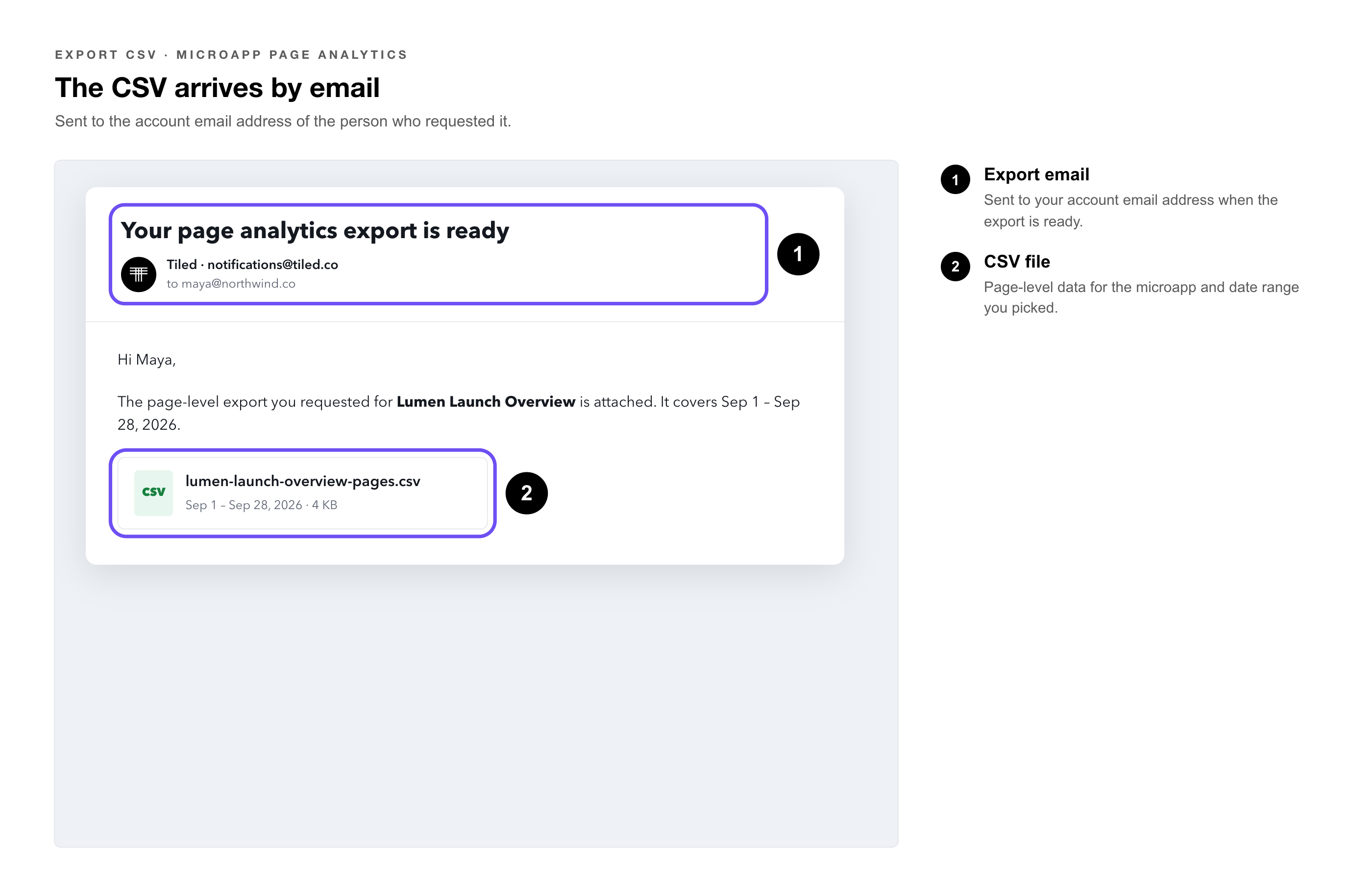
5. The CSV file is emailed to your account email address when ready.
|
Note: Export processing time depends on the date range and volume of data. For large date ranges, the email may take a few minutes to arrive. Check your spam folder if it does not appear. |
What the Export Contains
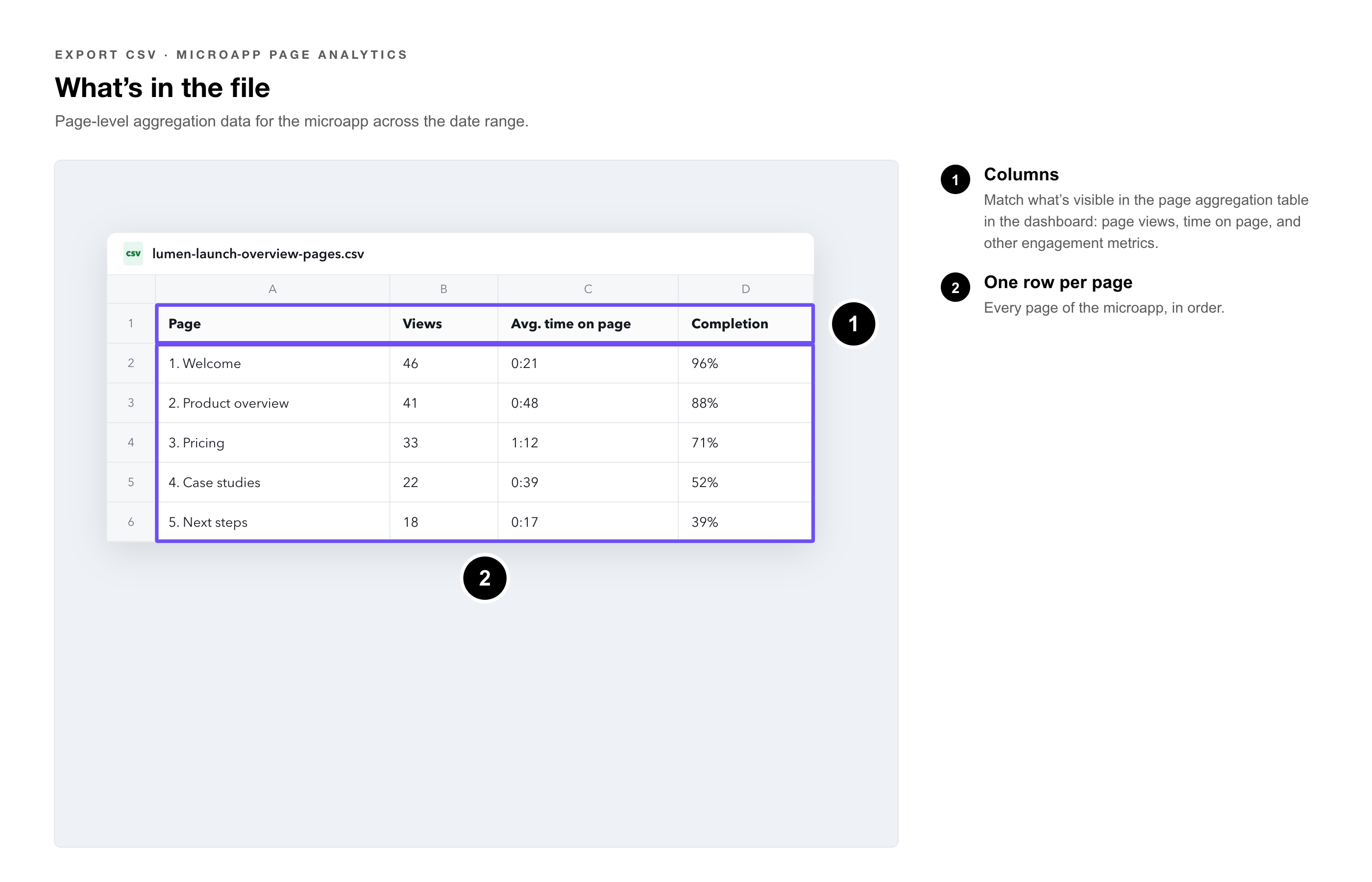
The export includes page-level aggregation data for the selected microapp across the requested date range: page views, time on page, and other engagement metrics available in the page analytics view. The exact columns match what is visible in the page aggregation table in the dashboard.