![logo-horizontal_w.png]](https://support.tiled.co/hs-fs/hubfs/logo-horizontal_w.png?height=30&name=logo-horizontal_w.png)
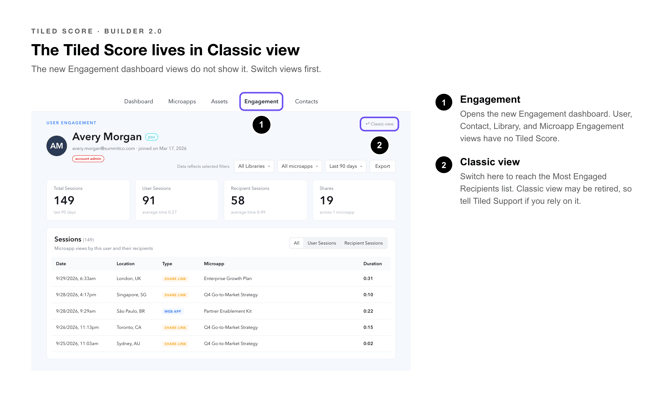
This article explains what feeds the score, how it differs from the raw score, why it drops over time, and where to find it. If you’re on Builder 2.0 with the new Engagement dashboard, the score lives in Classic view — see Where to Find the Tiled Score below.
 What the Tiled Score Measures
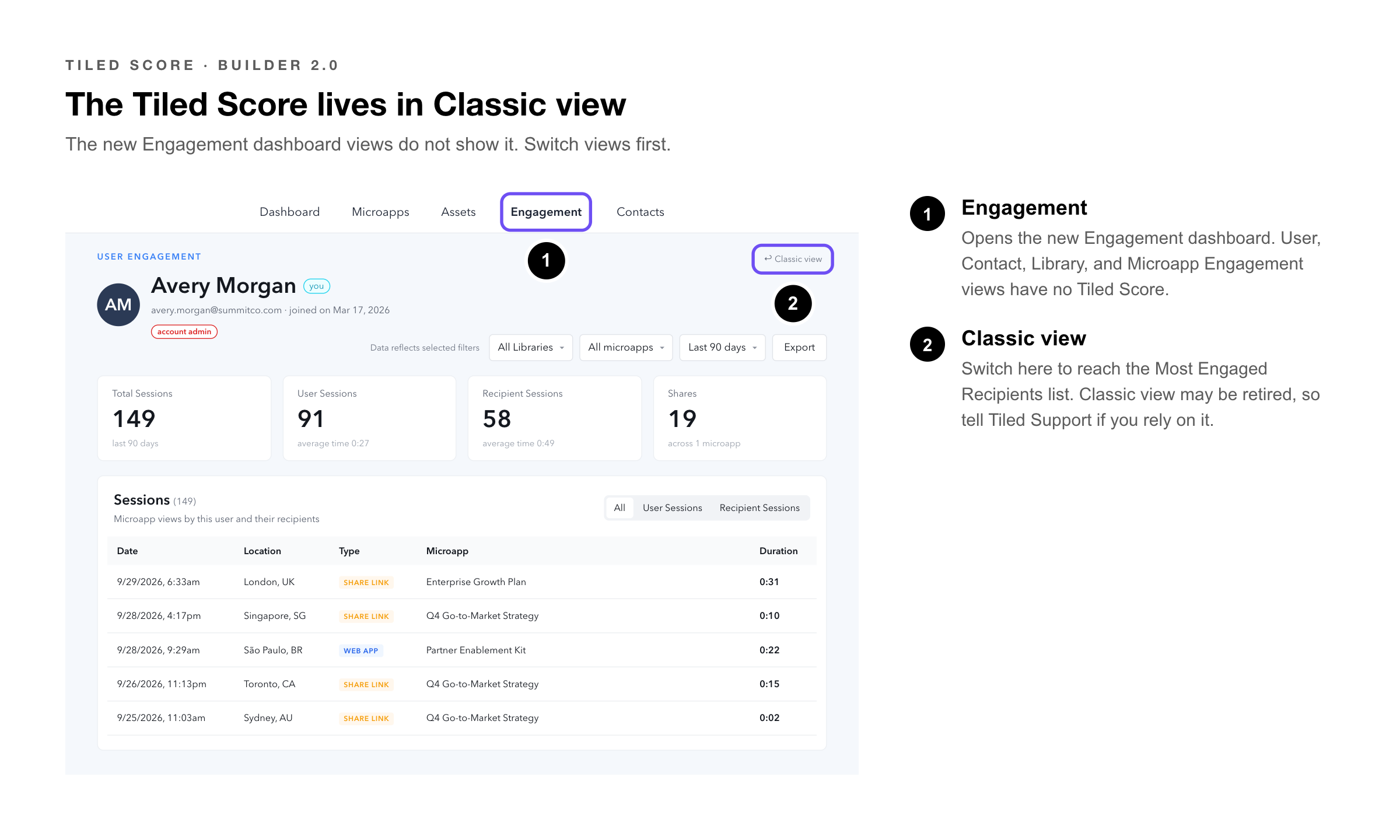
Tiled examines several activity attributes together to generate a single score for each recipient of your microapps. Four factors feed the calculation:
|
Factor |
What it contributes |
|
Number of sessions |
How many separate times the recipient opened a microapp you shared with them. Repeat visits signal sustained interest. |
|
Completion events |
How many times the recipient reached a completion event you defined in the microapp. |
|
Screens visited |
How much of the microapp the recipient actually moved through, rather than opening and leaving. |
|
Session duration |
How long the recipient spent engaging during each session. |
No single factor determines the score. A recipient who opens a microapp many times but leaves immediately will not score as highly as one who opens it once and works all the way through.
|
Pro Tip: Use the score to rank outreach, not to judge a single interaction. Its value is comparative — it tells you who to call first, not whether one particular session went well. |
Why a Score Goes Down
The Tiled Score is deliberately time-sensitive. When a recipient’s activity lapses, their score is reduced — so a contact who engaged heavily six months ago but has been quiet since will rank below a contact engaging this week.
This is what makes the score useful for prioritization. A list sorted by Tiled Score surfaces who is warm right now, rather than who was ever most engaged.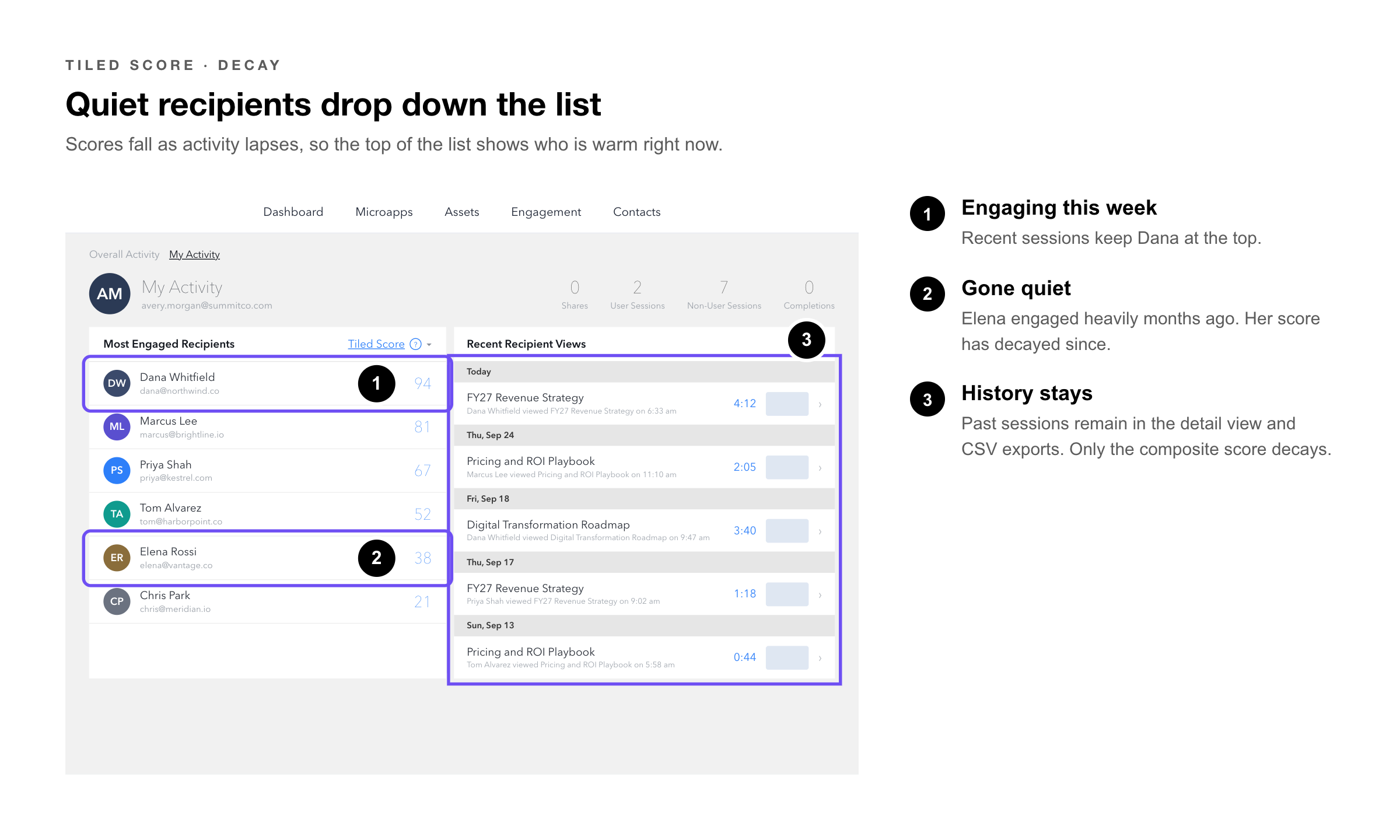
|
Heads Up: A falling score does not mean past engagement was deleted or recalculated. The underlying session data stays intact and remains visible in the recipient’s detail view and in CSV exports. Only the composite Tiled Score decays. |
Tiled Score vs. Raw Score
There are two scores, and they answer different questions. Clicking into a recipient shows the raw score for each microapp they have viewed.
|
Score |
What it is, and when to use it |
|
Tiled Score |
A composite score from 1 to 100 across all microapps shared with that recipient. Decays as activity lapses. Shown next to the recipient’s name. Use it to prioritize outreach. |
|
Raw Score |
A session engagement score for one specific microapp. Does not change over time. Shown in the recipient’s detail view, per microapp. Use it to compare how the same person engaged with different content. |
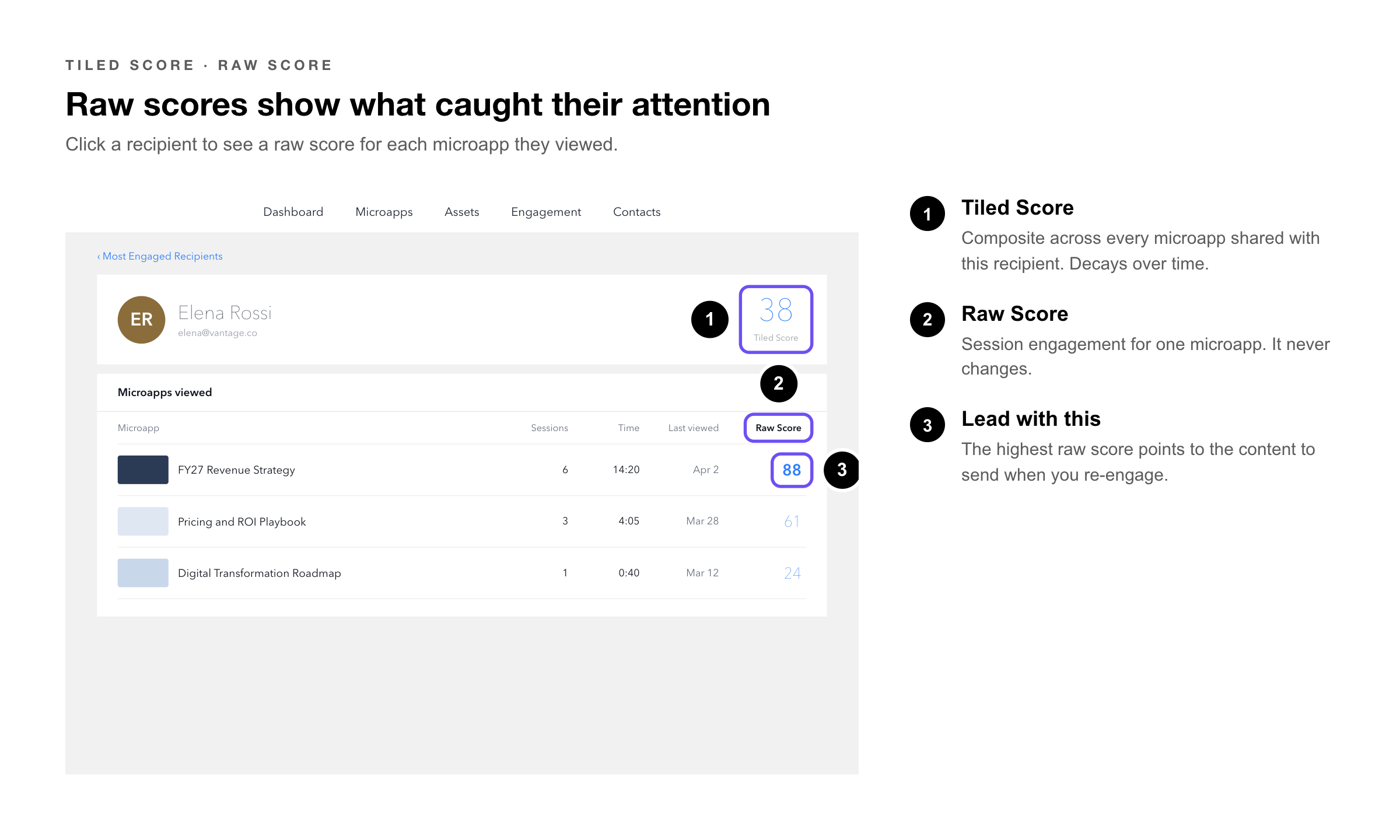 Raw scores are aggregated across the microapps a recipient views to inform the Tiled Score. The key practical difference is stability: a raw score recorded last quarter reads the same today, while the Tiled Score built partly from it will have fallen if the recipient went quiet.
|
Pro Tip: When a recipient’s Tiled Score has dropped but you want to know what originally caught their attention, open their profile and compare raw scores per microapp. The highest raw score points to the content worth leading with when you re-engage. |
Where to Find the Tiled Score
The Tiled Score lives in Classic view. Which steps you follow depends on whether your account is on the new Engagement dashboard.
Builder 2.0 with the new Engagement dashboard
The redesigned Engagement dashboard does not surface the Tiled Score in its own views. To reach the score, switch to Classic view first.
1. Click — Engagement in the navigation. The new Engagement dashboard opens.
2. Switch — to Classic view using the view selector.
3. Find — the Most Engaged Recipients list.
4. Click — the Tiled Score next to a recipient in that list. The score detail opens.
|
Heads Up: This is the step most people miss. The new Engagement dashboard has its own views — User, Contact, Library, and Microapp Engagement — but none of them show the Tiled Score. If you are looking for it in the new dashboard and cannot find it, you need Classic view. |
Builder 1.0 and Classic engagement
If your account is on the previous engagement layout, you are already in the right place — there is no view to switch.
1. Click — Engagement in the library navigation.
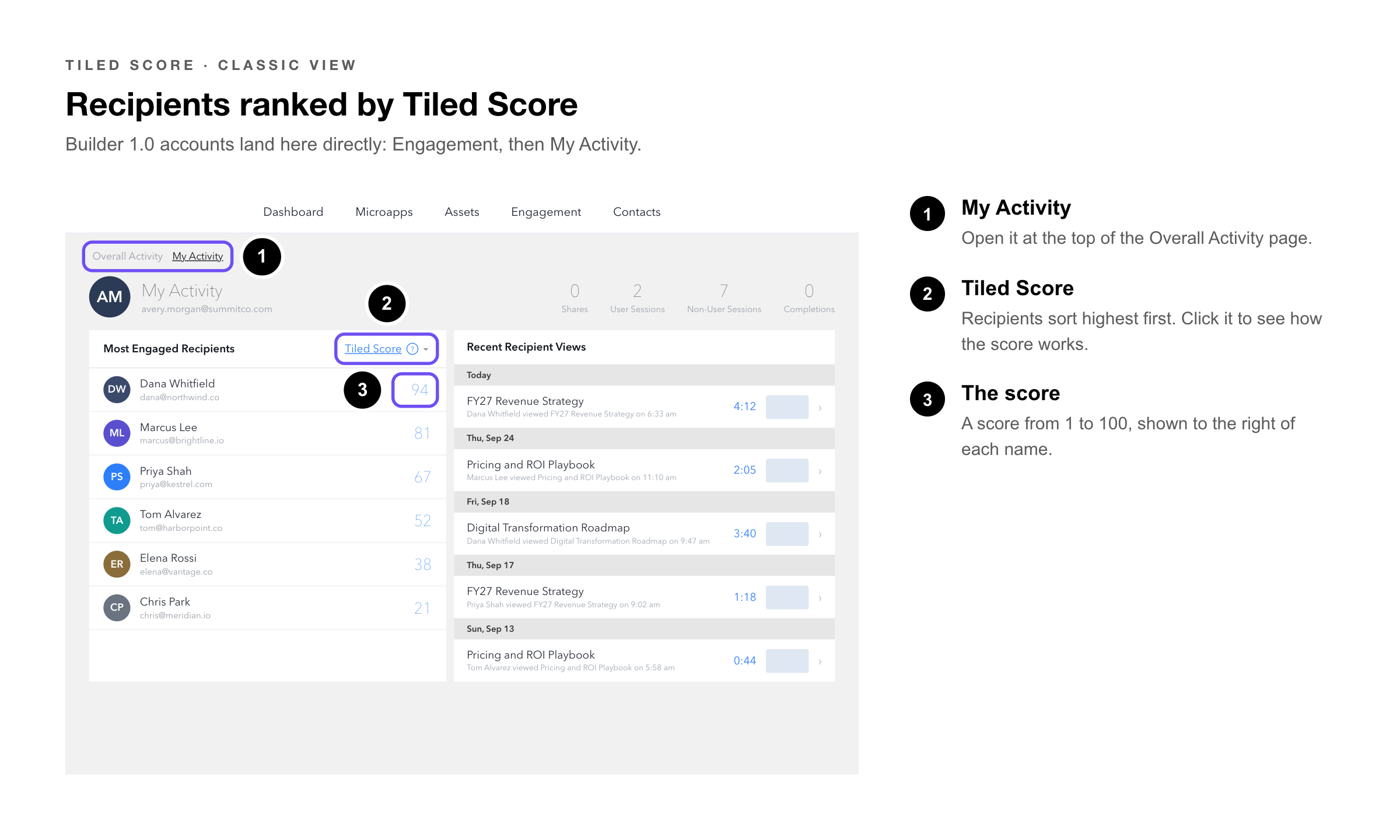
2. Click — My Activity at the top of the Overall Activity page.
3. Review — the Most Engaged Recipients list — recipients are sorted by Tiled Score in descending order, with the score shown to the right of each name.
4. Click — a recipient profile to see the raw engagement score for each microapp they have viewed.
|
Using Builder 1.0? Builder 1.0 accounts use the Classic engagement layout, so the Tiled Score is reachable directly through My Activity with no view switching. The score itself works identically in both versions — only the path to it differs. |
|
Heads Up: Classic view is a fallback and may be retired in a future release. Because the Tiled Score is currently only available there, let Tiled Support know if you rely on it — that dependency is worth tracking. |
My Activity vs. the Tiled Score
These two are easy to confuse because they sit near each other, but they answer different questions and live in different places in the new dashboard.
|
|
What it gives you |
|
Tiled Score |
A per-recipient score for prioritizing outreach. Found in Classic view, next to recipients in the Most Engaged Recipients list. Answers: which of my recipients should I follow up with first? |
|
My Activity |
Your own complete activity picture, found under User Engagement in the new dashboard. Answers: what has happened across everything I’ve shared? |
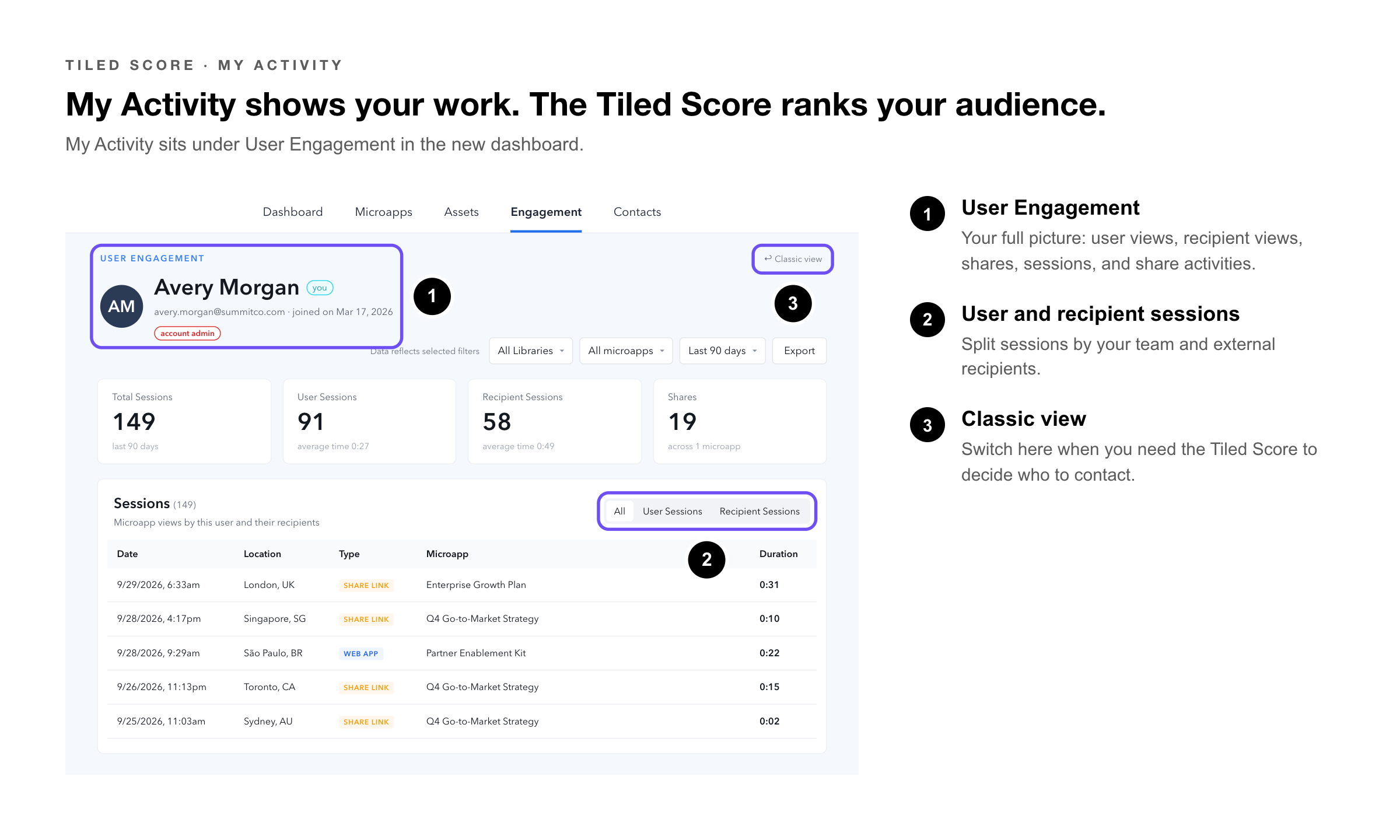 My Activity pulls together every angle of your own activity in one place rather than scoring any single recipient. It covers:
• User views — sessions from authenticated Tiled users
• Recipient views — sessions from external recipients you shared with
• Shares — the share links you have created
• Sessions — total session activity across your microapps
• Share activities — what happened on the links you sent
|
Pro Tip: Think of it as scope. My Activity is everything you did and everything that came back from it; the Tiled Score ranks the people on the other end. Start in My Activity to see the whole picture, then switch to Classic view to decide who to contact. |
Putting the Score to Work
The score is built for triage. A few ways teams use it:
• Rank a follow-up list — sort recipients by Tiled Score and work from the top. The sort already accounts for recency, so you are not chasing contacts who went cold months ago.
• Spot a cooling relationship — a contact whose score has fallen since you last checked is a prompt to re-engage before they disengage entirely.
• Choose what to send next — compare raw scores across microapps for one contact to see which content resonated, then lead with something similar.
• Qualify a warm lead — a high score on a recipient you have not spoken with directly indicates genuine self-directed interest in the material.
|
Try It Yourself: Open Contact Engagement and sort by Tiled Score. Take the top five contacts and check each one’s per-microapp raw scores. You will usually find one or two microapps doing most of the work — that is your best opening material for the rest of the list. |
Common Questions
|
Question |
Answer |
|
What is the range of the Tiled Score? |
1 to 100. The score is comparative — it is most useful for ranking recipients against each other rather than as an absolute measure of any single interaction. |
|
Why did a recipient’s score drop when they didn’t do anything? |
That is exactly why it dropped. The Tiled Score decays as activity lapses, so inactivity alone lowers it. This is intentional — it keeps a score-sorted list focused on who is currently engaged. |
|
Does a falling Tiled Score mean I lost the underlying data? |
No. Session history, completion events, and raw scores are all preserved and remain visible in the recipient detail view and in CSV exports. Only the composite score decays. |
|
What’s the difference between the Tiled Score and the raw score? |
The Tiled Score is a composite across all microapps shared with a recipient and changes over time. The raw score is per microapp, reflects session engagement, and never changes. Raw scores are aggregated to inform the Tiled Score. |
|
Where does the Tiled Score appear in a CSV export? |
In the Engagement Score column of the standard engagement CSV export. See the CSV Export article for the full field list. |
|
I’m on the new Engagement dashboard and can’t find the Tiled Score. Where is it? |
Switch to Classic view. The new dashboard’s views — User, Contact, Library, and Microapp Engagement — do not display the Tiled Score. In Classic view, click the Tiled Score next to a recipient in the Most Engaged Recipients list. |
|
What’s the difference between My Activity and the Tiled Score? |
My Activity, under User Engagement, shows your own full activity picture — user views, recipient views, shares, sessions, and share activities. The Tiled Score, in Classic view, scores individual recipients so you can rank who to follow up with. One is your activity; the other ranks your audience. |
|
Does the Tiled Score work differently in Builder 1.0 and Builder 2.0? |
The score itself is calculated the same way in both. Only the path differs: Builder 1.0 accounts on Classic engagement reach it directly through My Activity, while Builder 2.0 accounts on the new dashboard must switch to Classic view first. |
Related Articles
• Engagement: My Activity — The Classic view section where most engaged recipients and their scores are listed.
• How to Use the Engagement Analytics Dashboard — The four engagement views and how to navigate between them.
• Engagement: Microapp Analytics — Per-microapp engagement data including page-level activity.
• Export Engagement Analytics: CSV — Exporting engagement data, including the Engagement Score field.
• Direct Share Links — How recipients are identified so their engagement can be scored.