![logo-horizontal_w.png]](https://support.tiled.co/hs-fs/hubfs/logo-horizontal_w.png?height=30&name=logo-horizontal_w.png)
Overview
Asset tagging adds searchable labels to the assets in your Tiled library. Tagging is available by default, any asset can be tagged manually at any time, without any admin setup. What administrators control is AI-assisted tagging: turning it on runs a job that automatically tags your existing library and continues tagging new assets going forward.
|
Note: Manual tagging requires no setup. AI-assisted tagging is the only piece that needs to be turned on by an Administrator. |
Why Use Tags
• Large asset libraries: narrow hundreds of assets down to the handful that fit what you're building.
• Consistency across a team: a governed tag list keeps everyone labeling assets the same way instead of inventing their own terms.
• Faster assembly: filtering by tag in the asset picker removes the scroll-and-hunt step during a build.
Manual Tagging
Any user with access to the Asset Library can add tags to an asset directly, using whatever terms fit how your team searches. No account setting needs to be turned on first.
AI-Assisted Tagging (Administrators)
AI-assisted tagging is an optional account setting. Turning it on tells Tiled to analyze your asset library and tag assets automatically.
1. Go to Admin Settings > Assets.
2. Locate the AI-assisted tagging setting.
3. Enable it for your account.
Once enabled, a job runs that tags all existing assets in the library. Depending on library size, this job can take a while to work through everything. New assets added after enabling are tagged automatically as they come in.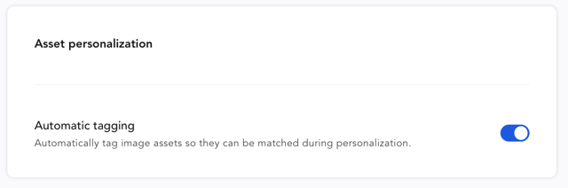
|
Note: AI capabilities in Tiled are enabled individually, by feature, not as a single account-wide switch. Turning on AI-assisted tagging applies to asset tagging only. It does not enable other AI capabilities elsewhere in your account, which are managed separately. |
Reviewing and Removing AI-Assigned Tags
AI-assigned tags are applied automatically rather than held for approval first. If a tag doesn't fit, remove it directly from the asset.
To prevent a specific tag from being used in auto-tagging going forward, add it to the tag blacklist (covered below). Blacklisting a tag stops it from being applied to any asset, including ones already tagged with it going forward.
Tag Management (Administrators)
The Tag Management screen includes two sections for administrators managing AI-assisted tagging:
|
Personalized tags |
Tags associated with personalized content. This section can take a moment to load. If it briefly shows no tags, wait for the list to populate rather than assuming none exist. |
|
Tag blacklist |
Tags you never want applied through auto-tagging. Add a tag here to exclude it from AI-assisted tagging going forward. |
|
Tip: Agree on a small starting vocabulary before you tag at scale. A focused set of tags people actually use beats a sprawling list where three tags mean the same thing. |
Filtering by Tag
Tag filters appear in two places: when adding an asset in the Builder, and when personalizing a microapp.
In the Builder
4. Open a microapp in the Builder.
5. Select or add an image or video tile.
6. Open the asset picker.
7. Use the tag filter to narrow the asset list to the tags you're looking for.
While Personalizing
The same tag filter is available when selecting an asset for a personalized field, letting you narrow the picker to assets tagged for that use case.
Common Questions
|
Question |
Answer |
|
Do I need to enable anything to tag assets manually? |
No. Manual tagging is available by default. Any user with Asset Library access can tag an asset without any account setting being turned on first. |
|
What does the Administrator setting actually turn on? |
It turns on AI-assisted tagging: Tiled automatically tagging your existing and new assets. It does not gate manual tagging or tag filtering, both of which work without it. |
|
Can I review AI-suggested tags before they're applied? |
No. AI-assigned tags apply automatically rather than waiting for approval. You can remove a tag from an asset after the fact, and you can blacklist a tag to prevent it from being used in auto-tagging going forward. |
|
Does enabling AI-assisted tagging turn on other AI features in Tiled? |
No. AI capabilities are enabled per feature rather than through a single account-wide toggle. Enabling AI-assisted tagging affects asset tagging only. |
|
Why does the Personalized tags section look empty right after I open it? |
This section can take a moment to load. Wait briefly before assuming no tags exist. |
|
How do I stop a specific tag from being used going forward? |
Add it to the tag blacklist in Tag Management. Blacklisted tags are excluded from AI-assisted tagging going forward. |