![logo-horizontal_w.png]](https://support.tiled.co/hs-fs/hubfs/logo-horizontal_w.png?height=30&name=logo-horizontal_w.png)
PDF Tile vs. Converting a PDF Into Pages
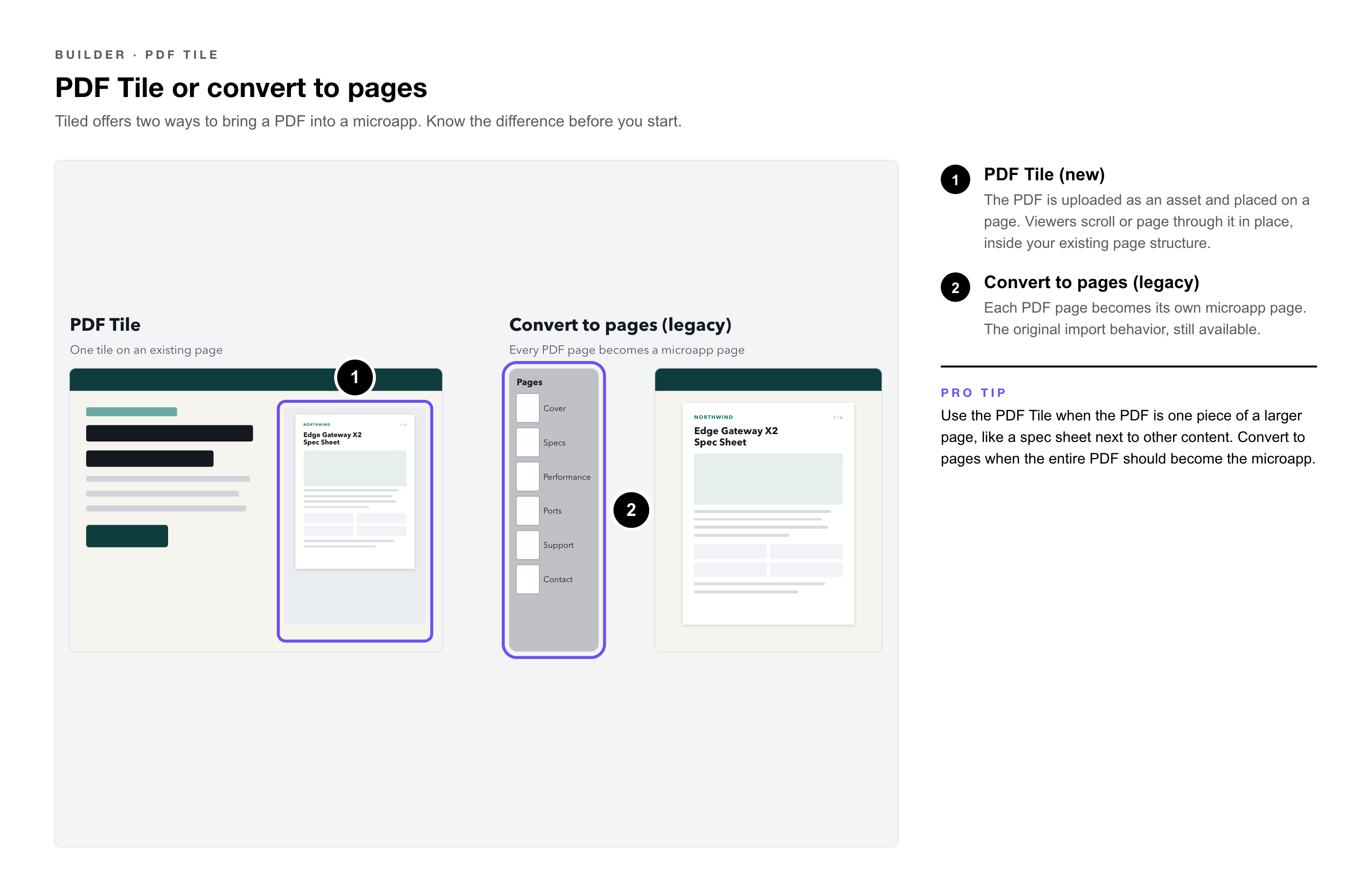
Tiled now offers two different ways to bring a PDF into a microapp, and it’s worth knowing the difference before you start:
|
Method |
What Happens |
|
PDF Tile (new) |
The PDF is uploaded as an asset and placed on a page using the PDF Tile. Viewers scroll or page through it in place, without leaving your microapp's existing page structure. |
|
Convert to pages (legacy) |
Each page of the PDF becomes its own microapp page. This is the original PDF import behavior and is still available. See Create a Microapp from a PDF. |
|
Pro Tip: Use the PDF Tile when the PDF is one piece of a larger page, like a spec sheet next to other content. Use the legacy page-conversion option when the entire PDF should become the microapp itself. |
Adding a PDF Tile
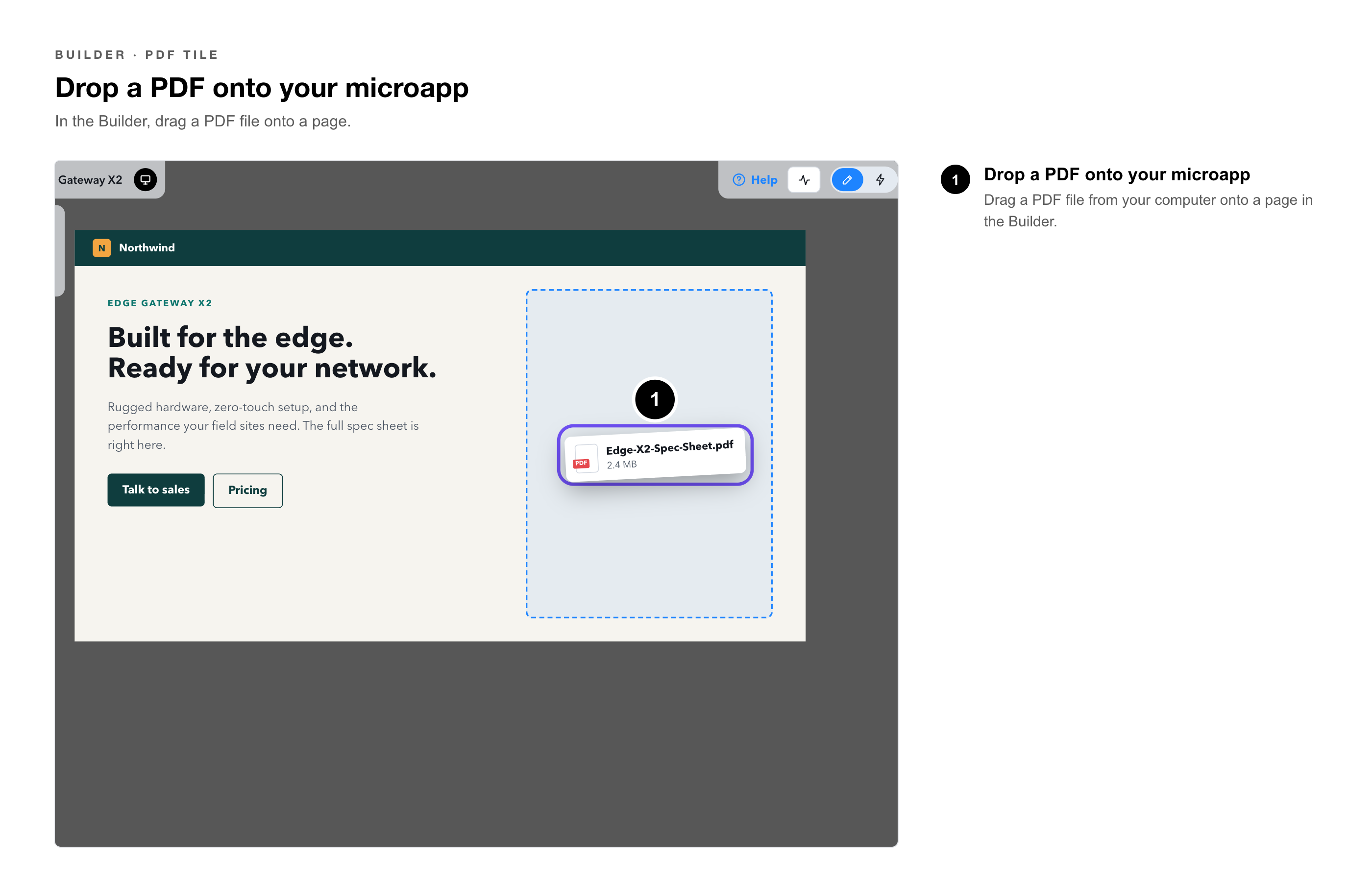
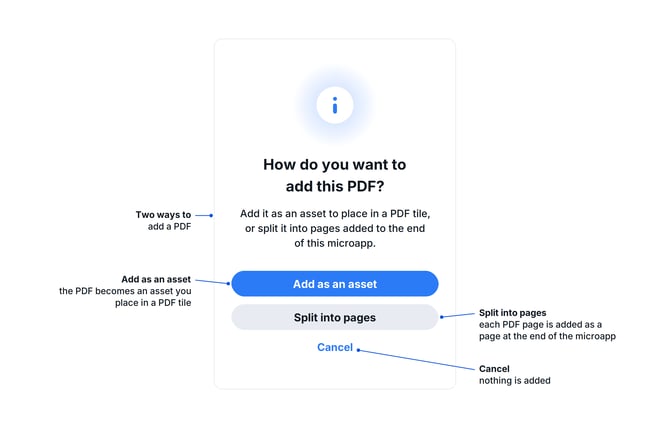
1. Drop a PDF onto your microapp — drag a PDF file onto a page in the Builder.
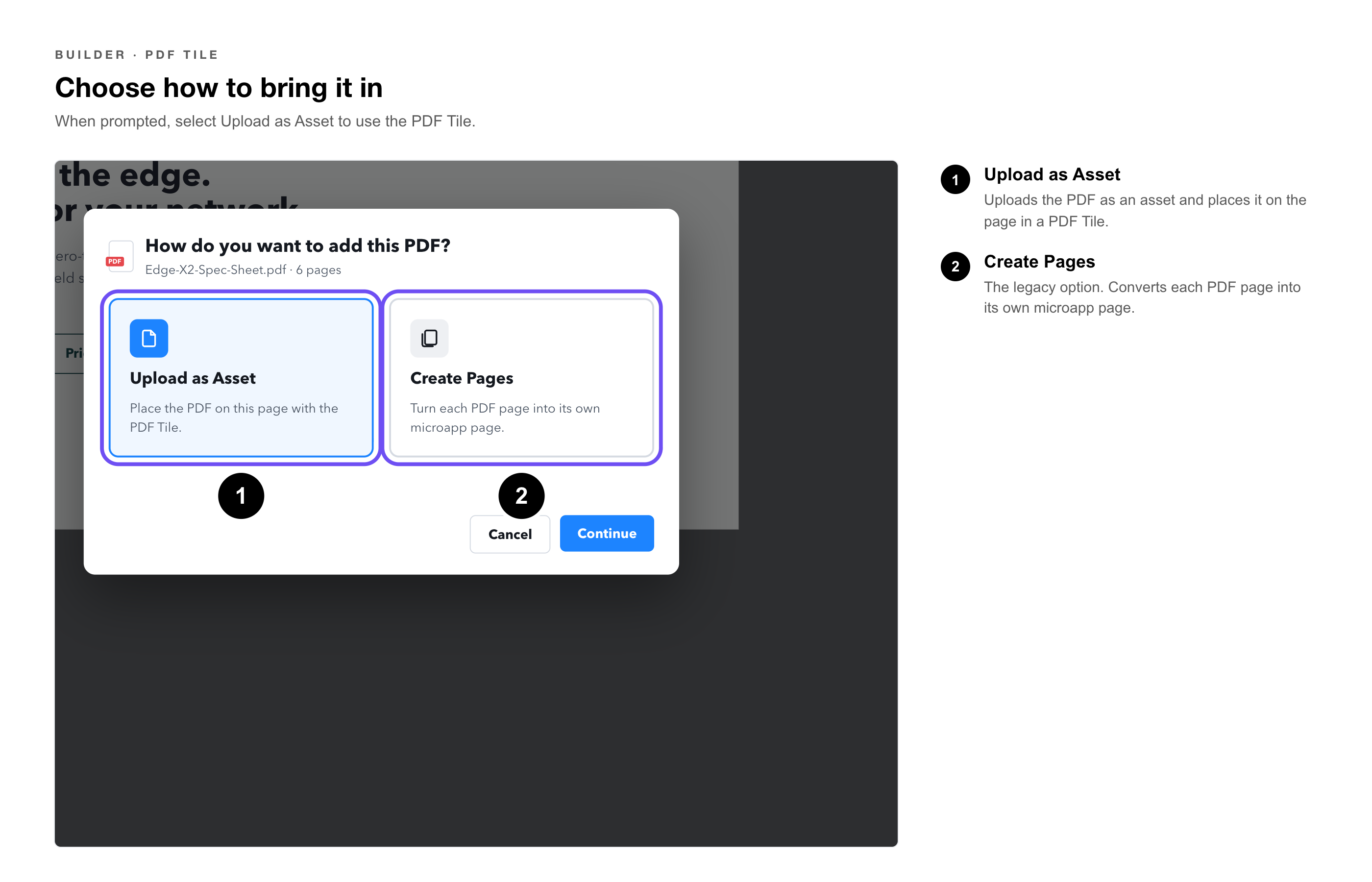
2. Choose how to bring it in — when prompted, select Upload as Asset to use the PDF Tile, instead of the legacy Create Pages option.
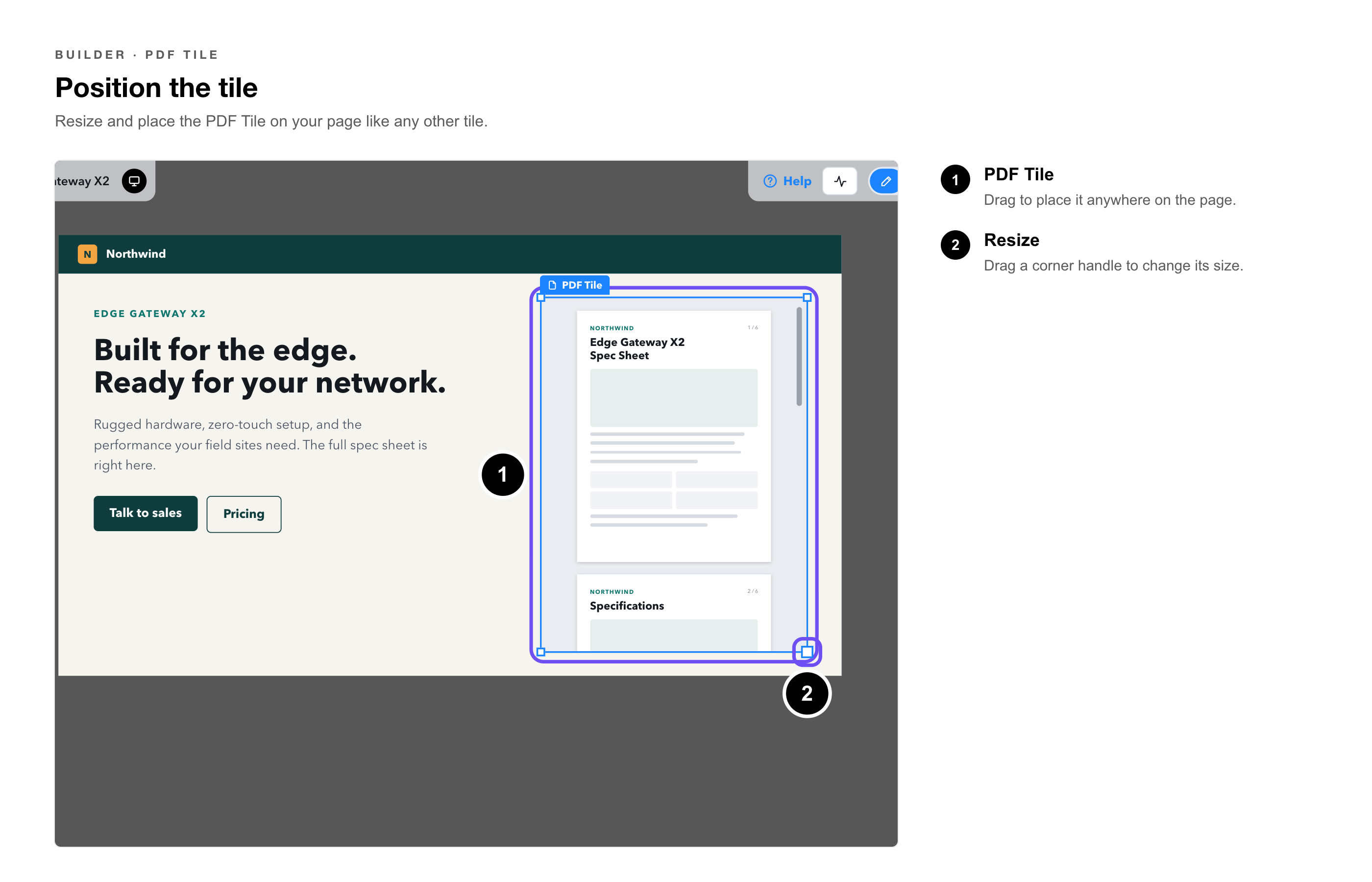
3. Position the tile — resize and place the PDF Tile on your page like any other tile.
PDF Tile Display Settings
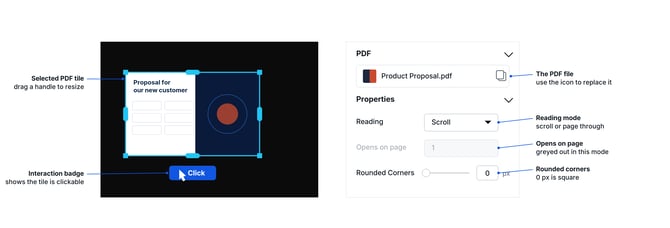
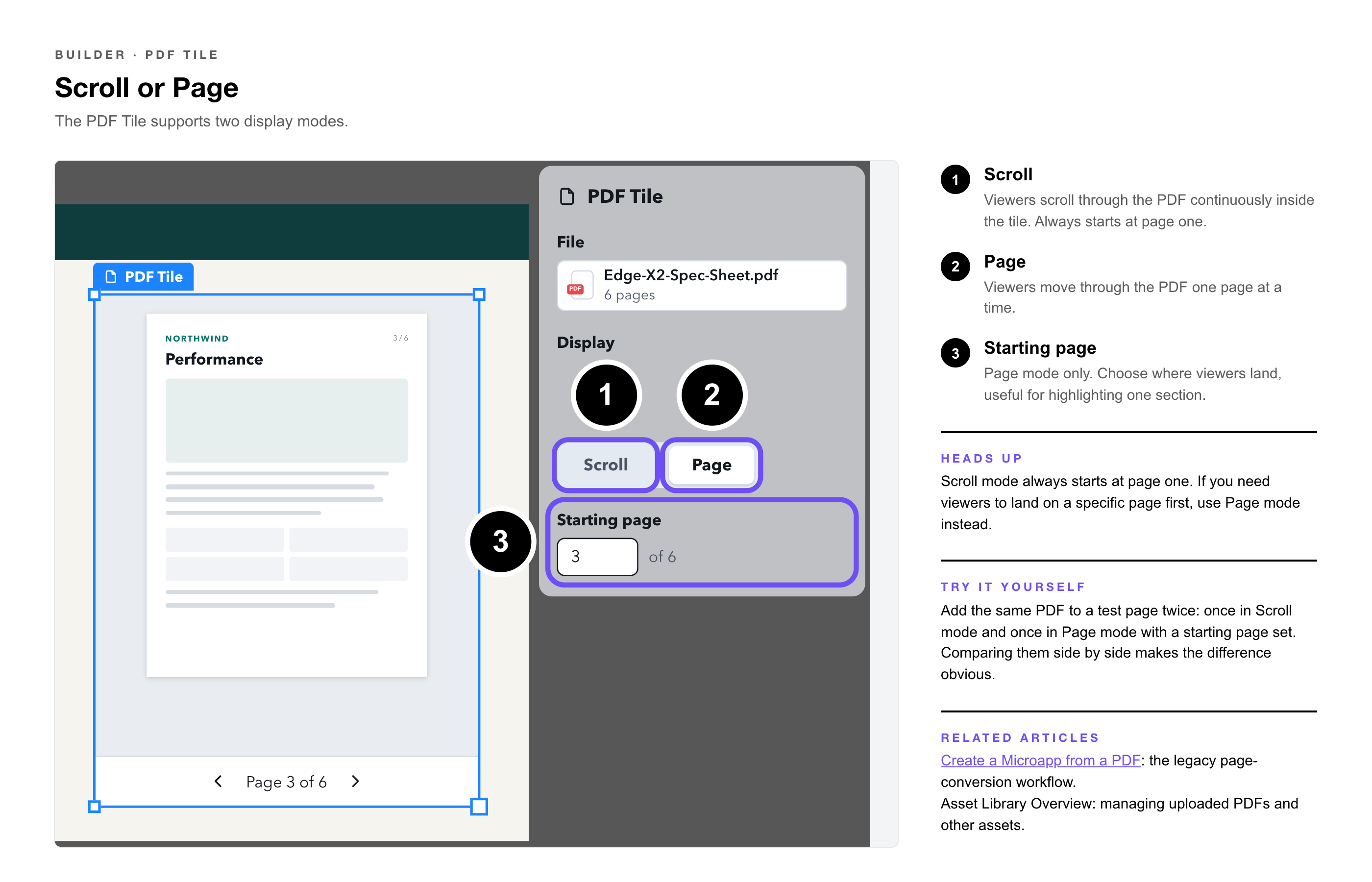
The PDF Tile supports two display modes:
|
Setting |
What It Does |
|
Scroll |
Viewers scroll through the PDF continuously inside the tile. You cannot set a specific starting page in this mode. |
|
Page |
Viewers move through the PDF one page at a time. You can set a specific starting page, useful if you only want to highlight a section of a longer document. |
|
Heads Up: Scroll mode always starts at page one. If you need viewers to land on a specific page first, use Page mode instead. |
|
Try It Yourself: Add the same PDF to a test page twice: once in Scroll mode and once in Page mode with a starting page set. Comparing them side by side makes the difference obvious. |
• Create a Microapp from a PDF — The legacy page-conversion workflow.
• Asset Library Overview — Managing uploaded PDFs and other assets.