![logo-horizontal_w.png]](https://support.tiled.co/hs-fs/hubfs/logo-horizontal_w.png?height=30&name=logo-horizontal_w.png)
A component is a container that bundles multiple tiles together into one editable unit. Unlike a simple tile group, a component can be duplicated as a whole, resized as a whole, and assigned its own click events and personalization settings — while the tiles inside it keep their individual properties.
How to Create a Component1. Select the tiles you want to combine, using Shift+click or a selection box.
2. Right-click the selection and choose Create Component from the context menu.
3. The selected tiles are combined into a single component, which appears as one entry in the Layers panel.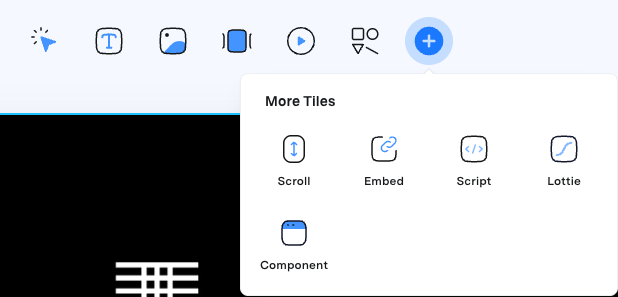
To edit the tiles inside a component:
1. Click into the component to enter its edit mode.
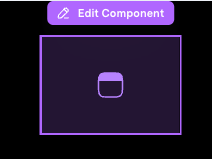
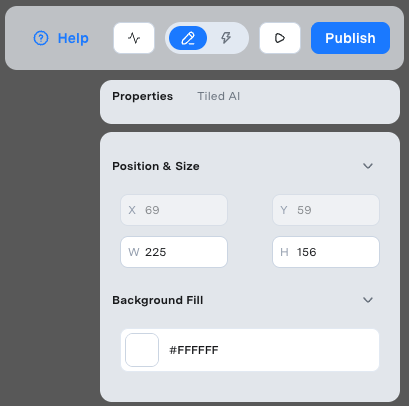
2. Select and modify individual tiles as you normally would — updating text, images, colors, or other properties.
3. Click outside the component to exit edit mode and return to the main canvas.
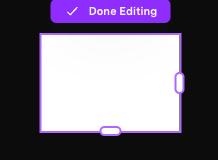
Entering a component's edit mode does not affect the rest of your microapp canvas — you're only working within that component's contents.
Duplicating a ComponentRight-click a component and choose Duplicate. The duplicate includes all tiles inside the original component and can be repositioned independently.
Resizing a ComponentSelect a component on the canvas and drag its resize handles. Tiles inside the component scale proportionally to fit the new size.
Setting Click Events on a ComponentComponents can be assigned click events just like individual tiles — for example, linking a component to another page or triggering an overlay. Select the component (rather than a tile inside it) and set the click event from the Properties panel.
Components and Scroll TilesComponents can contain Scroll tiles, and Scroll tiles can contain components.
|
Tip: When building nested scrolling content, build and test the scrolling behavior before finalizing the surrounding component layout — it's much easier to adjust the scroll while the layout around it is still flexible. |
Personalization
Components support personalization, so tiles inside a component can be set up as personalized fields the same way tiles outside a component can.
Common QuestionsCan I edit one tile inside a component without affecting the rest?
Yes — enter the component's edit mode and select the individual tile. Changes apply only to that tile.
Does resizing a component distort the tiles inside it?
Tiles scale proportionally with the component. If a tile looks stretched after resizing, try adjusting it individually while inside the component's edit mode.
Can I assign a click event to a component itself, not just the tiles inside it?
Yes — select the component (not a tile inside it) and set the click event from the Properties panel.
What's the difference between a component and grouping tiles?
Grouping keeps tiles together so they move as a unit. A component goes further: it can be duplicated and resized as a whole, and it can carry its own click events and personalization settings, while the tiles inside still keep their individual properties.