![logo-horizontal_w.png]](https://support.tiled.co/hs-fs/hubfs/logo-horizontal_w.png?height=30&name=logo-horizontal_w.png)
How It Works
When adding a new page to any microapp, you can now insert one or more pages directly from a template microapp instead of starting blank. You can even pull pages from more than one template microapp into the same insert.
Inserting a Page From a Template1. Add a new page — in the Builder, use the add-page control on the page you're working in.
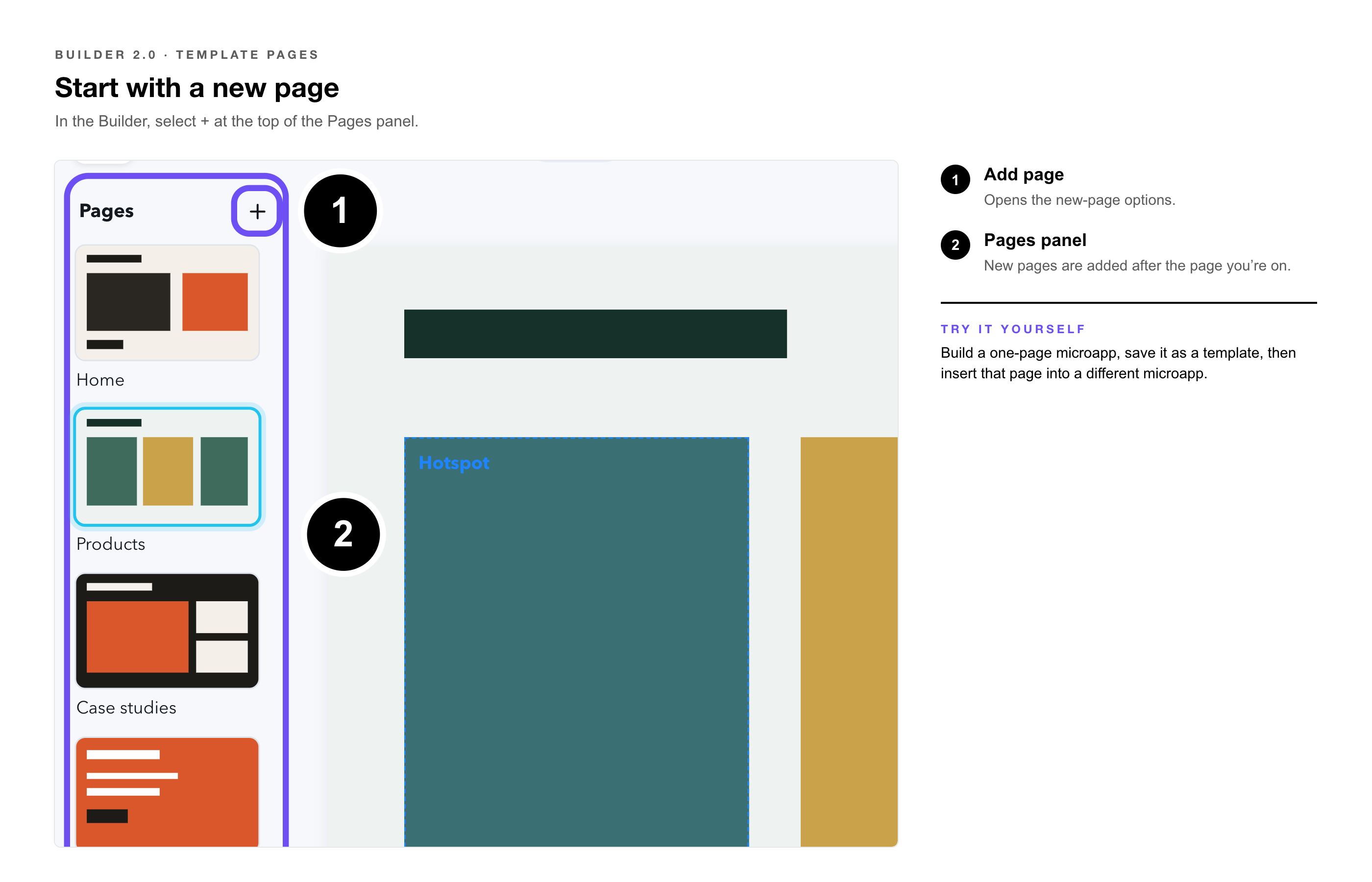
2. Select Insert from Template — from the new-page options.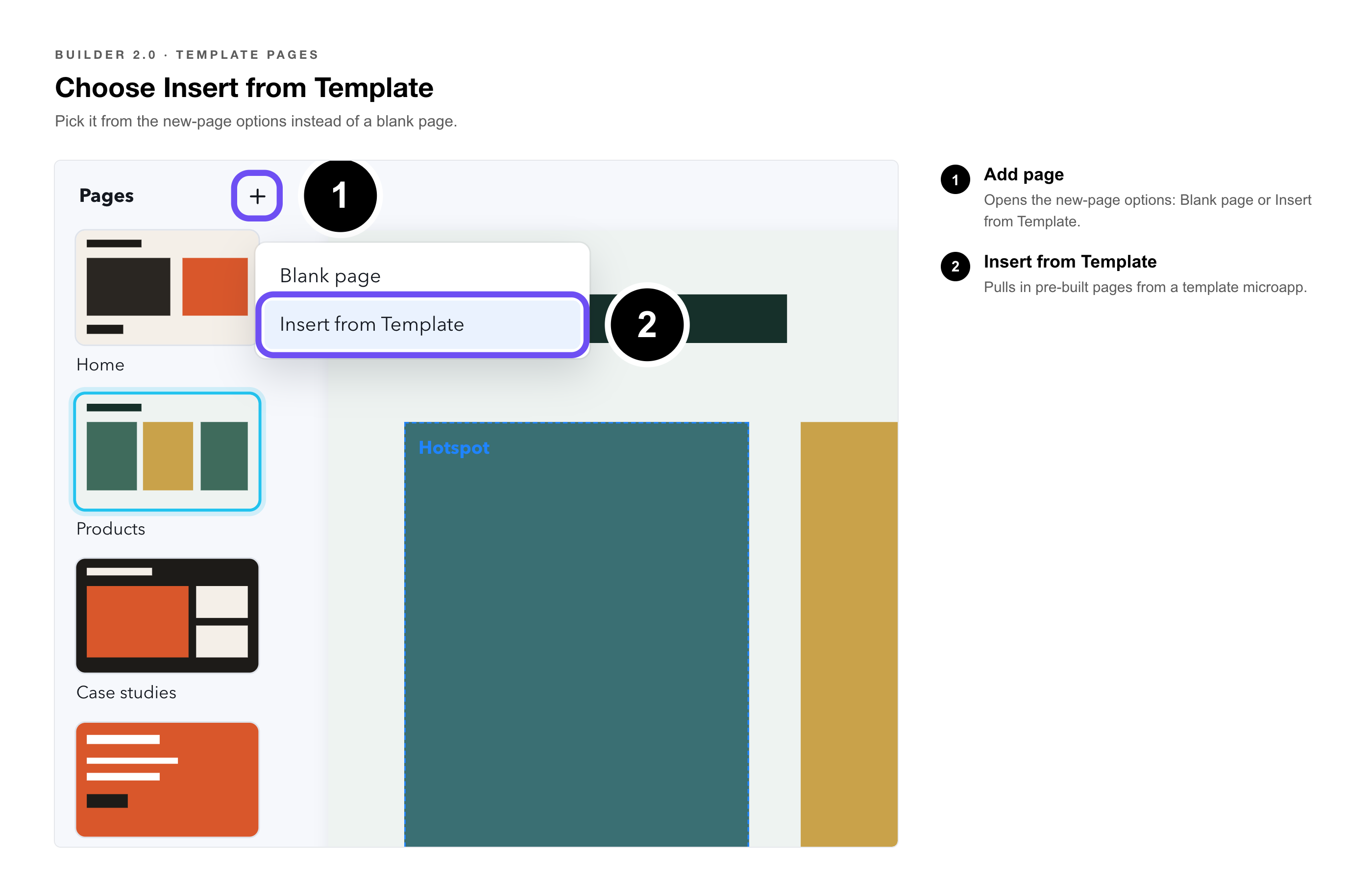
3. Choose a template microapp — in the modal that opens.
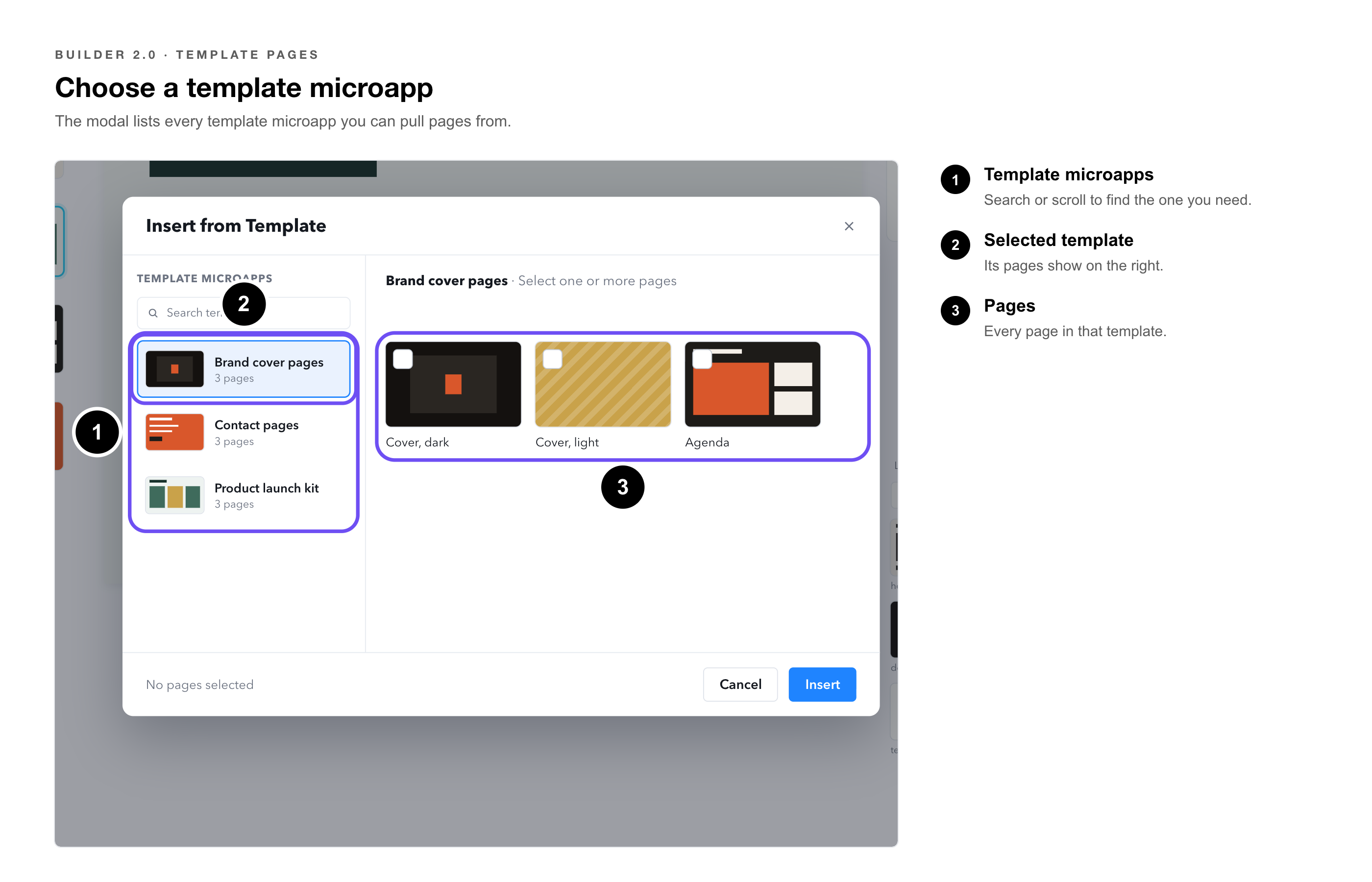
4. Select the page or pages — you want to bring in. You can select multiple pages at once.
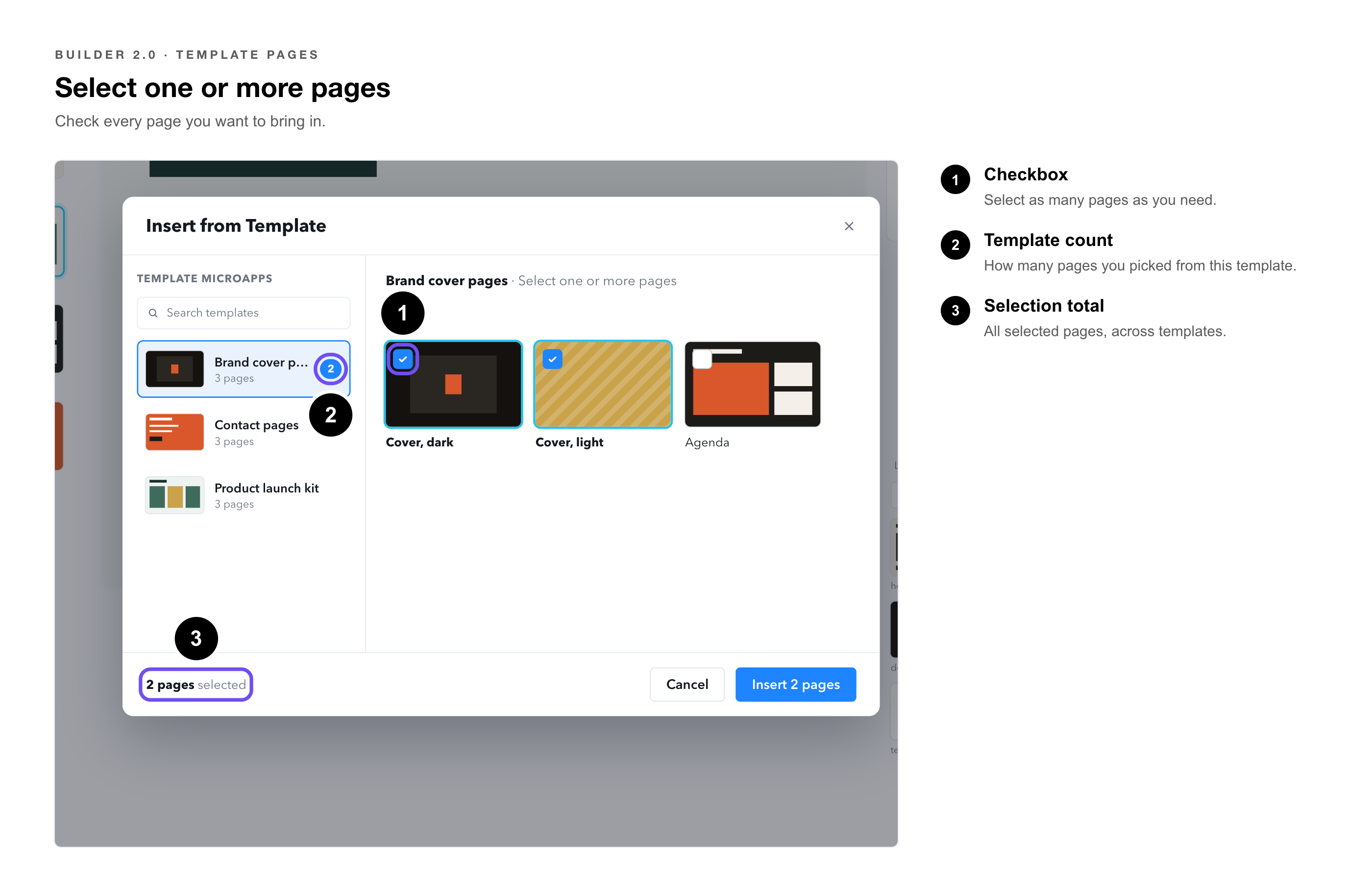
5. Repeat if needed — choose a different template microapp within the same modal to pull in pages from more than one source.
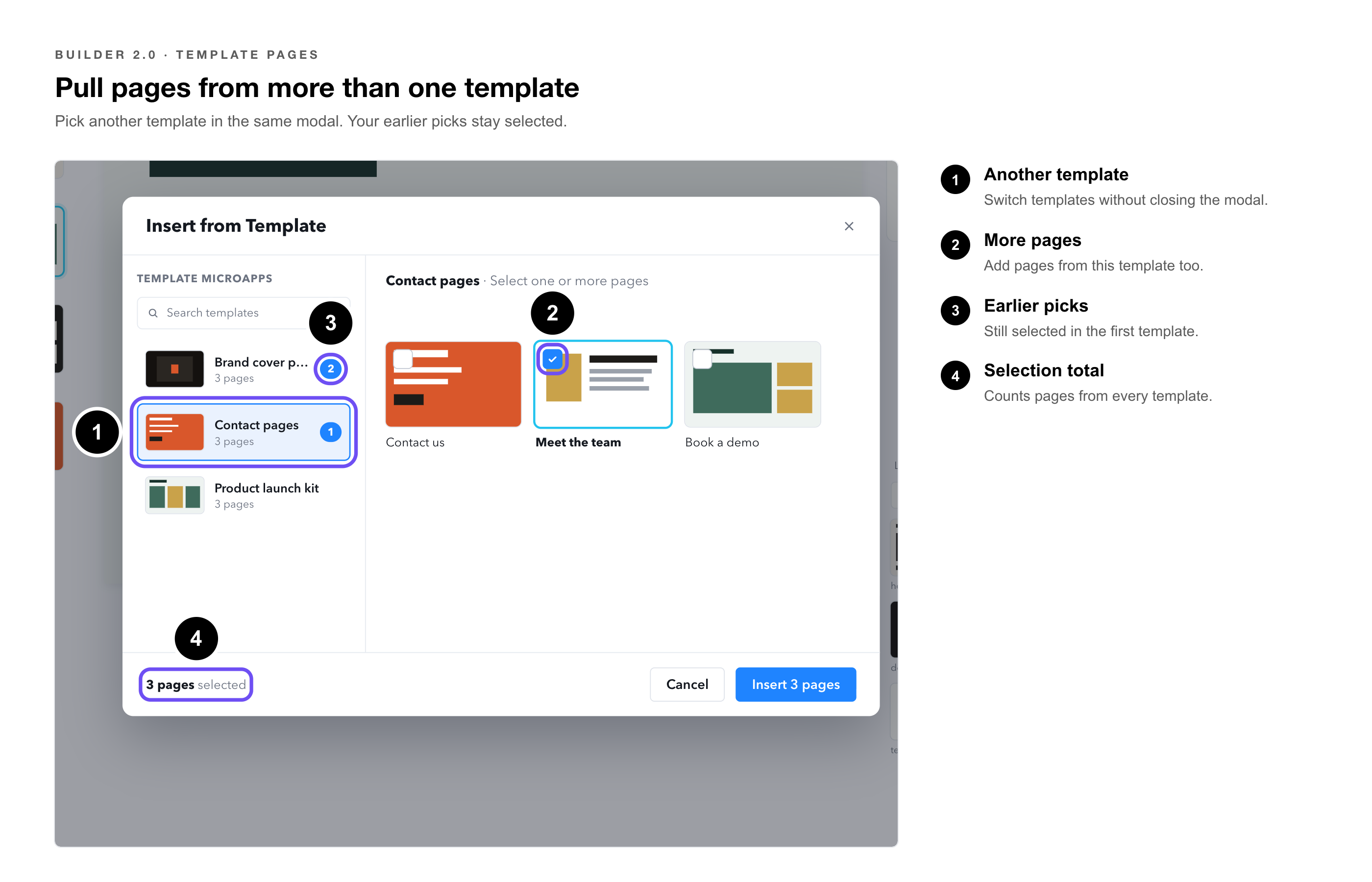
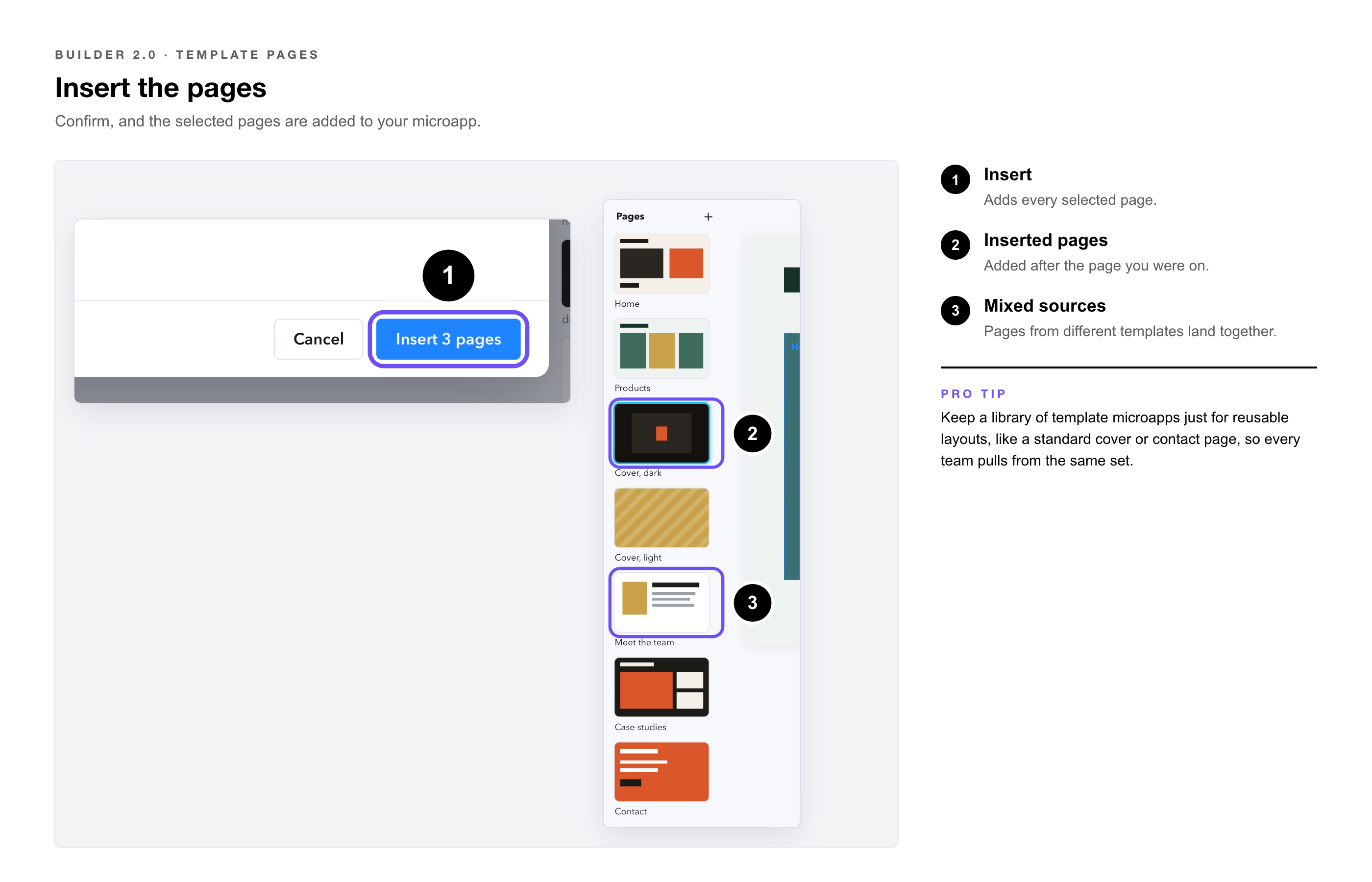
6. Confirm — the selected pages are inserted into your microapp.
|
Pro Tip: This pairs well with a library of internal template microapps built specifically to hold reusable page layouts, like a standard cover page or contact page, that different teams pull from. |
|
Try It Yourself: Build a simple one-page microapp, save it as a template, then insert that page into a different microapp using this workflow. |
• Create a Microapp from a Template — Starting a whole new microapp from a template.
• Screen Copy/Paste — Copying pages directly between microapps.
• Custom Microapp Templates — Setting up templates for your account.