![logo-horizontal_w.png]](https://support.tiled.co/hs-fs/hubfs/logo-horizontal_w.png?height=30&name=logo-horizontal_w.png)
Where to Find It
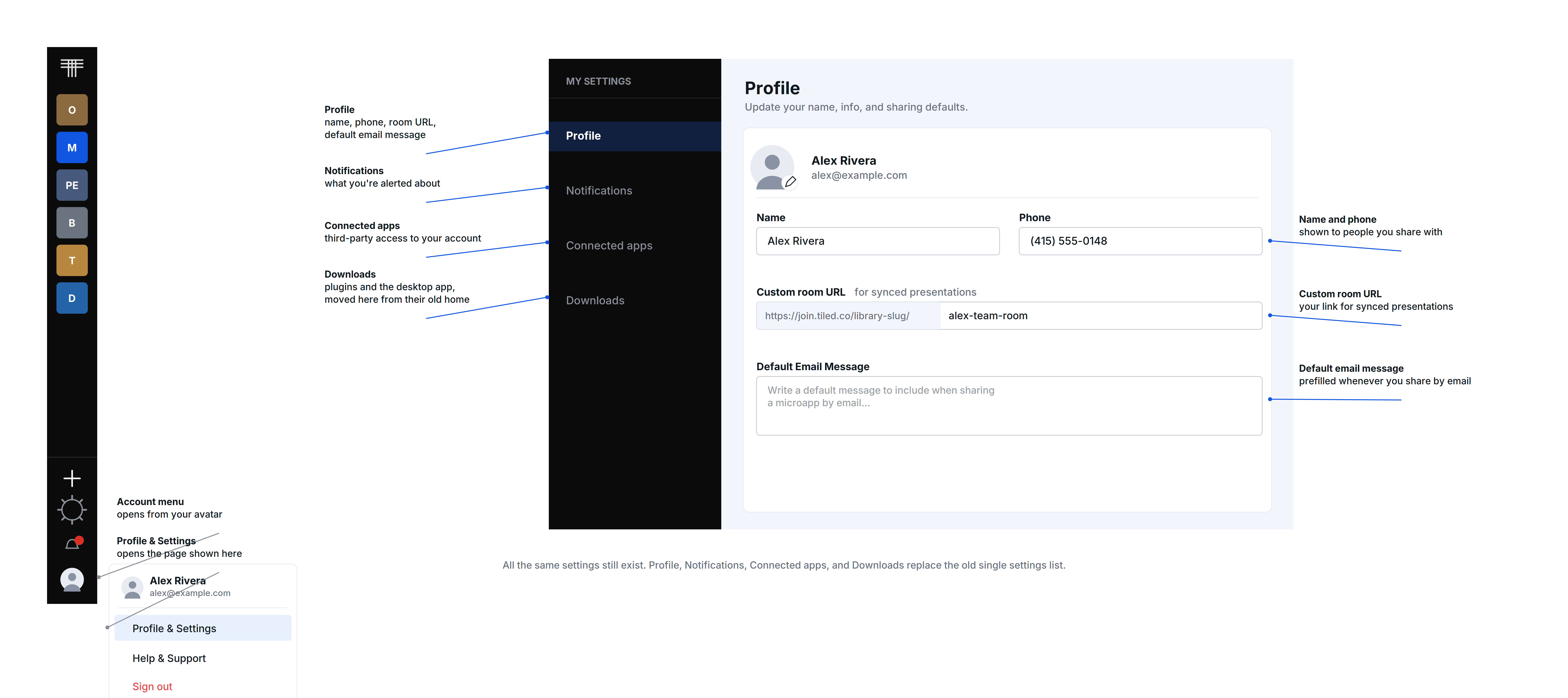
Select your profile icon and choose User Profile Settings. You’ll see four sections in the side menu:
|
Section |
What Lives There |
|
Profile |
Your name, email, password, and profile photo. |
|
Notifications |
Your notification preferences — what Tiled emails or alerts you about, and how often. |
|
Connected Apps |
Third-party accounts linked to your Tiled login, such as Adobe. |
|
Downloads |
The Tiled plugins (Figma, Adobe XD, Sketch), all in one place. |
|
Pro Tip: If you’re looking for a plugin download, check Downloads first — they moved out of a general settings page into their own dedicated section. |
|
Heads Up: This is a reorganization, not a removal. Every setting that existed before is still here — it just lives under one of these four sections now instead of a single combined page. |
|
Try It Yourself: Open your User Profile Settings and click through all four sections once, just to see where everything landed. |
• Login to Tiled — Connected login methods.
• Tiled Plugin for Figma — Downloading and using the Figma plugin.
• Tiled API — The Tiled API is a powerful tool for generating interactive content using data sources.