![logo-horizontal_w.png]](https://support.tiled.co/hs-fs/hubfs/logo-horizontal_w.png?height=30&name=logo-horizontal_w.png)
With the Tiled MCP, your AI assistant builds in Tiled for you. Describe what you need in plain language, and it creates and updates microapps in your Tiled libraries. Everything it builds is a regular microapp you can open and edit in the Builder.
This article uses Claude for the steps. The Tiled MCP also works with ChatGPT and other AI assistants that support the Model Context Protocol (MCP) with sign-in.
How Setup Works
Getting started takes three parts. Your admins do the first two once for everyone. You do the third on your own device and Claude account.
|
Part |
Who |
What They Do |
|
1 |
IT admin |
Adds Tiled to Claude for the whole organization, as a custom connector with the server URL https://mcp.tiled.co. |
|
2 |
Tiled admin |
Approves the connector for your Tiled account. |
|
3 |
You (Admin or Editor role in Tiled) |
Set up the connector on your own device and Claude account, and sign in with your Tiled login. This article walks you through it. |
|
For admins: Parts 1 and 2 are covered in Set Up the Tiled MCP for Your Organization. |
What You Can Do
|
Ask Your Assistant To |
For Example |
|
Create a microapp |
“Create a microapp in my Sales library that walks a new customer through our onboarding, in four pages.” |
|
Build from your content |
Attach a brief, a PDF, or notes, and ask your assistant to turn them into a microapp. |
|
Update a microapp |
“On the pricing page, change the headline to ‘Plans for every team’ and add a button that goes to the contact page.” |
|
Use your assets |
“Use the product photos from the Asset Library on the features page.” |
|
Find your work |
“Which libraries can I build in?” or “List the microapps in my Marketing library.” |
Before You Start
|
You Need |
Details |
|
Tiled set up for your organization |
Your IT admin has added Tiled, and a Tiled admin has approved it. |
|
A Tiled account |
With the Admin or Editor role in the libraries you want to build in. |
|
An AI assistant |
Claude, ChatGPT, or another assistant that supports MCP with sign-in. |
|
The Tiled MCP server URL |
https://mcp.tiled.co
|
|
Credentials |
None. There’s no API key or token. You sign in with your Tiled login. |
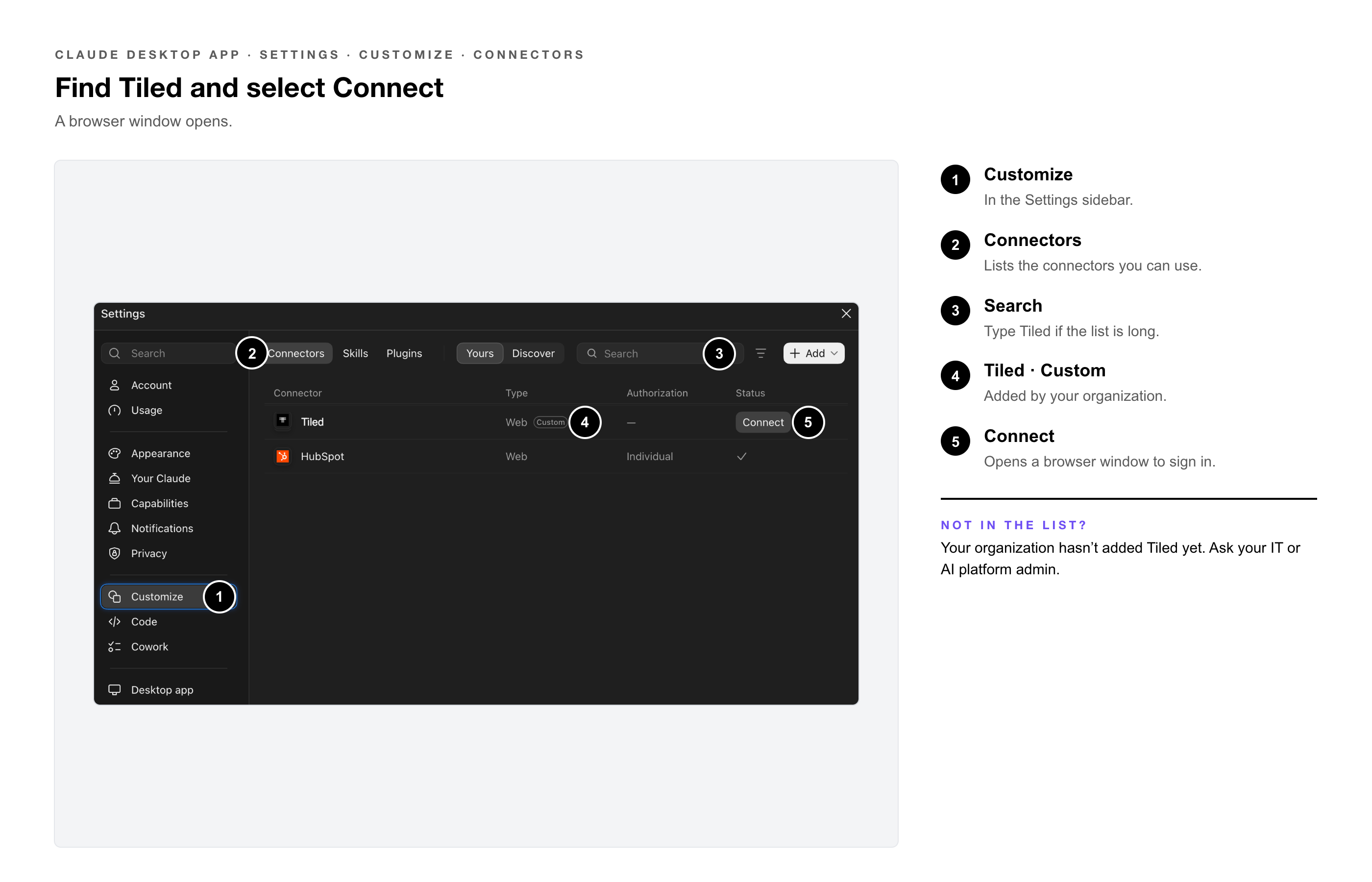
Open Claude on your device and go to Settings → Customize → Connectors. What you do next depends on whether Tiled is already in your list.
If Tiled is in your list
Your IT admin added Tiled for your organization. You’ll see it marked Custom. Go to Step 2.
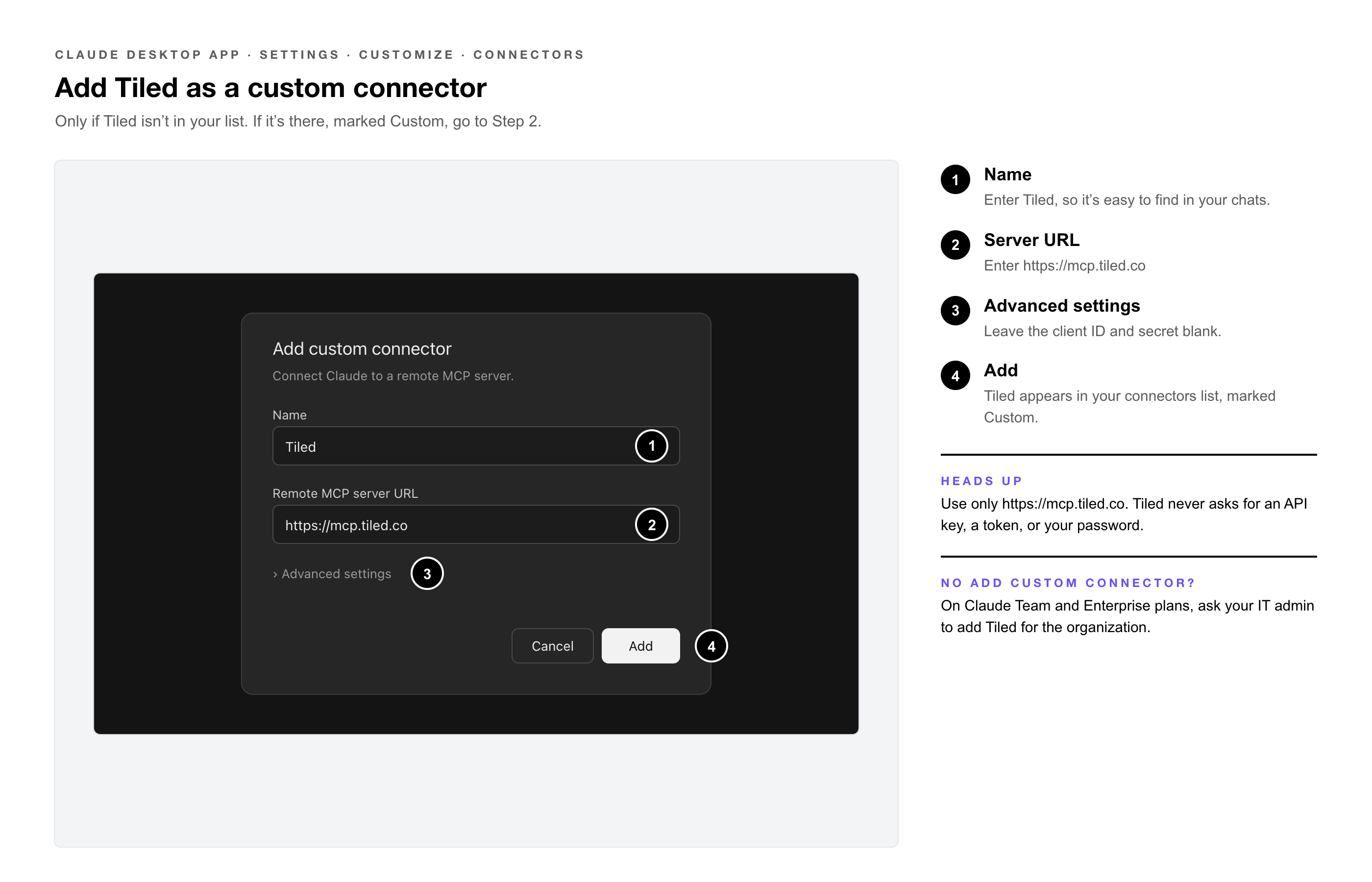
If Tiled isn’t in your list
1. Select Add custom connector. — On a Claude Team or Enterprise plan, if you don’t see this option, ask your IT admin to add Tiled for the organization.
2. Name the connector Tiled. — Use this name so it’s easy to find in your chats.
3. Enter the server URL: — https://mcp.tiled.co. Leave any advanced settings, such as a client ID or secret, blank.
4. Select Add. — Tiled now appears in your connectors list, marked Custom.
|
Heads Up: Use only the official server URL, https://mcp.tiled.co. Tiled doesn’t ask you for an API key, a token, or your password to set up the connector. |
1. Find Tiled in Settings → Customize → Connectors — and select Connect. A browser window opens.
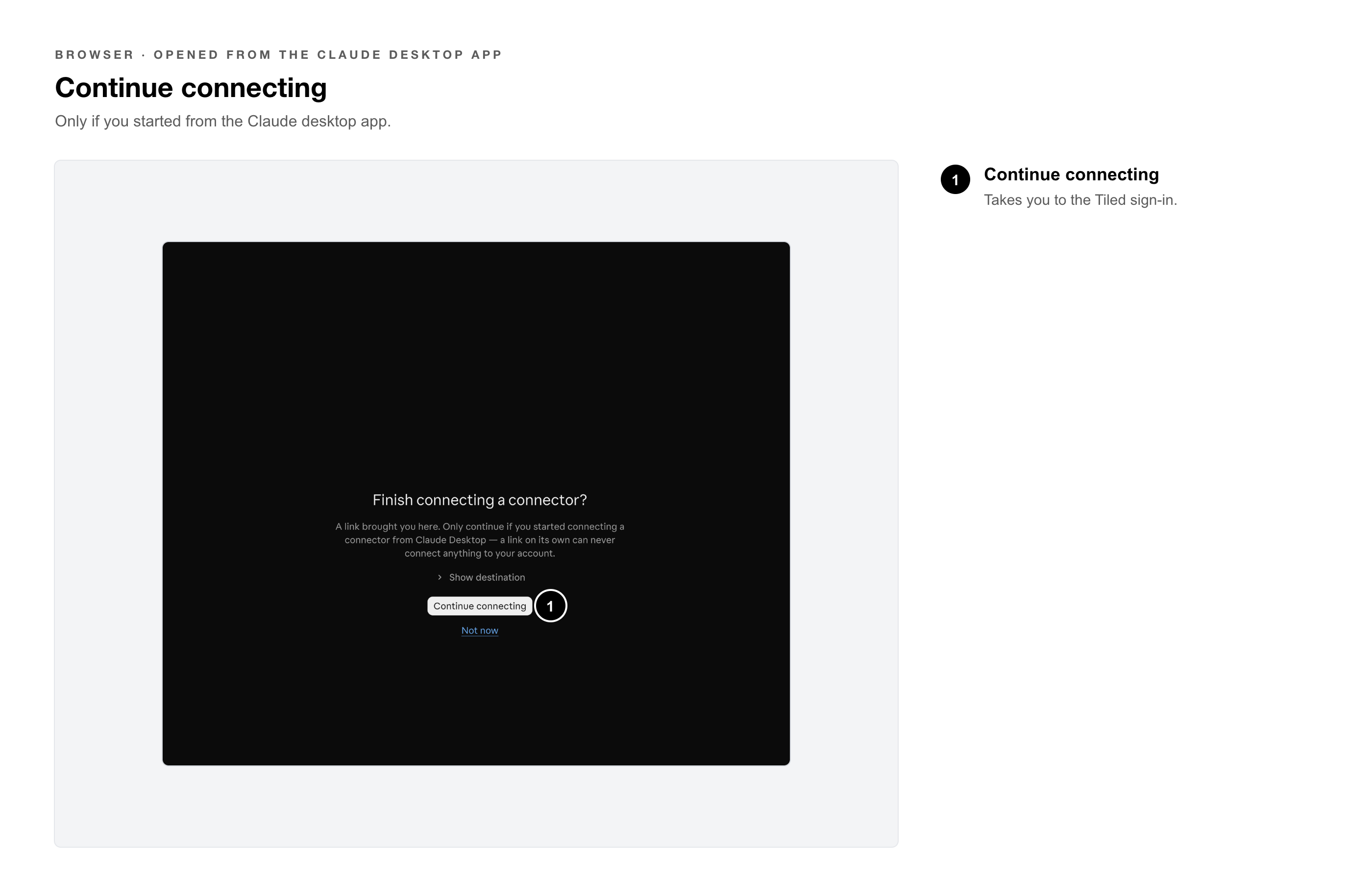
2. Select Continue connecting — if you’re asked to finish connecting a connector you started from the Claude desktop app.
3. Sign in to Tiled — the way you usually do, including with your company’s single sign-on.
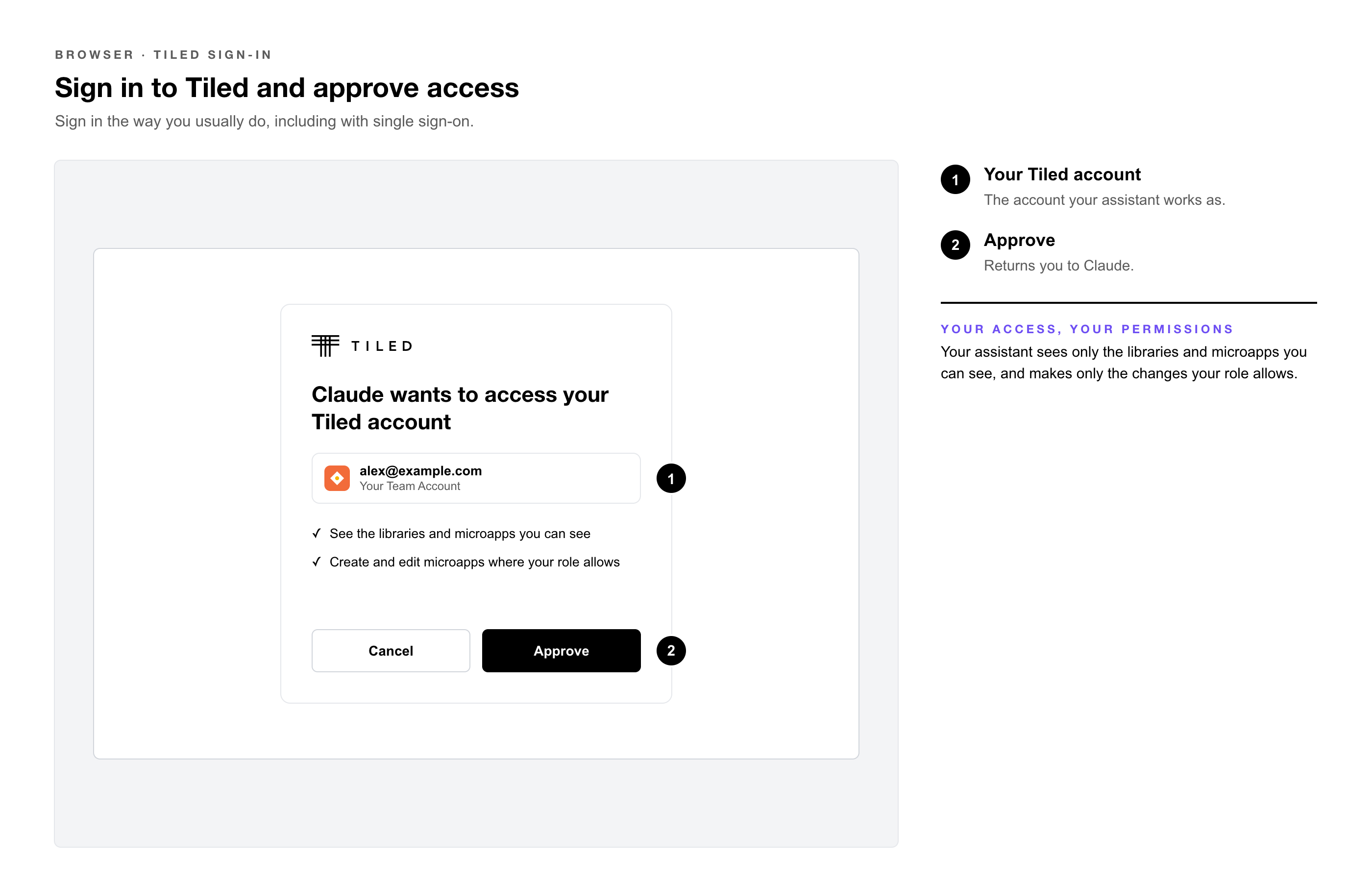
4. Approve access if Tiled asks. — You return to Claude, and Tiled shows a check mark in your connectors list.
|
Your access, your permissions: Your assistant works in Tiled as you. It sees only the libraries and microapps your account can see, and it can only make the changes your role allows. |
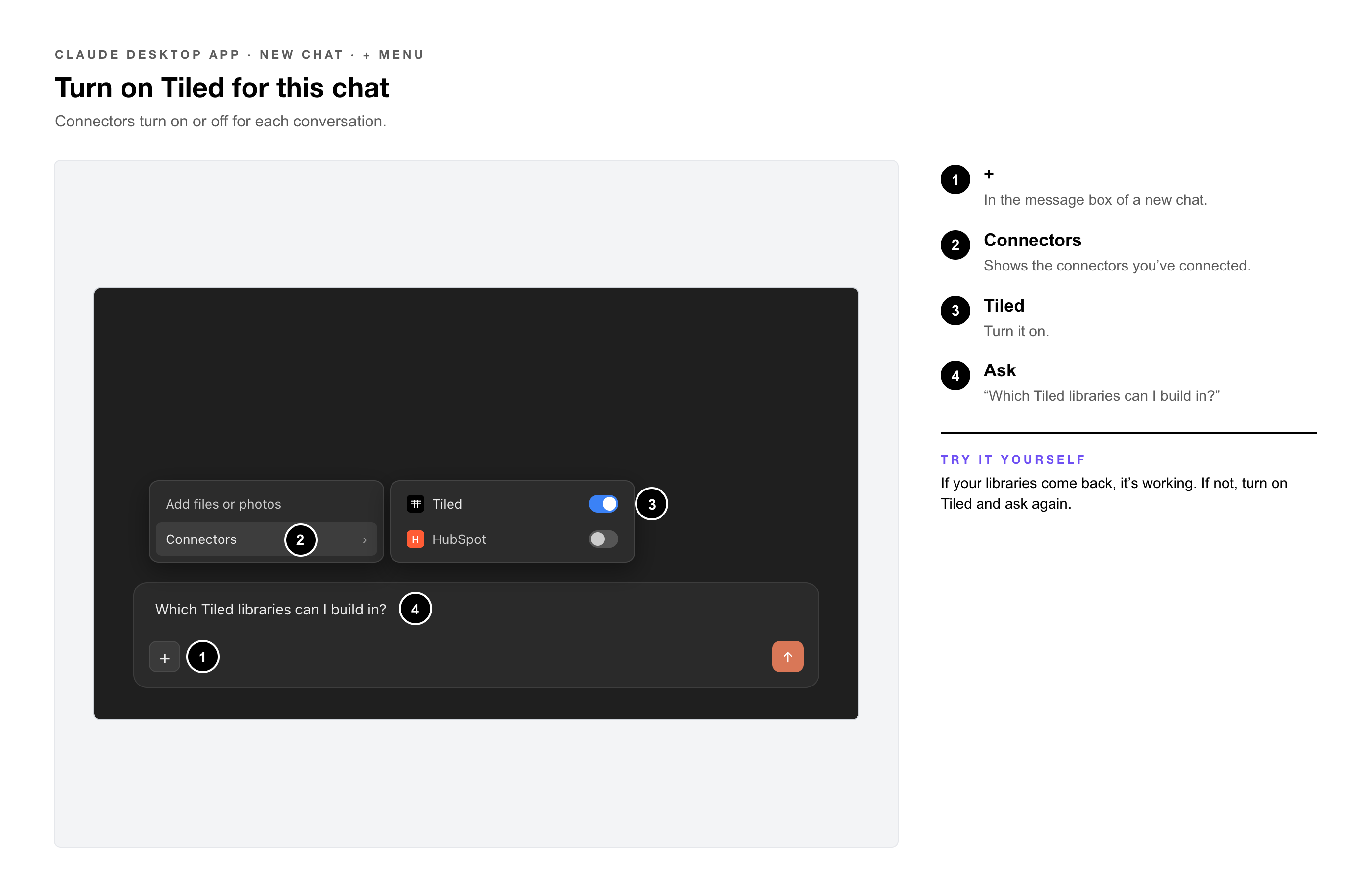
1. Start a new chat. — Connectors can be turned on or off for each conversation.
2. Select + in the message box, — then select Connectors.
3. Turn on Tiled. — Your assistant can now use Tiled in this chat.
|
Try It Yourself: Ask “Which Tiled libraries can I build in?” If the connection works, your assistant lists your libraries. If it answers without checking Tiled, turn on Tiled for the chat and ask again. |
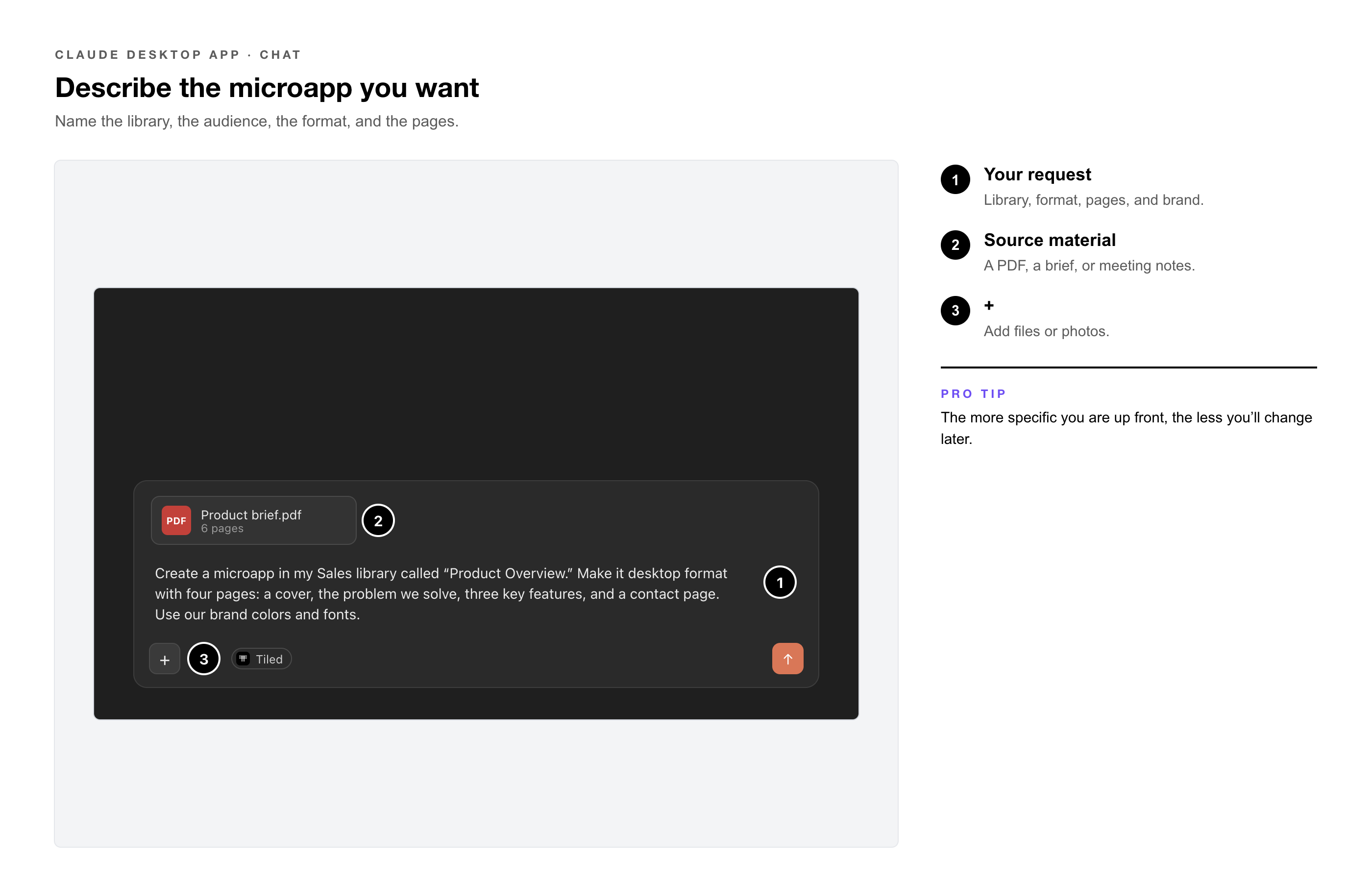
1. Describe what you want, — including the library, who it’s for, the screen format (such as desktop or mobile portrait), and the pages you need.
2. Attach your source material — if you have it, such as a PDF, a brief, or meeting notes.
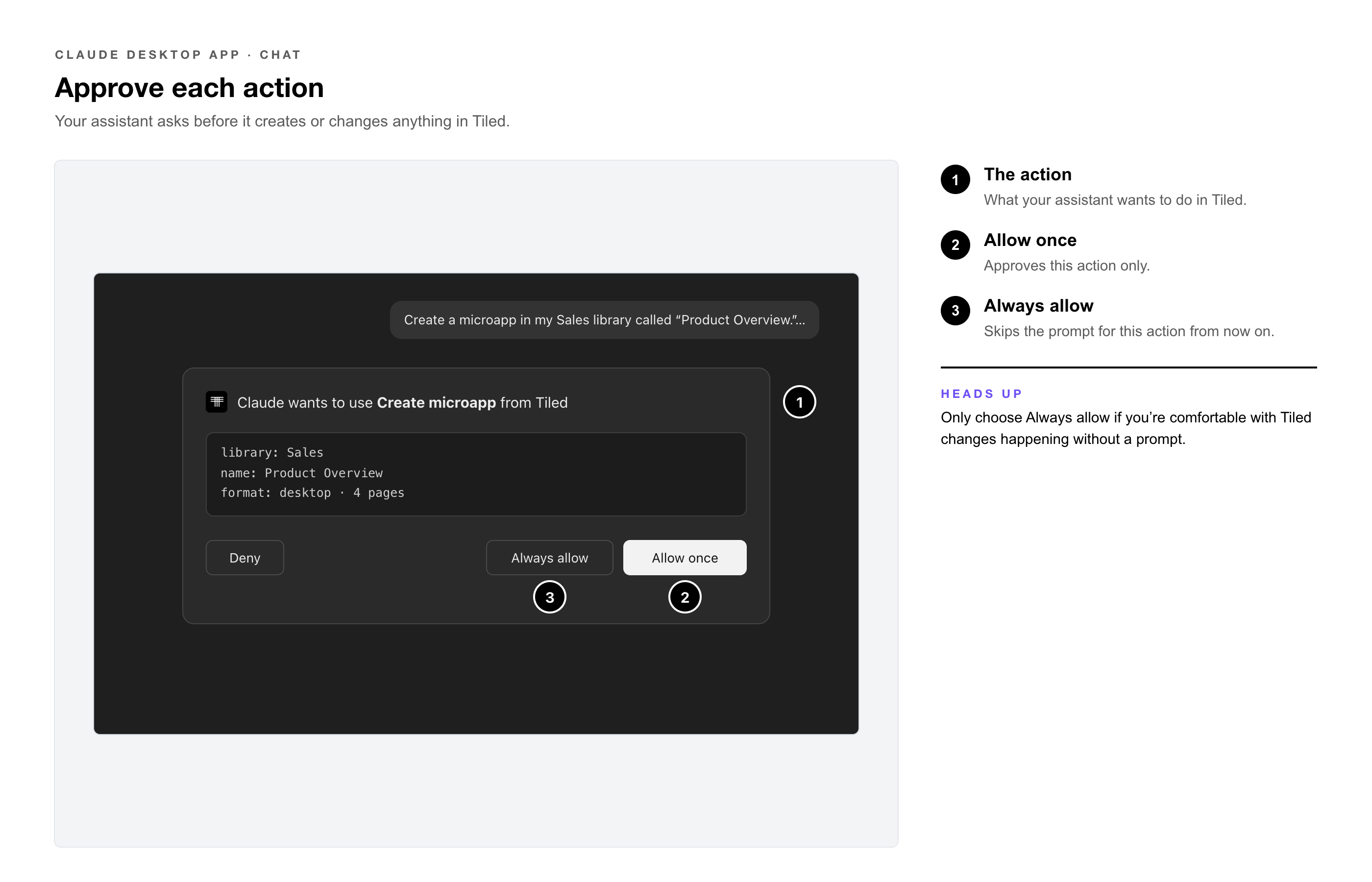
3. Approve each action — when your assistant asks to create or change something in Tiled.
4. Review the summary — your assistant gives you of what it built, and ask for changes in the same chat.
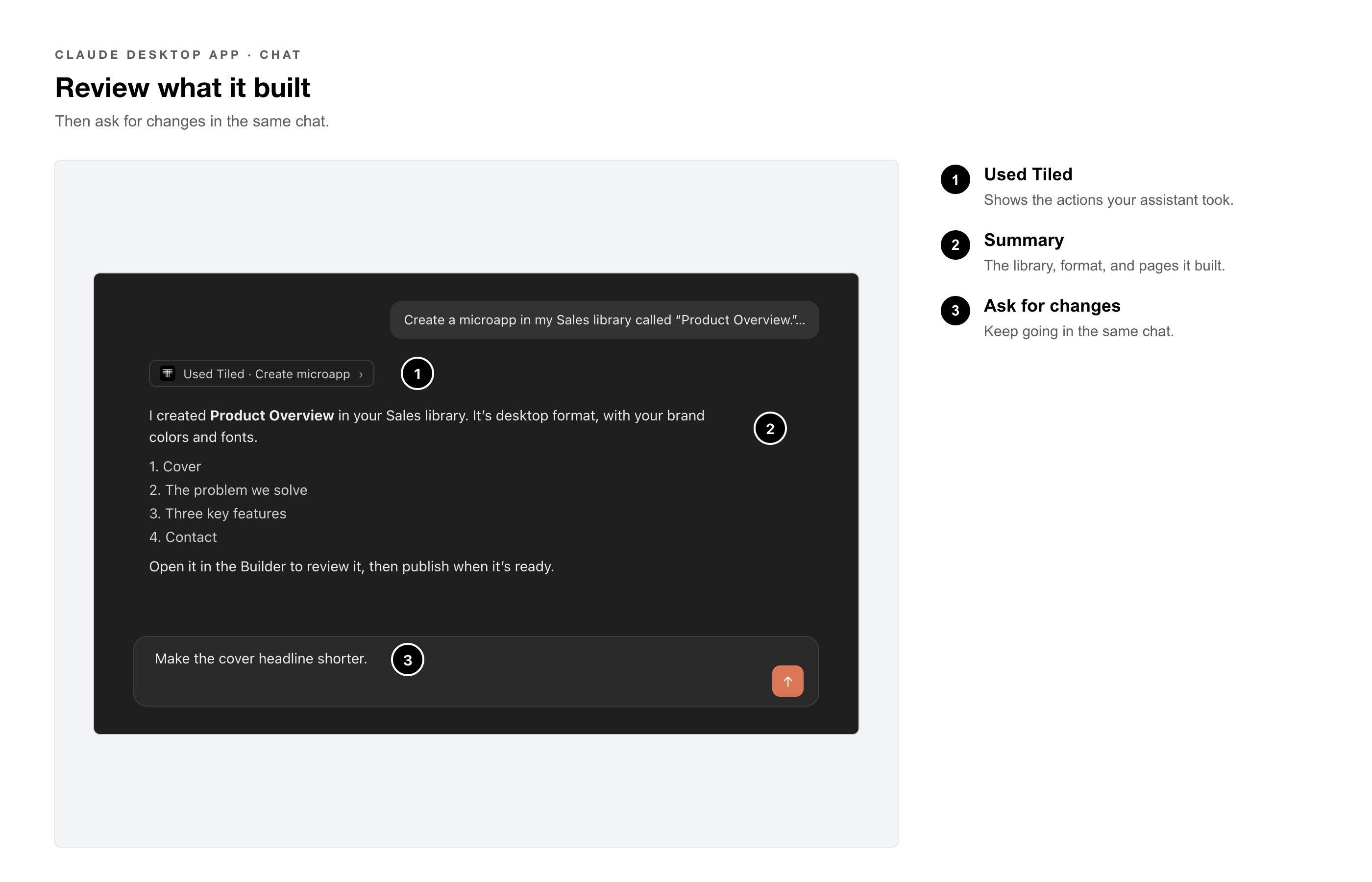
Here’s a request that works well as a first try:
|
Example: Create a microapp in my Sales library called “Product Overview.” Make it desktop format with four pages: a cover, the problem we solve, three key features, and a contact page. Use our brand colors and fonts. |
|
Pro Tip: Be specific about the library, the format, and the pages. The more your assistant knows up front, the less you’ll change later. |
Everything your assistant creates is editable in the Builder, just like a microapp you built by hand.
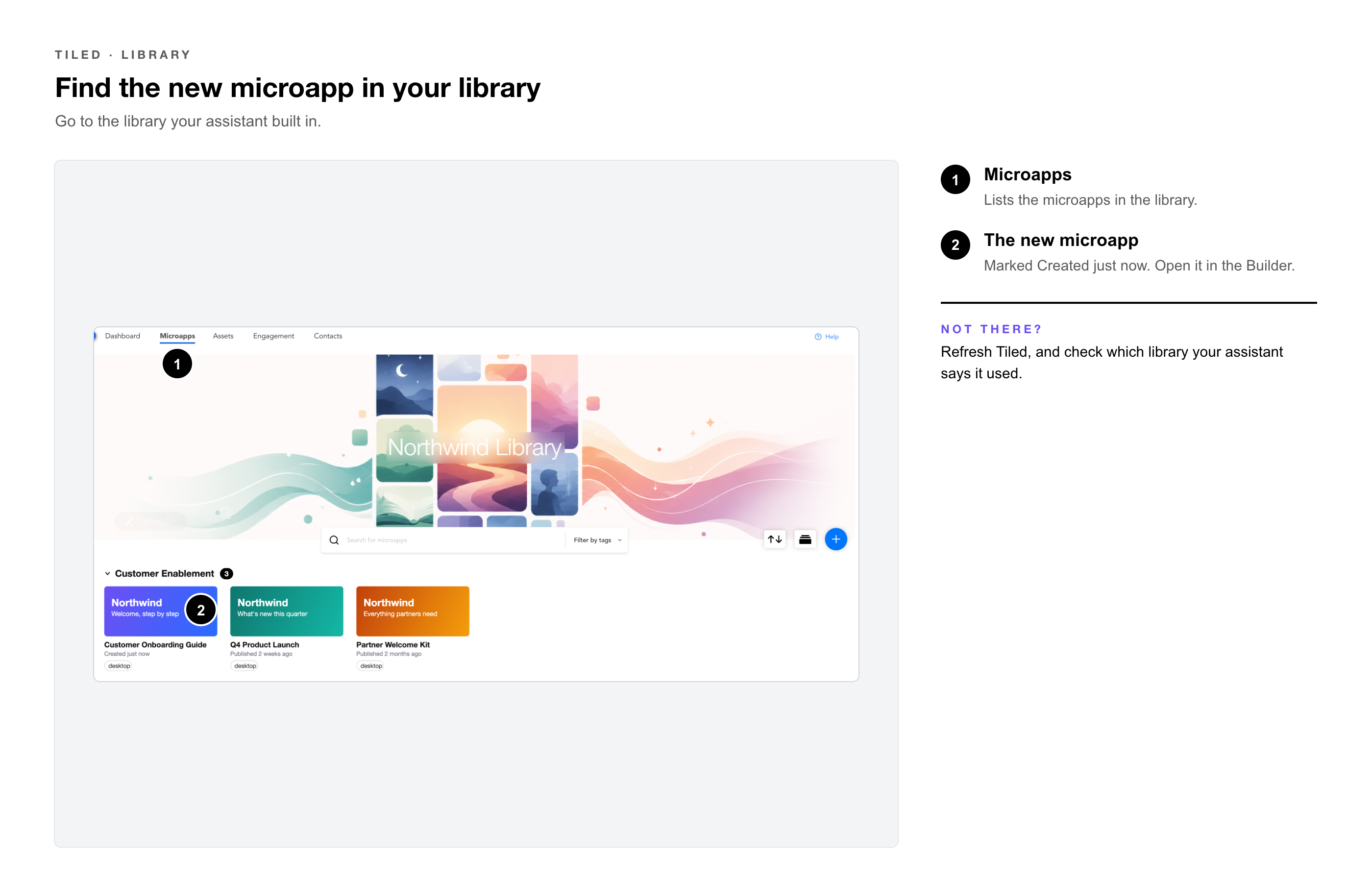
1. Open Tiled — and go to the library your assistant built in.
2. Find the new microapp — and open it in the Builder.
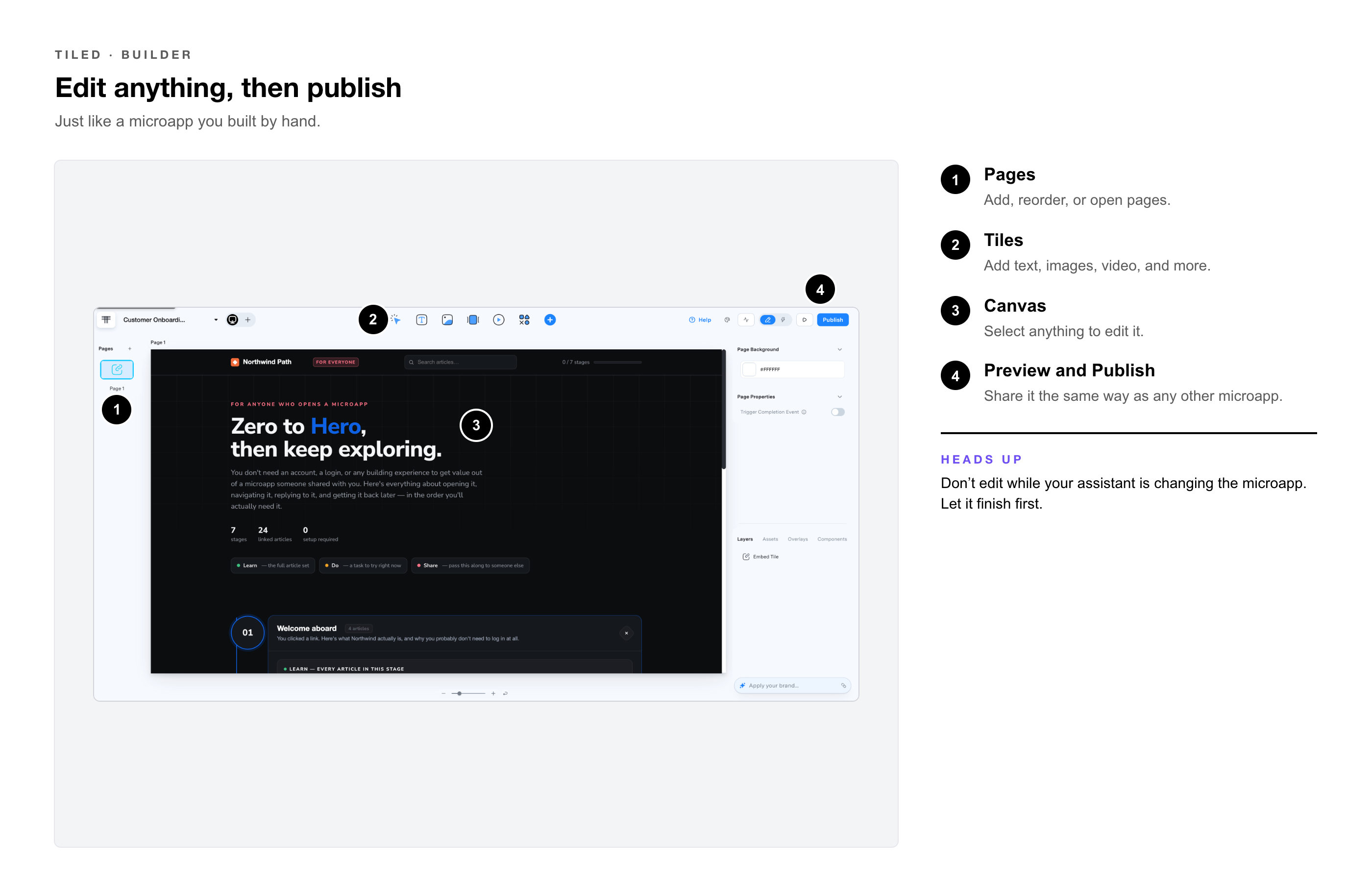
3. Edit anything you like, — such as text, images, tiles, links, and pages.
4. Preview, then publish and share — when it’s ready, the same way as any other microapp.
You can move back and forth. Your assistant works from the microapp as it is now, including the edits you made in the Builder, so you can ask it for more changes at any time.
|
Heads Up: Don’t edit a microapp in the Builder while your assistant is changing it. Let your assistant finish, then make your own edits, so neither set of changes overwrites the other. |
Tips for Better Results
• One task at a time: ask for one page or one change per message when you’re refining.
• Name things: refer to pages and tiles by name, such as “the pricing page” or “the headline at the top.”
• Point to your assets: say which images or files to use, so your assistant doesn’t pick placeholders.
• Ask it to check: finish with “Check the microapp for problems and fix them,” then review the result in the Builder.
Stay in Control
• Approvals: your assistant asks before it acts in Tiled. Only choose Always allow if you’re comfortable with Tiled changes happening without a prompt.
• Per chat: turn Tiled off for a conversation from the + menu → Connectors.
• Disconnect: disconnect Tiled in Settings → Customize → Connectors at any time. Microapps already built stay in Tiled.
Troubleshooting
|
Problem |
Check |
|
Tiled isn’t in your connectors list |
Add it as a custom connector with https://mcp.tiled.co (Step 1). On a Team or Enterprise plan, ask your IT admin to add it for the organization. |
|
You can’t add a custom connector |
On Claude Team and Enterprise plans, only an Owner can add one. Ask your IT admin. |
|
Connect doesn’t finish, or you’re sent back to sign in |
Sign in to Tiled in the same browser first, then select Connect again. If it still fails, ask your admin whether a Tiled admin has approved the connector. |
|
Your assistant answers without using Tiled |
Turn on Tiled for the chat from the + menu → Connectors, and start a new chat if needed. |
|
Your assistant can’t find a library |
Your Tiled account doesn’t have access to it, or doesn’t have the Admin or Editor role there. Ask your Tiled admin. |
|
The new microapp isn’t in your library |
Refresh Tiled, and check which library your assistant says it used. |
|
Your Builder edits were overwritten |
You and your assistant changed the microapp at the same time. Make your edits again after your assistant finishes. |
|
Question |
Answer |
|
What’s the Tiled MCP server URL? |
https://mcp.tiled.co
|
|
Do I need an API key? |
No. You sign in with your Tiled login. There’s nothing else to enter. |
|
Who can build with the Tiled MCP? |
Tiled users with the Admin or Editor role in the libraries they build in. |
|
Can I edit what my assistant creates? |
Yes. Everything it builds is a regular microapp that you can open and edit in the Builder. |
|
Does my assistant publish microapps? |
Review every microapp in the Builder, then publish and share it from Tiled when you’re ready. |
|
Can my assistant see microapps I don’t have access to? |
No. It works with your Tiled account, so it sees only what you can see. |
|
Do I need to connect again for every chat? |
No. You connect once. Turn on Tiled in any chat where you want to use it. |
|
Can my assistant use our brand? |
Yes. Ask it to use the colors, fonts, and logo from your Brand Kit. |
|
Does this work with ChatGPT? |
Yes. Your workspace admin adds Tiled as a custom connector with https://mcp.tiled.co, and you sign in with your Tiled login. Menus differ from Claude, so check ChatGPT’s help center for where to connect. |
• Set Up the Tiled MCP for Your Organization — For the IT admin who adds Tiled, and the Tiled admin who approves it.
• Brand Kit — Setting up the brand your assistant uses.
• Bynder Integration — Assets synced from Bynder are available to your assistant.
• Getting Help in the Builder — Asking the Help chat how to do something in the Builder.