![logo-horizontal_w.png]](https://support.tiled.co/hs-fs/hubfs/logo-horizontal_w.png?height=30&name=logo-horizontal_w.png)
Attach files to a Dashboard prompt to give Tiled AI something concrete to work from, such as a client’s existing PDF or a set of images. Tiled AI uses them as content or context, so its response is grounded in your material instead of a generic starting point.
|
Available on Request: The Dashboard is available on request. Email support@tiled.co to turn it on for your account. |
Supported Files
|
Type |
Examples |
|
|
Proposals, one-pagers, decks exported to PDF |
|
Images |
Logos, product shots, screenshots |
|
Video |
Short product or welcome videos |
|
Note: For a PowerPoint or Google Slides deck, export it to PDF first. |
Attaching Files
1. Select the attachment icon — next to the prompt.
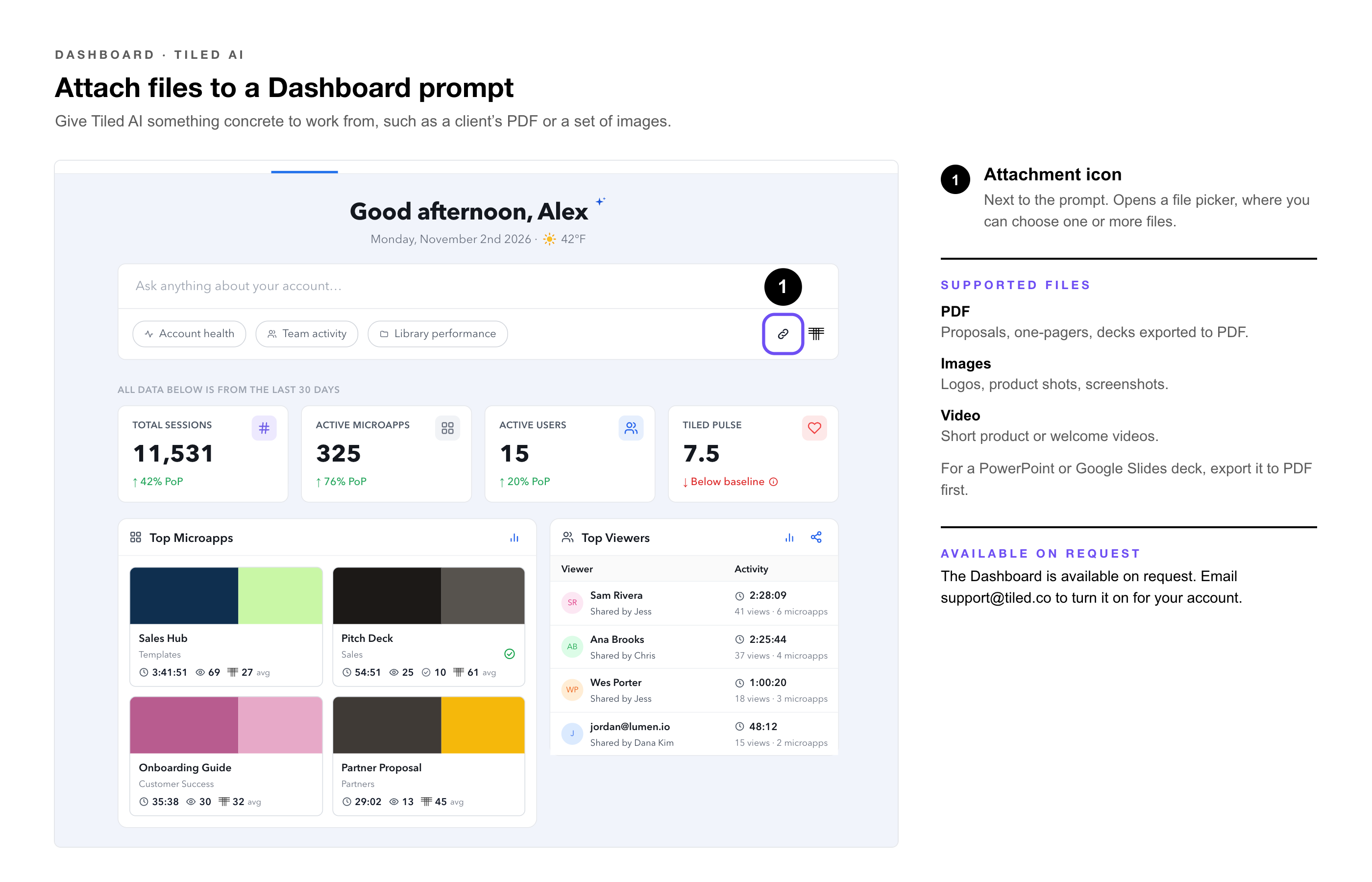
2. Choose one or more files. — Each appears as a chip above the prompt.
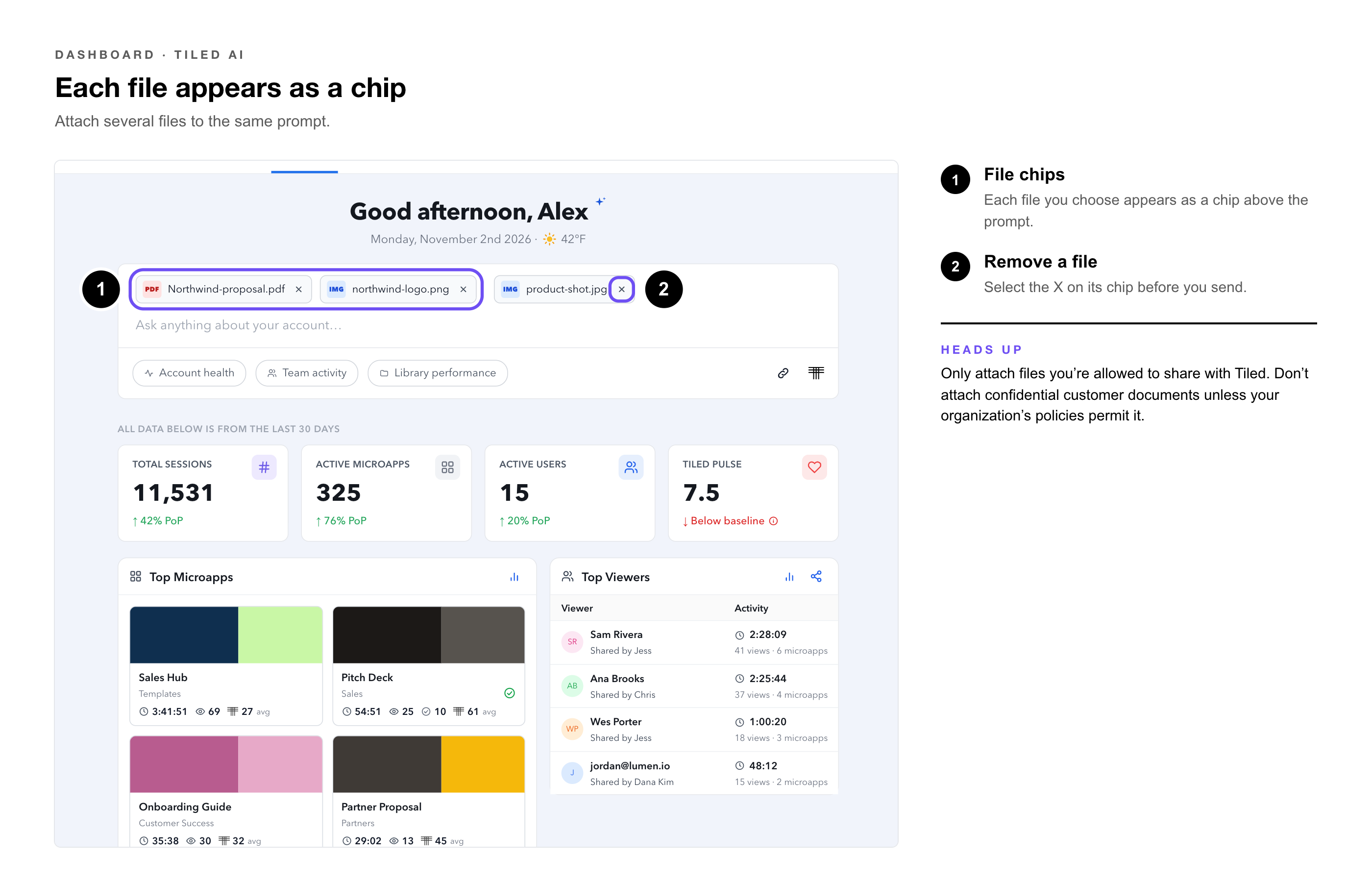
3. Remove a file — before sending by selecting the X on its chip.
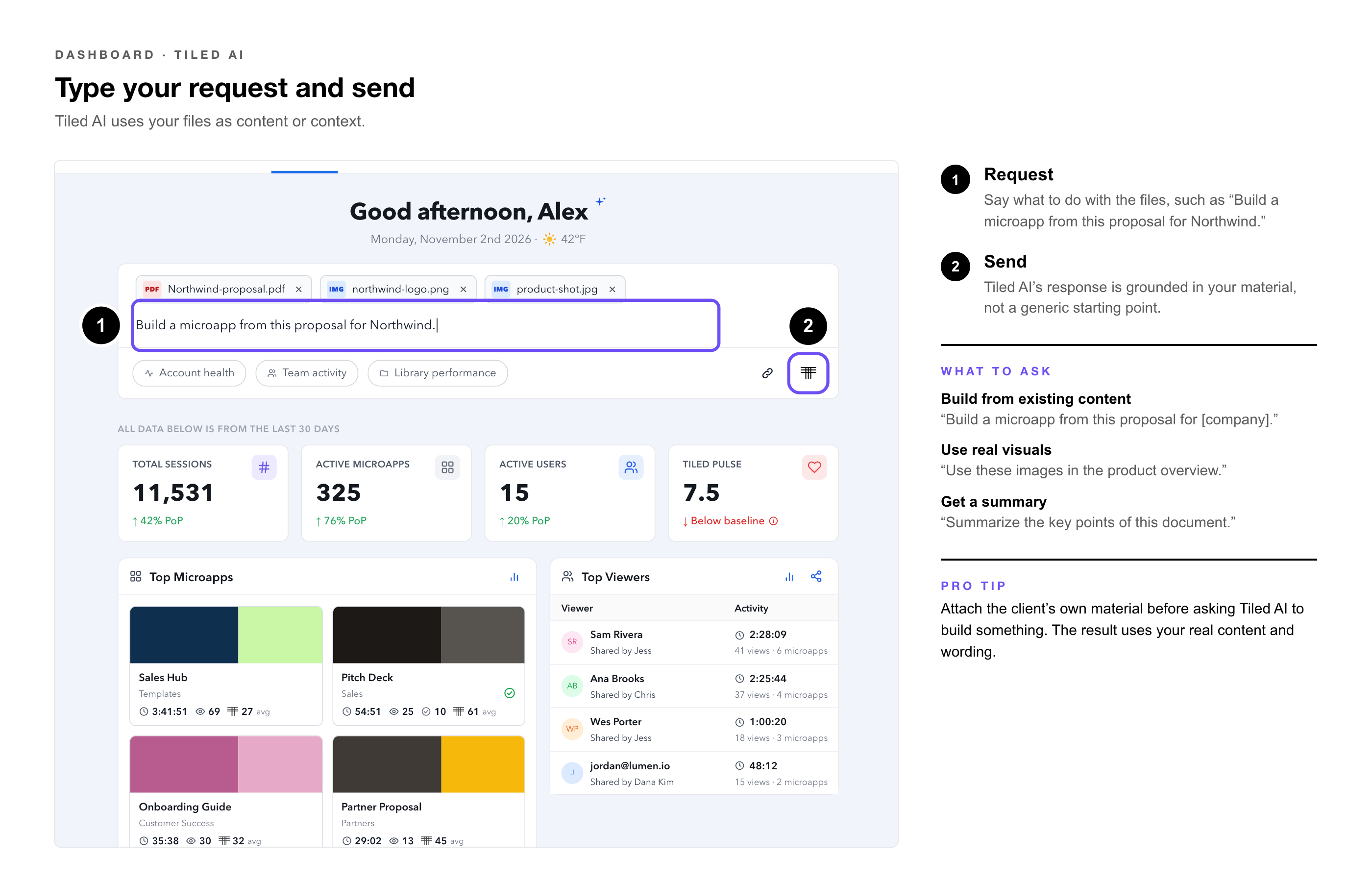
4. Type your request — and send.
What to Ask With Attachments
|
Goal |
Attach |
Ask |
|
Build from existing content |
A client’s PDF or deck |
“Build a microapp from this proposal for [company].” |
|
Use real visuals |
Logos and product images |
“Use these images in the product overview.” |
|
Get a summary |
A long PDF |
“Summarize the key points of this document.” |
|
Pro Tip: Attach the client’s own material before asking Tiled AI to build something. The result will use your real content and wording instead of a generic draft. |
|
Heads Up: Only attach files you’re allowed to share with Tiled. Don’t attach confidential customer documents unless your organization’s policies permit it. |
Common Questions
|
Question |
Answer |
|
Can I attach more than one file? |
Yes. Attach several to the same prompt. |
|
How do I remove a file? |
Select the X on its chip before you send. |
|
Can I attach a PowerPoint? |
Export it to PDF first, then attach the PDF. |
Related Articles
• Design Tools and AI in Tiled — Bringing content into Tiled.
• Create a Microapp From a PDF — Turning a PDF into a microapp without AI.
• The Dashboard: Overview — What’s on the Dashboard and how it’s laid out.
• The Dashboard for Admins — Account, library, and content performance.
• The Dashboard for Sales Reps — Your contacts, follow-ups, and live sessions.
• Asking Tiled AI About Your Data — Writing queries and following up.
• Exporting Dashboard Data to CSV — Getting the numbers behind the Dashboard into a spreadsheet.