![logo-horizontal_w.png]](https://support.tiled.co/hs-fs/hubfs/logo-horizontal_w.png?height=30&name=logo-horizontal_w.png)
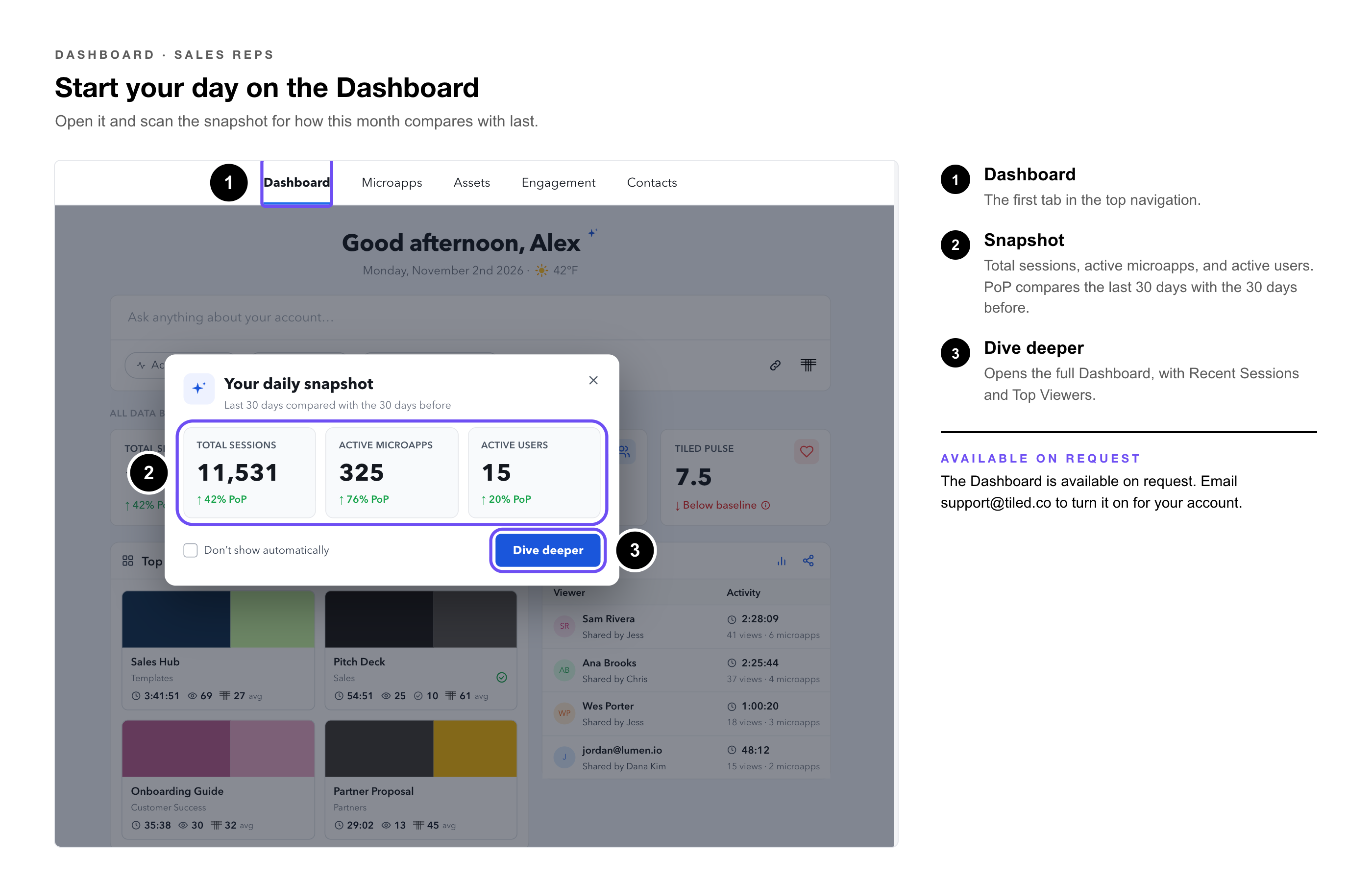
For sales reps, the Dashboard answers the question you start every day with: who’s engaging, and who should I follow up with? It shows the contacts active with your content, the microapps that are working, shares worth a follow-up, and sessions as they happen, so you can reach out while interest is high.
|
Available on Request: The Dashboard is available on request. Email support@tiled.co to turn it on for your account. |
Your Daily Routine
1. Open the Dashboard — and scan the snapshot for how this month compares with last.
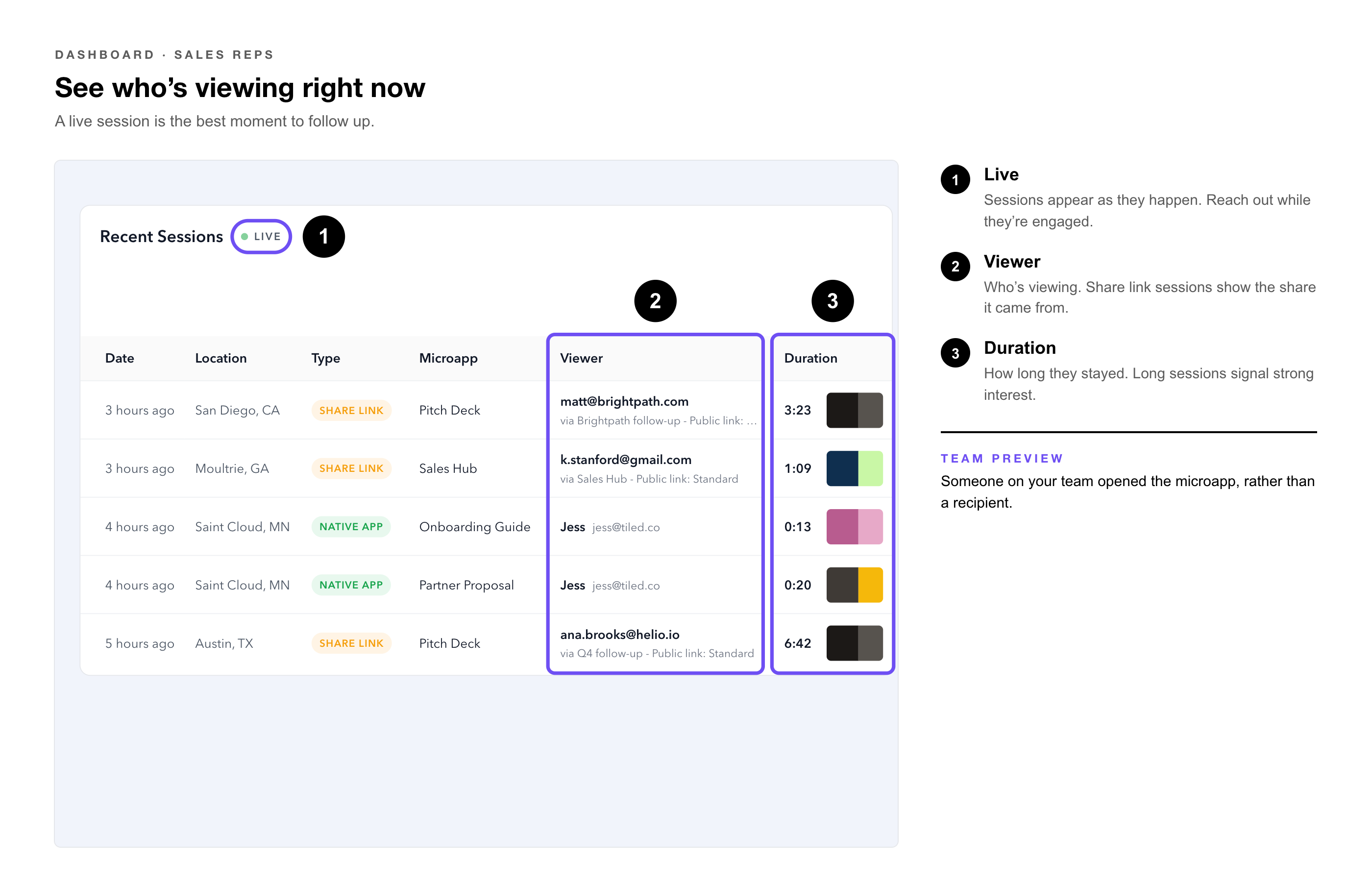
2. Check Recent Sessions — for anyone viewing your content right now. A live session is the best moment to follow up.
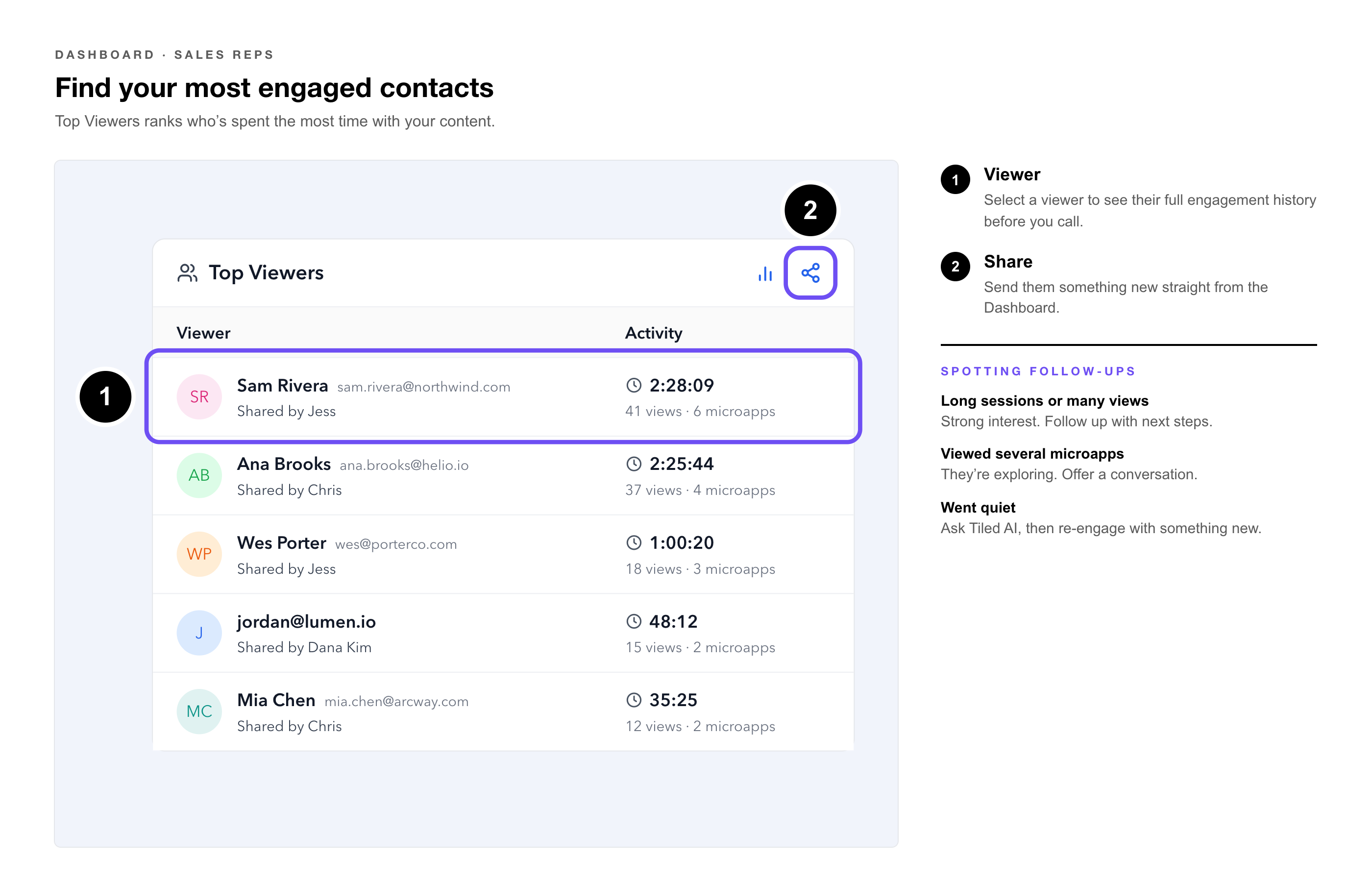
3. Review Top Viewers — to see who’s spent the most time with your content.
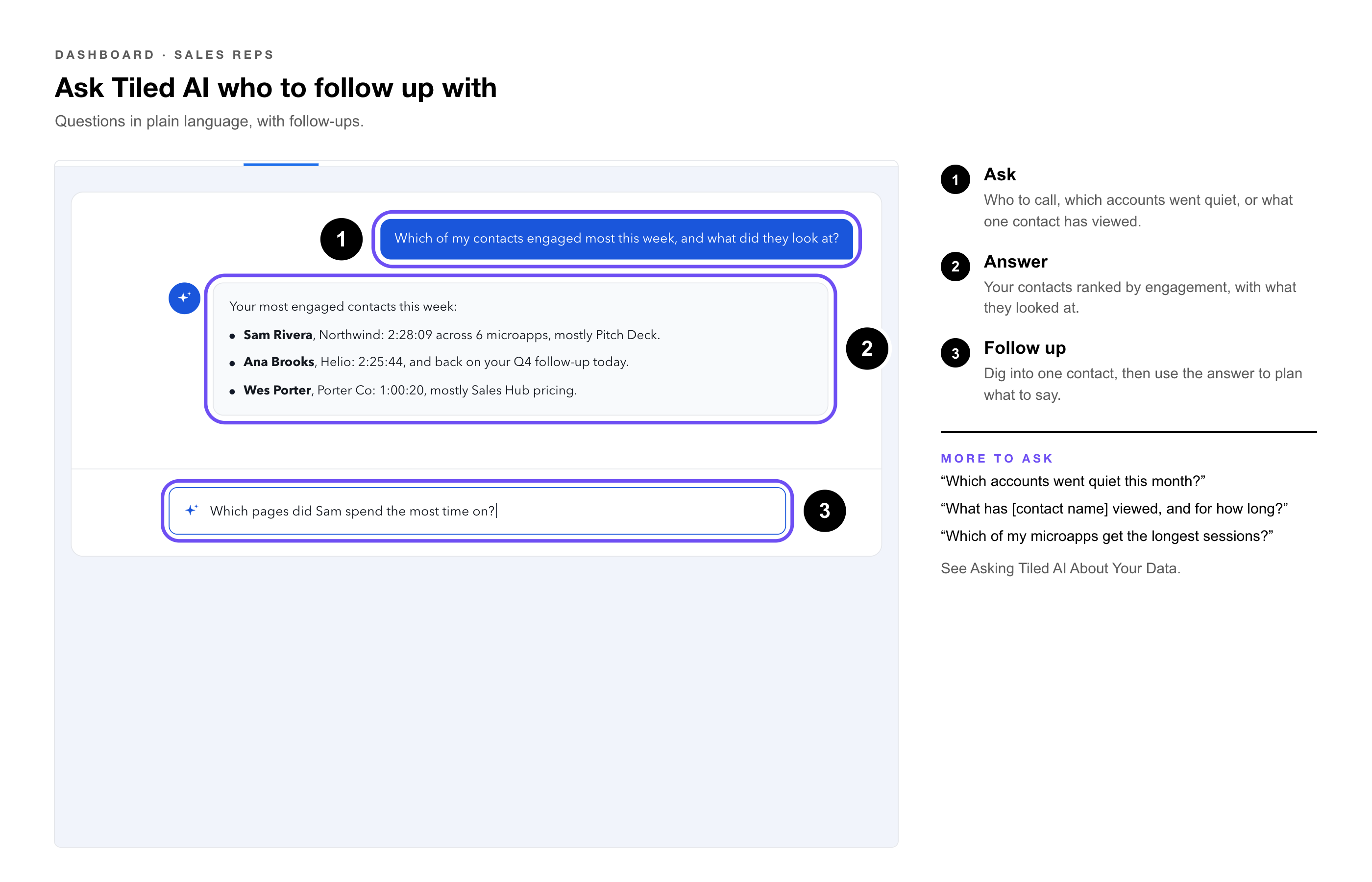
4. Ask Tiled AI — who to follow up with, and why.
Spotting Follow-Ups
|
Signal |
Where to See It |
What It Suggests |
|
Someone is viewing now |
Recent Sessions |
Reach out while they’re engaged. |
|
Long sessions or many views |
Top Viewers |
Strong interest. Follow up with next steps. |
|
Viewed several microapps |
Top Viewers |
They’re exploring. Offer a conversation. |
|
Went quiet |
Ask Tiled AI |
Re-engage with something new. |
|
Pro Tip: Select a viewer in Top Viewers to see their full engagement history before you call, and use the share icon to send them something new straight from the Dashboard. |
Questions Reps Ask
|
To Find Out |
Ask Tiled AI |
|
Who to call |
“Which of my contacts engaged most this week, and what did they look at?” |
|
Quiet accounts |
“Which accounts went quiet this month?” |
|
One contact |
“What has [contact name] viewed, and for how long?” |
|
What’s working |
“Which of my microapps get the longest sessions?” |
|
Follow-up |
“Which pages did they spend the most time on?” |
See Asking Tiled AI About Your Data for tips on writing queries and following up.
|
Try It Yourself: Ask “Which of my contacts engaged most this week?”, then follow up with “Which pages did the top one spend the most time on?” Use the answer to plan what to say when you reach out. |
Common Questions
|
Question |
Answer |
|
Why don’t I see some contacts? |
Contacts appear once someone opens a microapp you shared and Tiled knows their email. |
|
What does Team Preview mean in Recent Sessions? |
Someone on your team opened the microapp, rather than a recipient. |
|
Can I share from the Dashboard? |
Yes. Use the share icon next to a viewer in Top Viewers. |
Related Articles
• How to Use Contacts in Tiled — Contact records and sharing from them.
• Direct Share Links — Sharing with a specific person.
• How to Read the Tiled Score — Contact engagement scores.
• The Dashboard: Overview — What’s on the Dashboard and how it’s laid out.
• The Dashboard for Admins — Account, library, and content performance.
• Asking Tiled AI About Your Data — Writing queries and following up.
• Attaching Files to a Dashboard Prompt — Giving Tiled AI documents and images to work from.
• Exporting Dashboard Data to CSV — Getting the numbers behind the Dashboard into a spreadsheet.