![logo-horizontal_w.png]](https://support.tiled.co/hs-fs/hubfs/logo-horizontal_w.png?height=30&name=logo-horizontal_w.png)
After creating a handful of microapps, categories, or even libraries you may be wondering how to readily access the microapps you are searching for. Every library has a powerful microapp search tool in order to help you find microapps quickly.
How Search Works
|
|
How It Works |
|
What it matches |
Microapp names. |
|
Where it looks |
The library you’re in and every other library you can access. |
|
Who can use it |
Everyone, in every role. |
|
What you see |
Only microapps your library access and groups allow. Account Admins see results from every library. |
|
Note: Two people can run the same search and get different results. That’s expected: each person sees only the microapps they have access to. |
Search bar
When searching for a microapp the search query will attempt to match with microapp names. The results of the search will reveal microapps across Groups and other Libraries. Although the search tool is accessible to all User Roles and Account types, the visible search results will be limited by Group or Library permissions.
Searching by Name
1. Type a word or phrase — in the search bar at the top of your library.
2. Review the results. — Matches in your current library appear first, followed by matches in your other libraries.
3. Select a microapp — to open it.
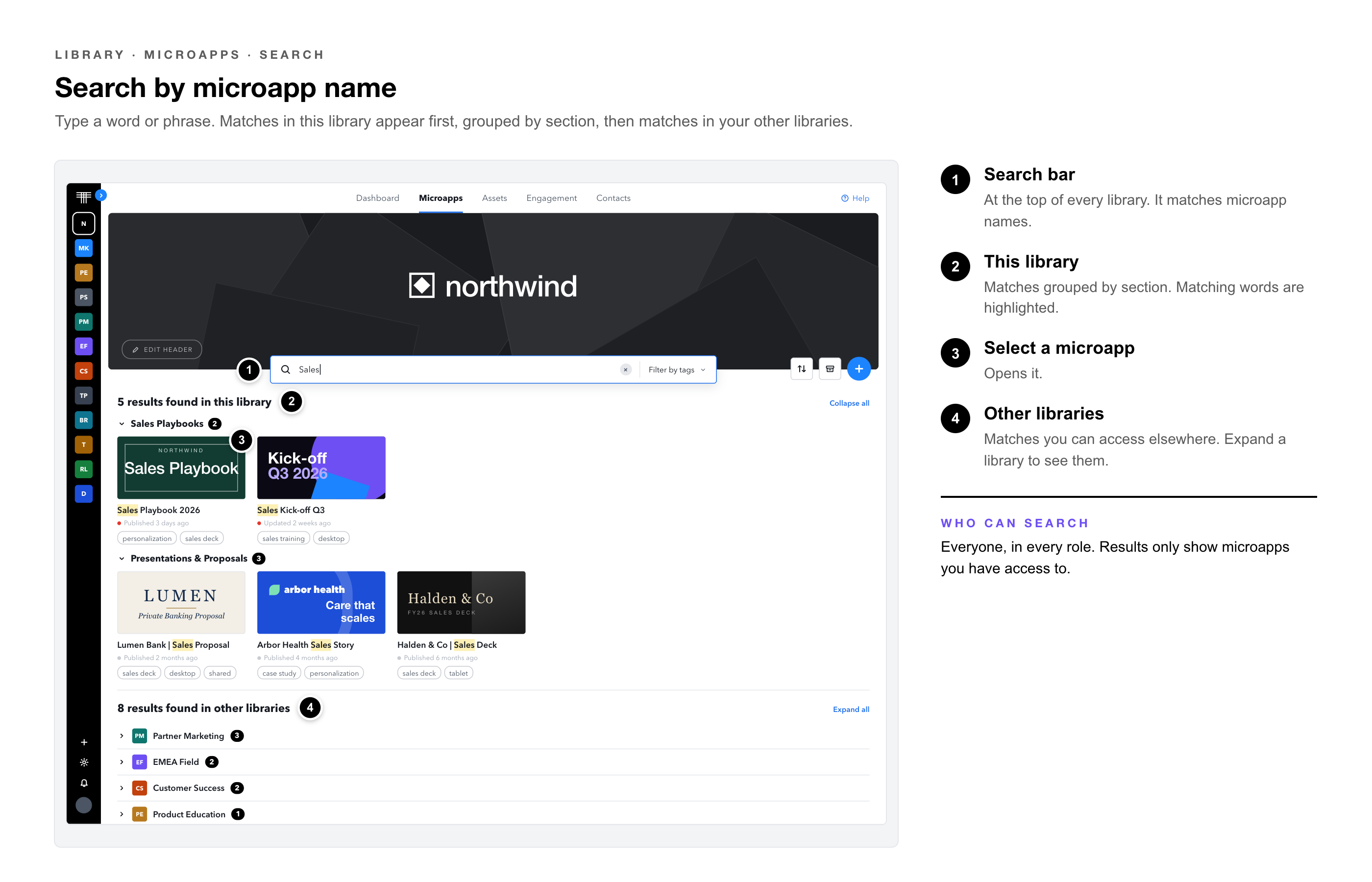
For example, if a base user searches for "sales" the only results they will see will be microapps they have access to. Account Admins, on the other hand, will see all available search results since they have access to all Libraries and Groups.
Filtering by Tags
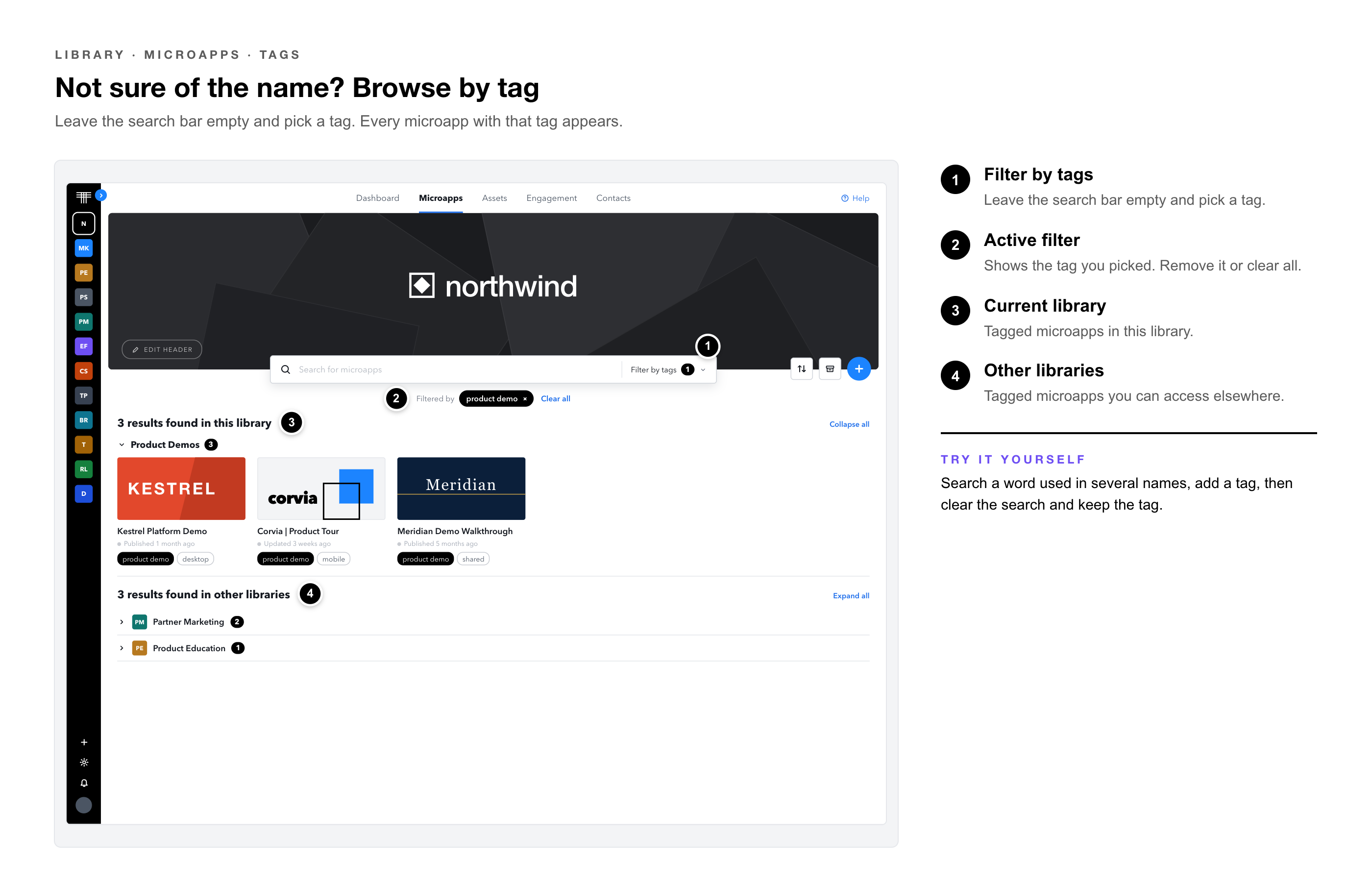
When searching for a microapp, you have the ability to filter by tags to narrow down your search results further.
- In addition to using the search bar to find a microapp by name, the user can add a filter with one or more of the available microapp tags.
- If the user is unsure of the microapp name, they can solely rely on the tag filter capability.
- Users can filter by tags from the search bar filter dropdown.
- Users can filter by tags by simply clicking on the tags displayed below the microapp covers.
|
Note: Tags under microapps from another library can’t be used to filter your current library. |
Where tags come from
|
Tag Type |
Created In |
Available In |
|
Account tags |
Every library |
|
|
Library tags |
That library only |
|
Pro Tip: Agree on a short set of account tags, such as sales deck, case study, or product demo, so search works the same in every library. Add library tags only for what’s specific to one team. |
Search Example
Use the image and table below to better understand the results of microapp search.
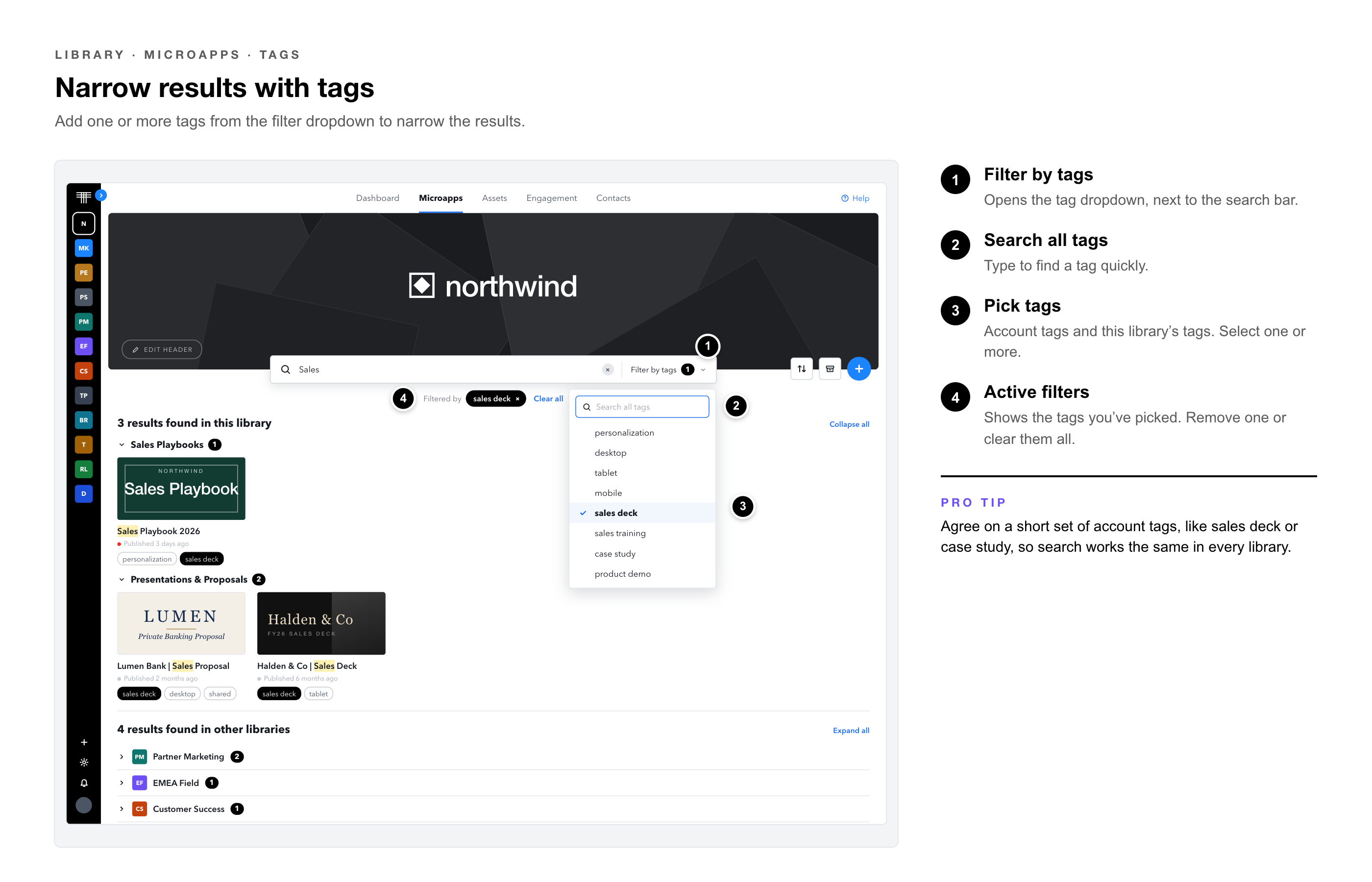
Reading Your Results
|
Area |
What It Shows |
|
Search bar |
The word or phrase you’re searching for. |
|
Tag filter |
The tags you’ve selected, from the dropdown or from a microapp. |
|
Current library |
Matching microapps in the library you’re searching from. |
|
Other libraries |
Matching microapps in your other libraries. |
|
Try It Yourself: Search for a word that appears in several microapp names, then add a tag from the filter dropdown and watch the results narrow. Clear the search and keep the tag to browse by tag alone. |
|
Common Questions
|
Question |
Answer |
|
Why can’t I find a microapp a teammate can see? |
You may not have access to its library or group. Ask your Library Admin to check your access. |
|
Why do I see results from other libraries? |
Search covers every library you can access, listed after your current library’s results. |
|
Can I search by tag only? |
Yes. Leave the search bar empty and choose tags from the filter dropdown, or select a tag under a microapp. |
|
Why can’t I click a tag on a microapp from another library? |
Tags from another library can’t filter your current library. Switch to that library first. |
|
How do I add or edit tags? |
Account tags are managed in Account Settings → Tag management. Library tags are on each library’s Tags tab in Library settings. |
Related Articles
• Account Settings: Tag Management — Creating and managing account tags.
• Library Settings: Tags — Tags for a single library.
• Managing Libraries — How library access and groups work.
• Account Settings: Roles — What each role can see.
• Managing Microapps — The microapp menu, archiving, and restoring.