![logo-horizontal_w.png]](https://support.tiled.co/hs-fs/hubfs/logo-horizontal_w.png?height=30&name=logo-horizontal_w.png)
Before You Start
Two things must be in place before you can broadcast:
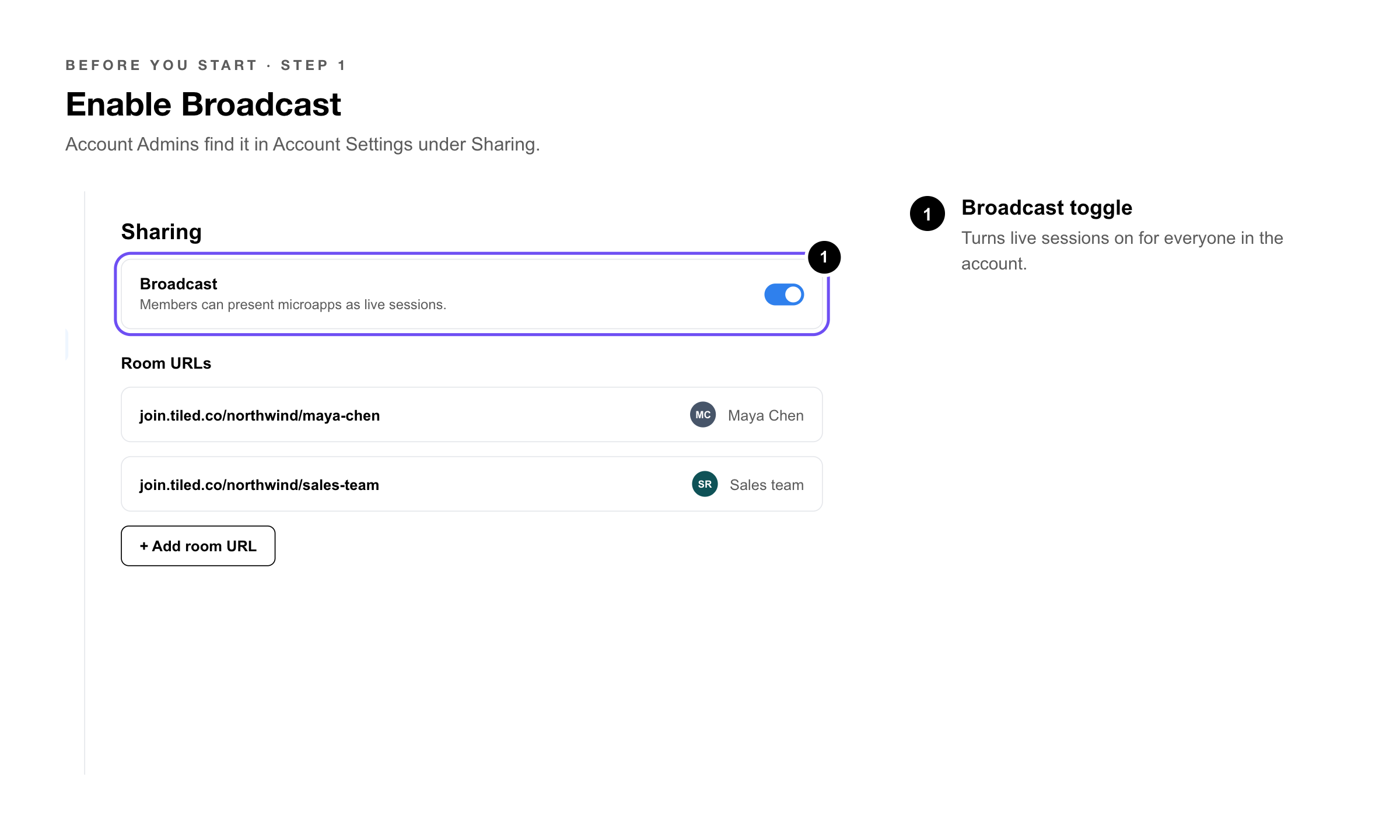
1. Broadcast must be enabled on your account by an Account Admin in Account Settings.
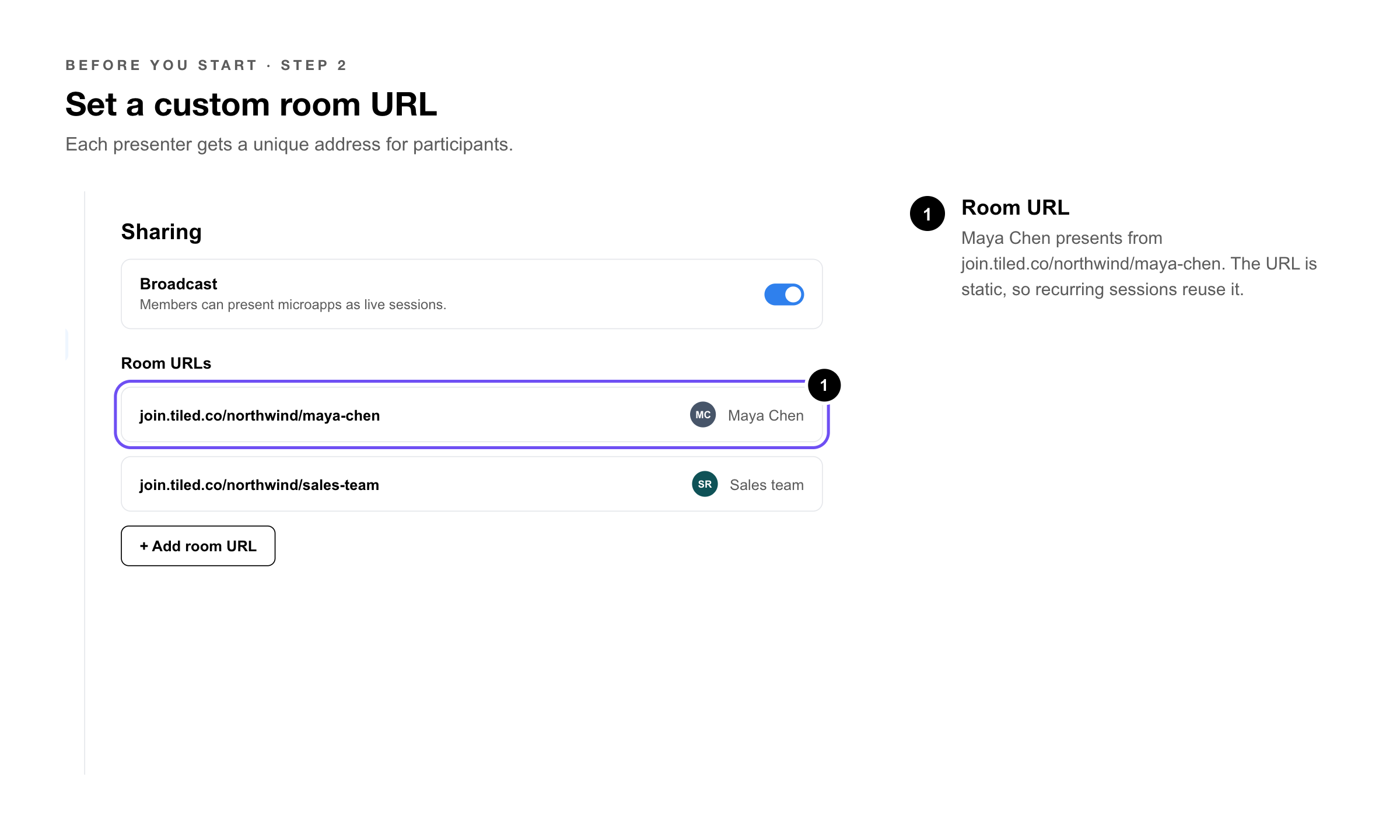
2. You must have a custom room URL configured. This is the unique web address your participants use to join. It takes the form: join.tiled.co/your-account/your-room-name.
|
Pro Tip: Use your name or team name as the room URL so engagement analytics are easy to attribute. For example: join.tiled.co/acme/sarah-chen gives you clean session data tied to a specific presenter. |
Starting a Broadcast
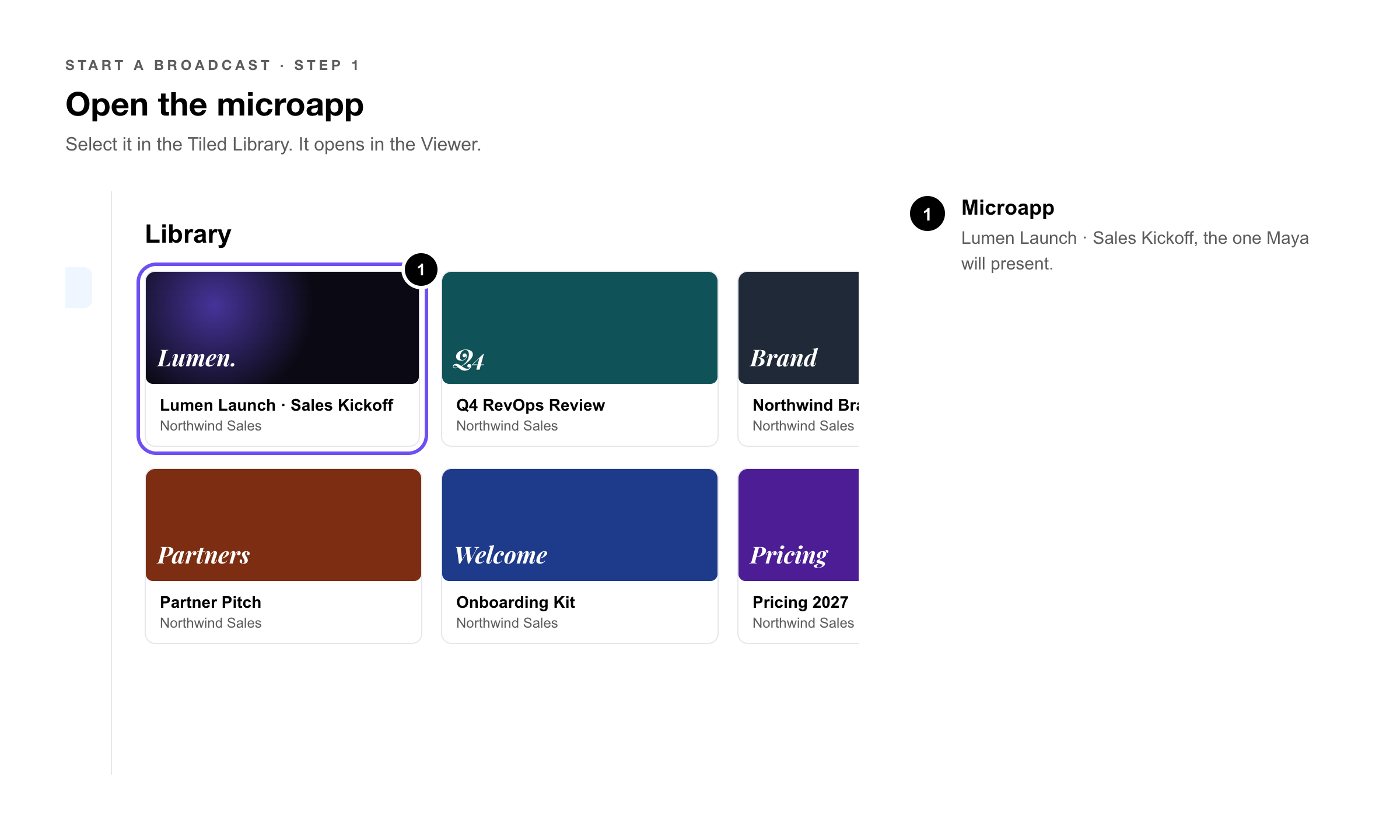
1. Open the microapp — select it from the Tiled Library. You’ll be taken to the Viewer.
2. Select Broadcast — from the top right share button.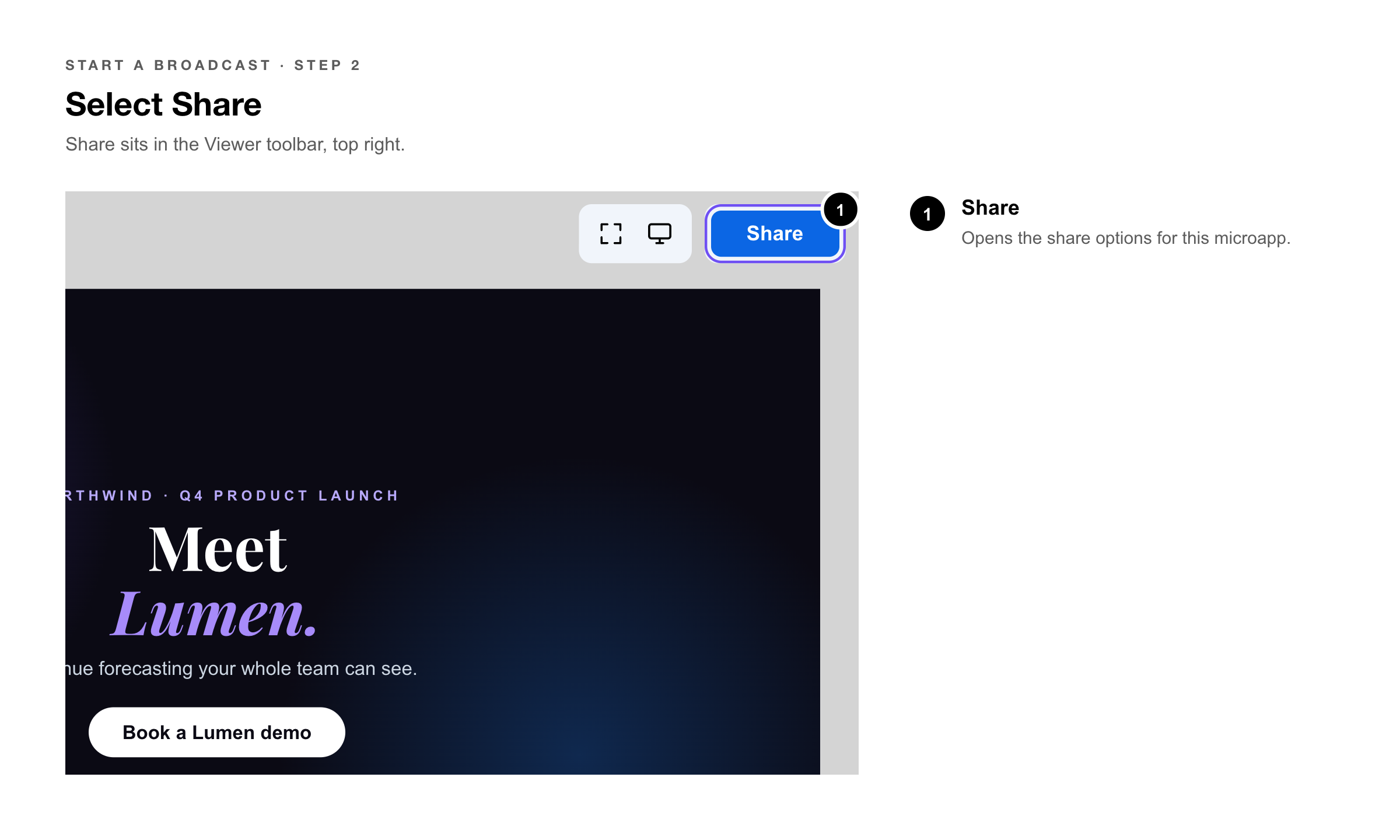
3. Select Broadcast — from the share options.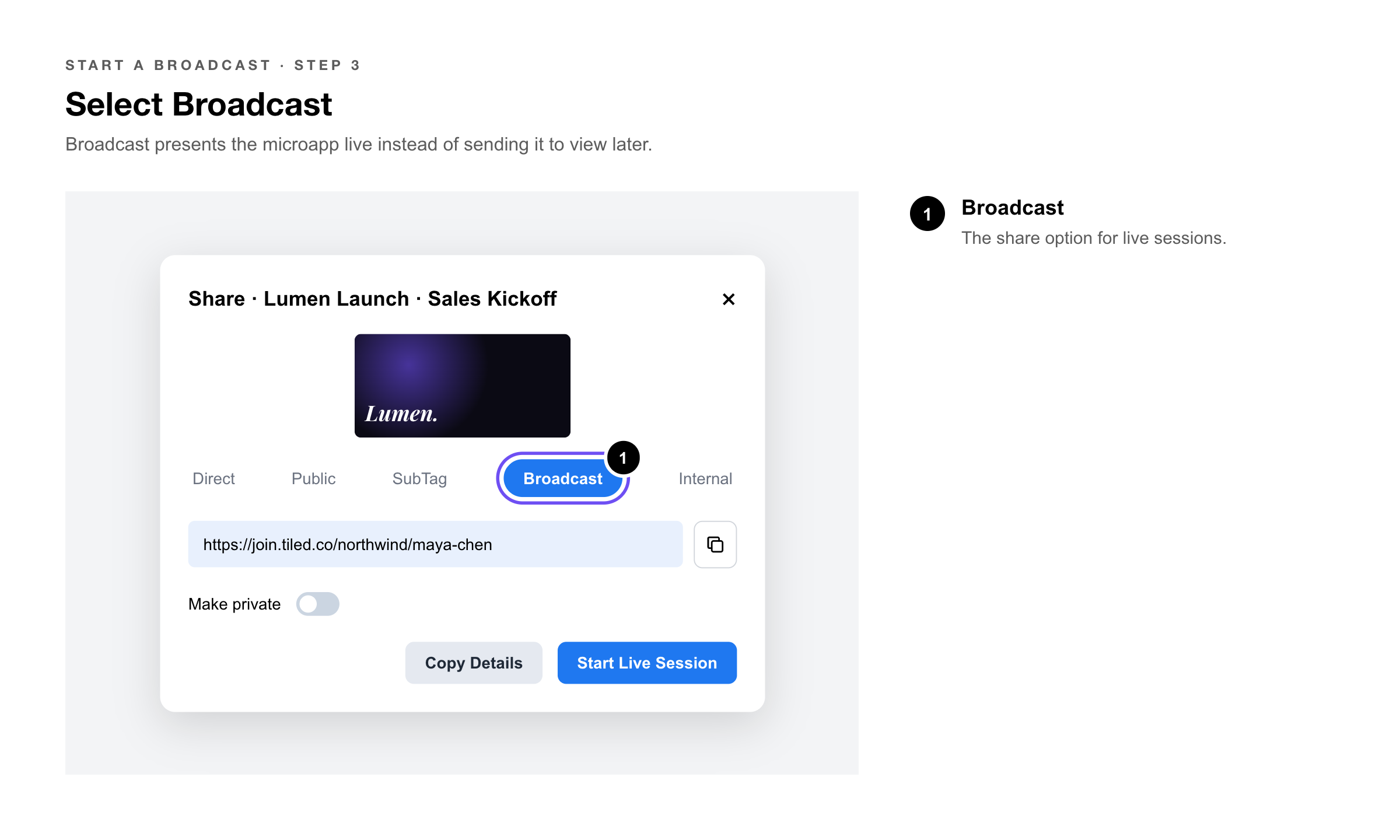
4. Copy the broadcast link — and share it with your attendees so they can join.
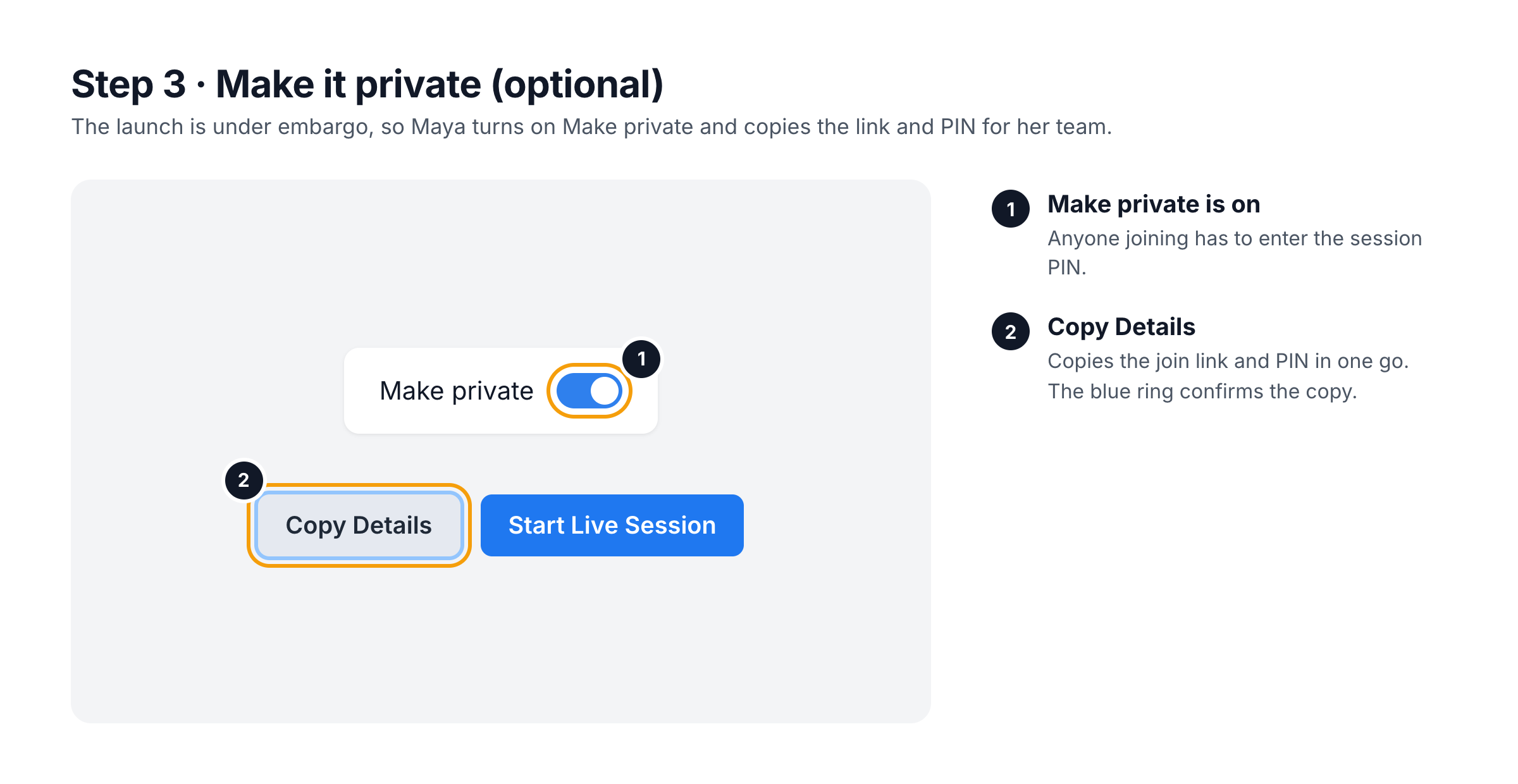
5. Select Start Live Session — to begin broadcasting.
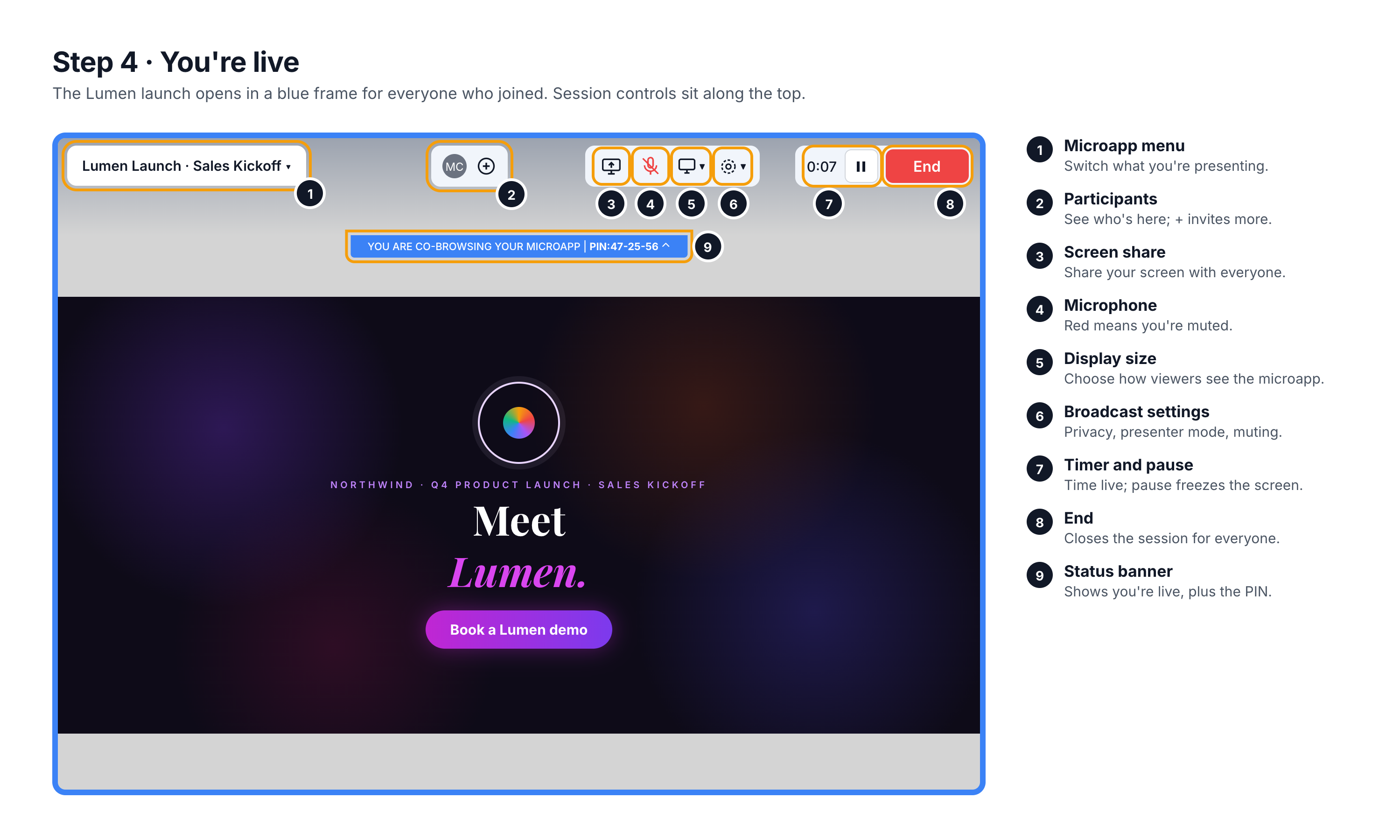 Once live, a blue frame appears around the microapp window to confirm broadcasting is active. The Broadcast menu shows a timer indicating how long you’ve been broadcasting and the viewers currently in the session, each represented by a color. When a viewer interacts with the microapp, a color spot appears on the element they engaged with, identifying that viewer in real time.
Adding Participants
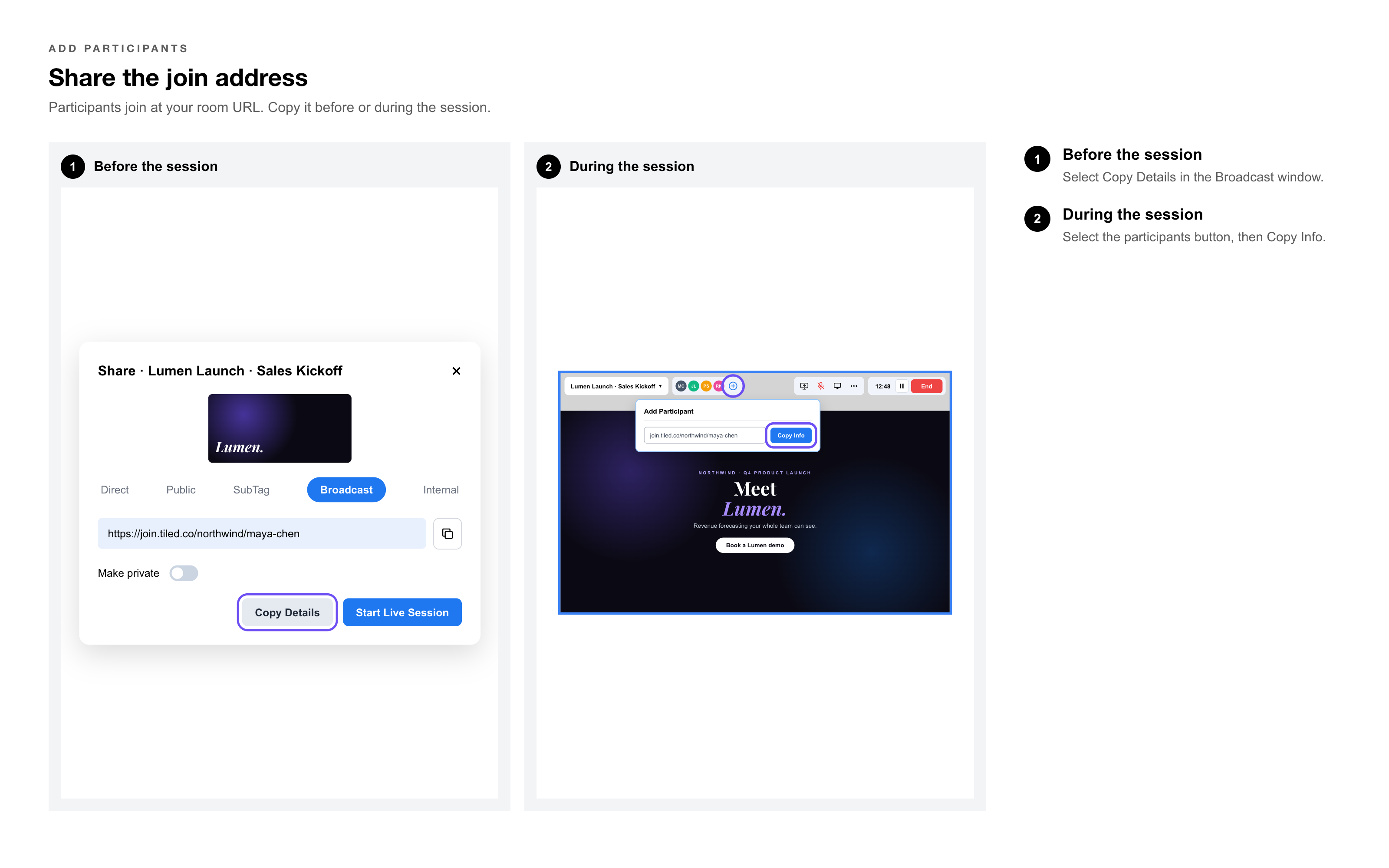
Participants join at:
Example: join.tiled.co/your-account/your-room-name.
You can share that address in two ways:
|
When |
How |
|
Before the session starts |
Select Copy Details from the Broadcast Session window. |
|
After the session is live |
Select the participants button in the menu bar, then select Copy Info from the Add Participant window. |
Paste the copied address into an email, chat message, or calendar invite to distribute to your audience.
Viewer Experience
When a participant opens the broadcast link, they see a join screen:
• Enter your name.
• Enter a PIN, if the session is Private (see below).
• Enter your email address (optional).
• Select Join Meeting.
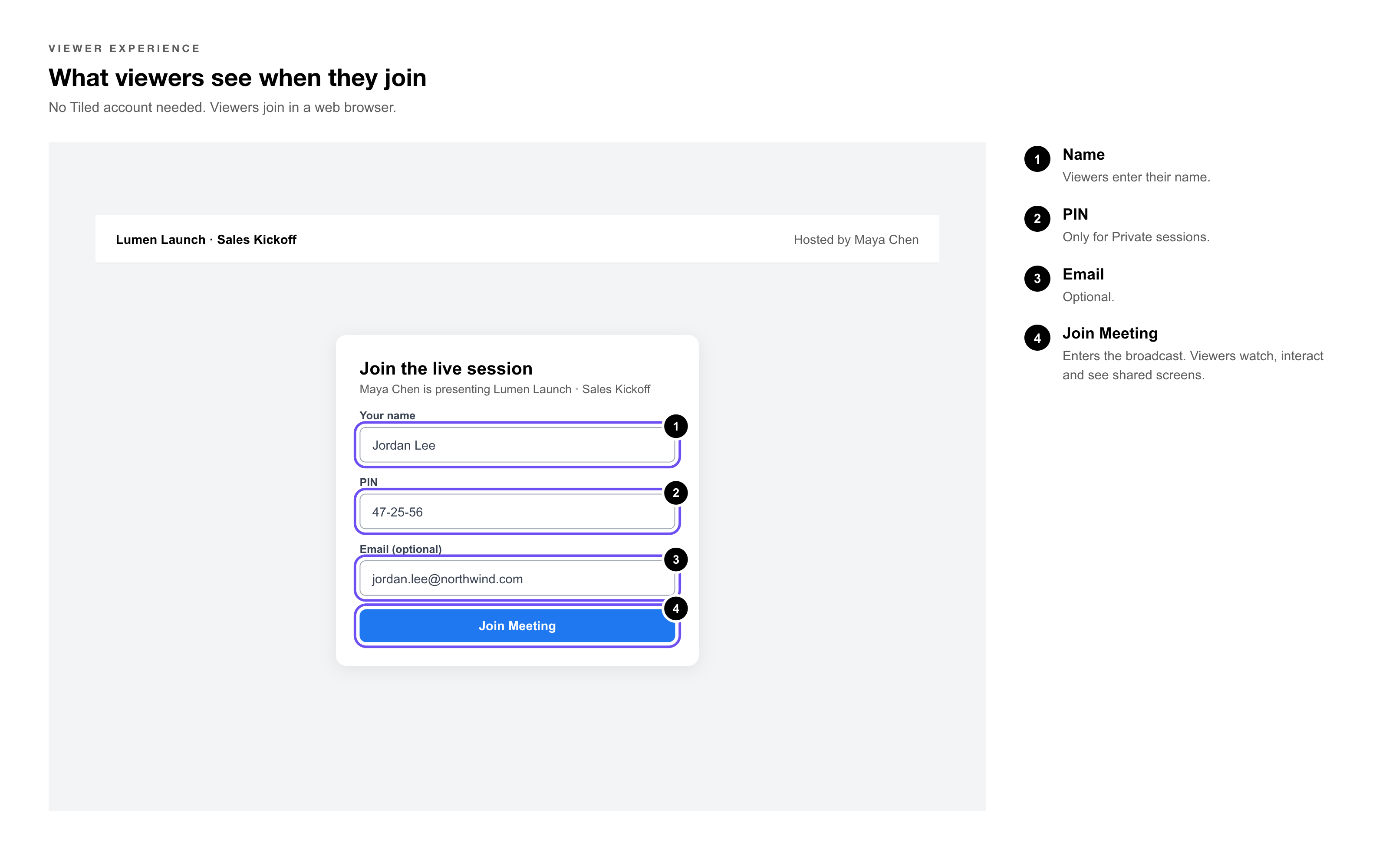 Once inside the broadcast, viewers can watch the presenter, interact with the microapp, and see any additional screens or windows the presenter shares.
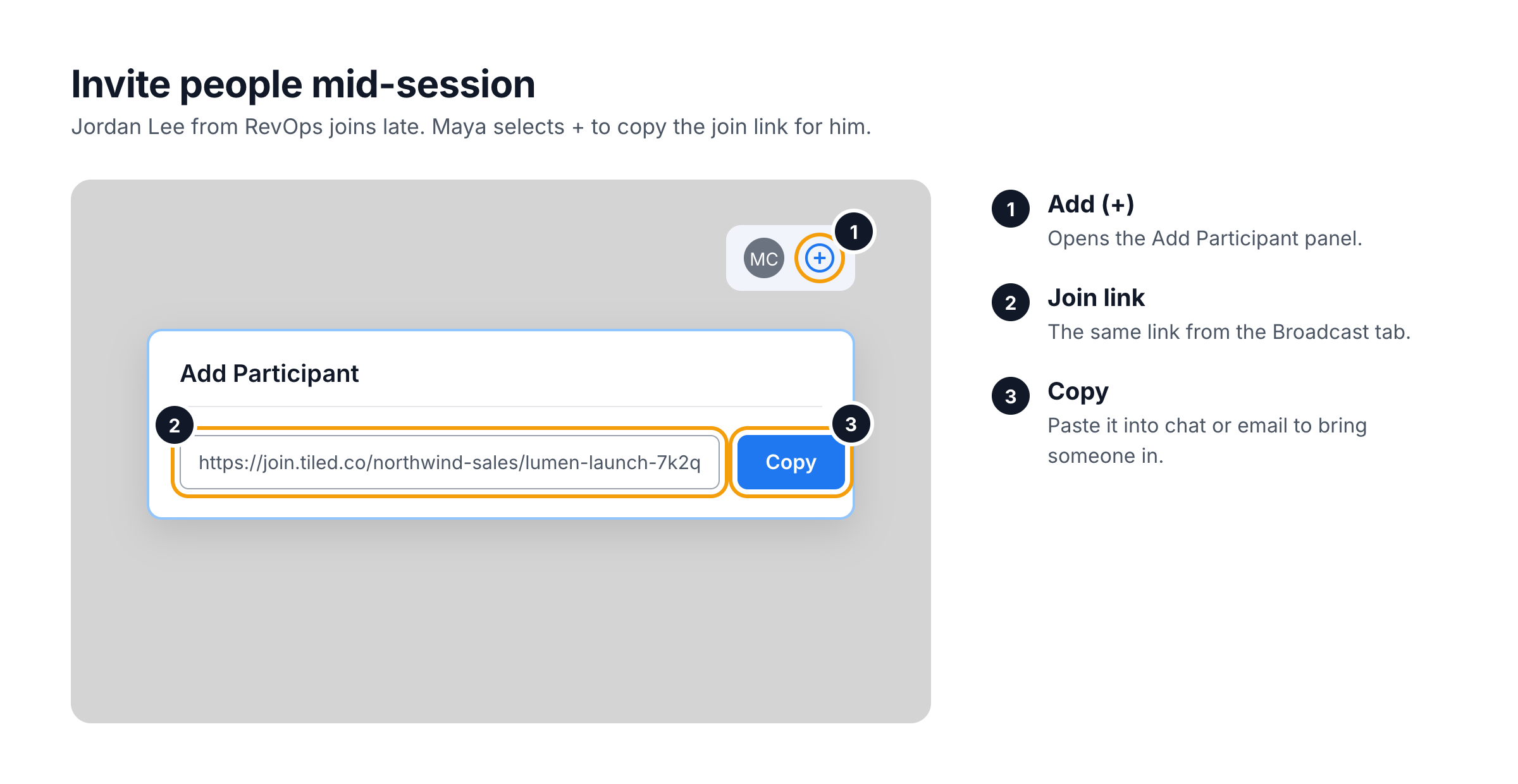
Once copied, you can paste the information into an email or message to your desired audience members.
Private Broadcasts (PIN Protection)
You can require a PIN to join, turning the session from public to private.
Before the session starts
In the Broadcast Session window, select the Public toggle. It switches to Private and generates a PIN.
During the session
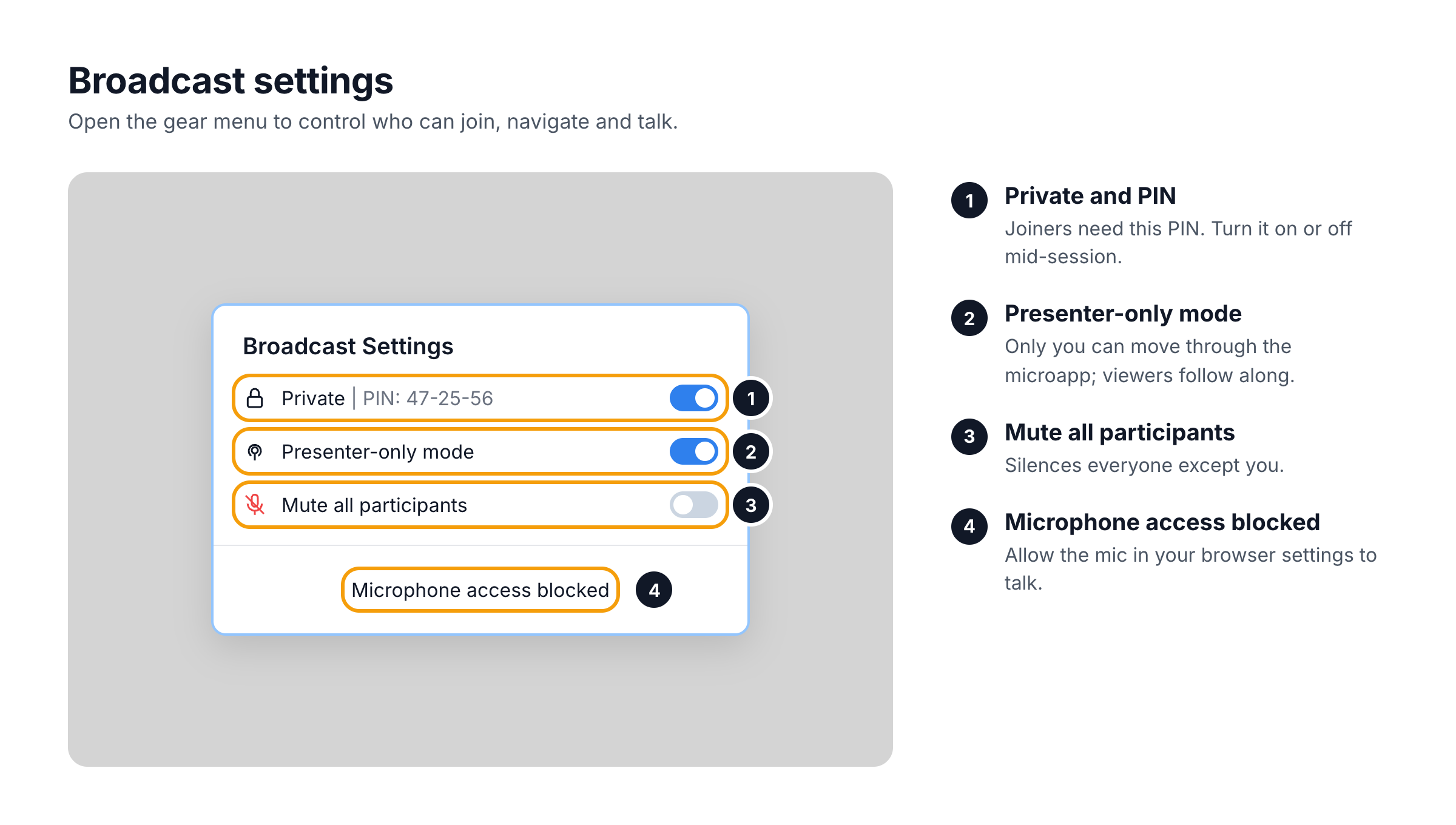
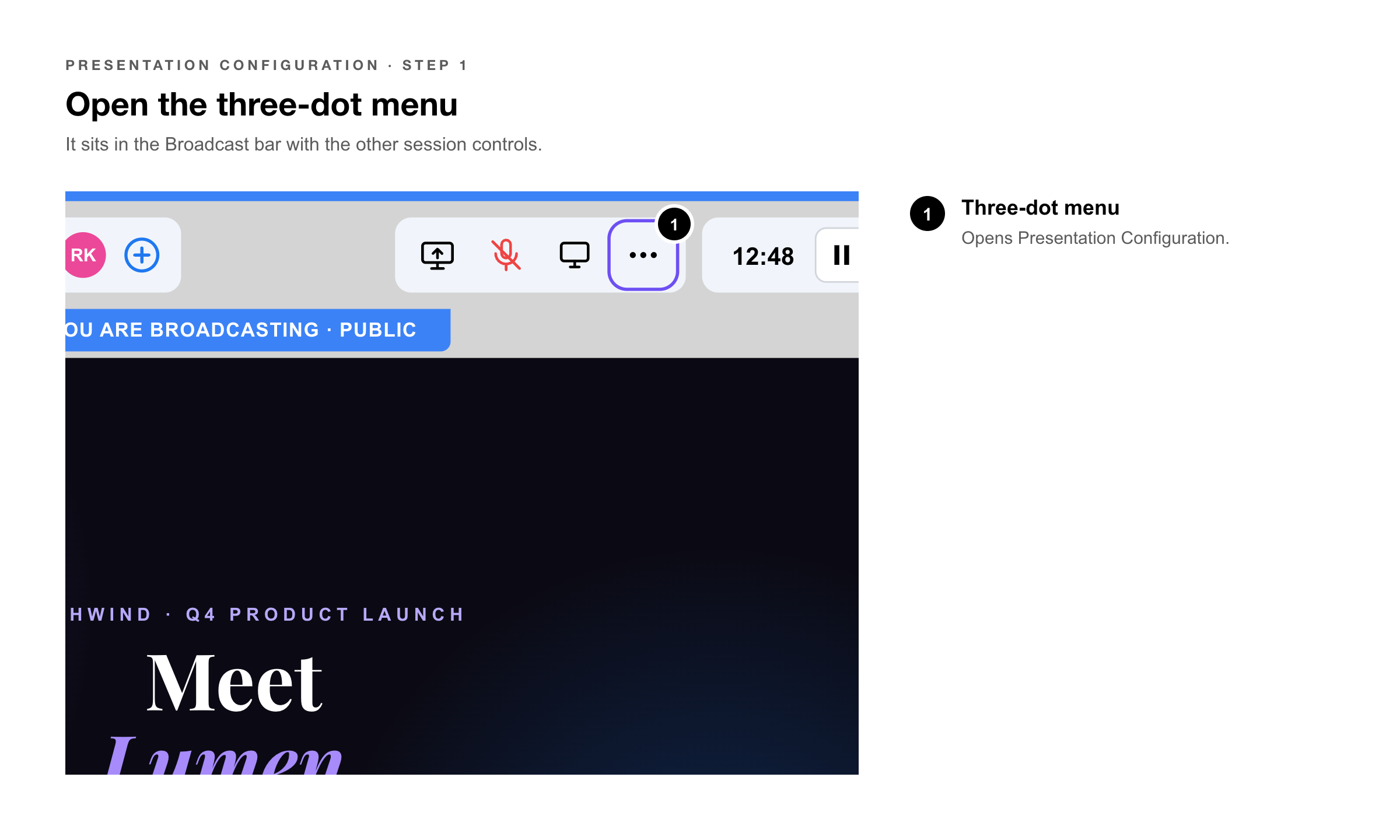
Open the Presentation Configuration window (three-dot menu) and toggle Privacy to switch between Public and Private at any time.
|
Heads Up: If you switch a live session from Public to Private while viewers are already in it, those viewers are immediately kicked out and must enter the PIN to rejoin. |
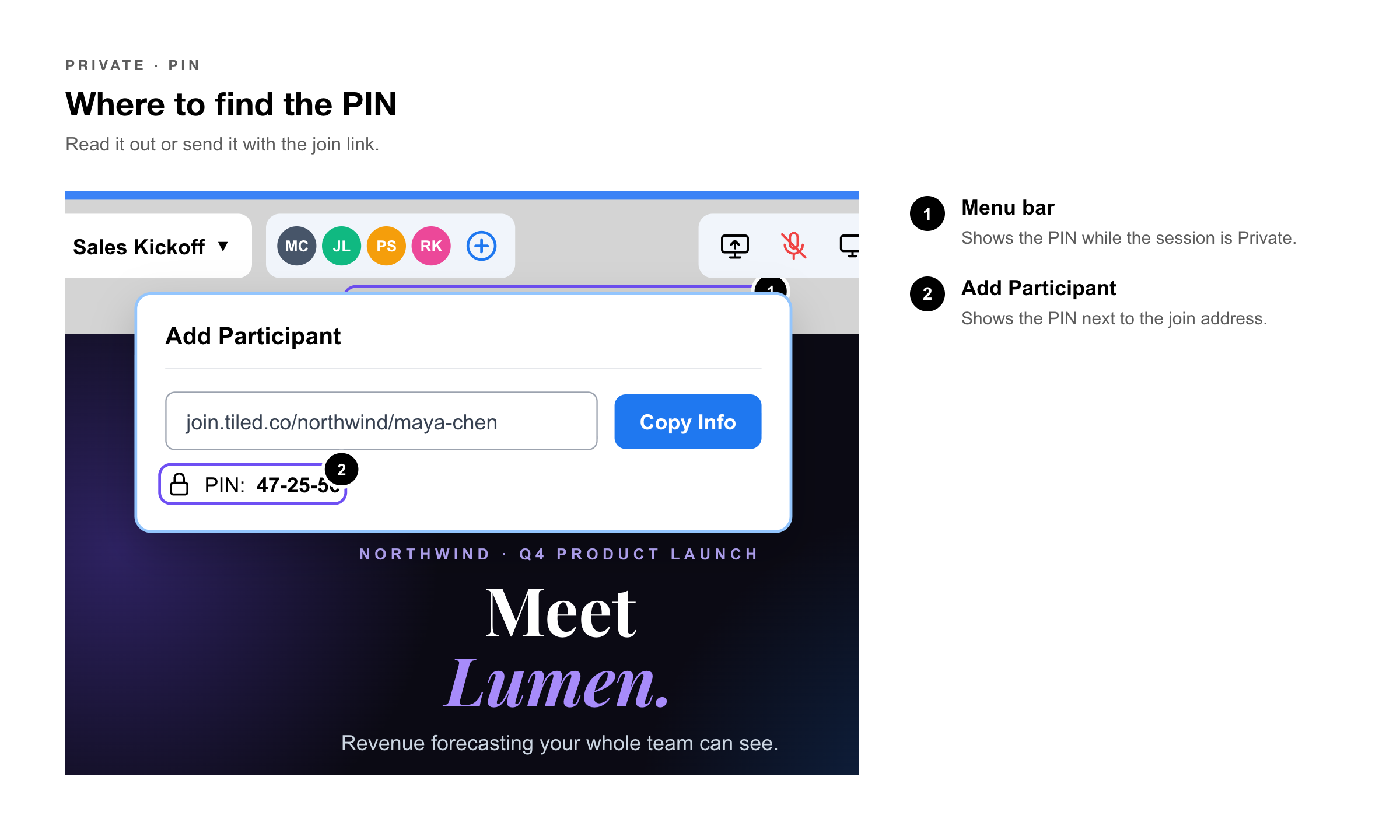
The PIN is displayed in two places once Private is active: the microapp menu bar and the Add Participant window, so you can read it out or include it when sending the join link.
Presentation Configuration Options
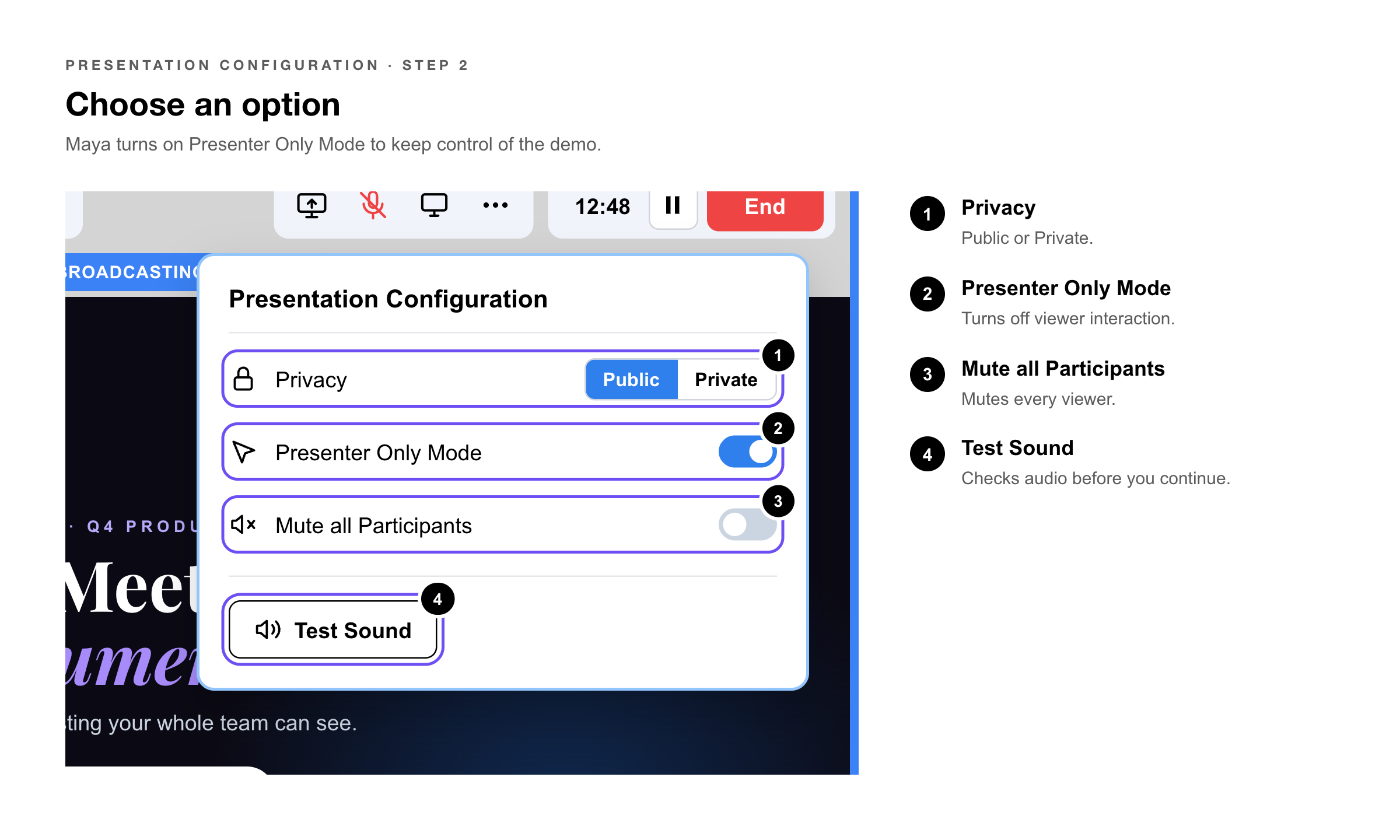
Select the three-dot button in the Broadcast menu to open the Presentation Configuration window. These options are available at any time during a live session:
|
Option |
What It Does |
|
Privacy toggle |
Switch between Public (anyone with the link can join) and Private (PIN required). |
|
Presenter Only Mode |
Toggle off the ability for viewers to interact with the microapp. Useful when you want full control of the presentation without viewer engagement. |
|
Mute all Participants |
Mute or unmute the microphones of all viewers. |
|
Test Sound |
Verify that you can hear microapp and viewer audio before proceeding. |
|
Heads Up: Tiled recommends conducting the audio portion of your live session outside of the microapp (for example, on a conference call running simultaneously). The built-in audio is functional but not optimized for full presentation audio. |
Pausing and Resuming
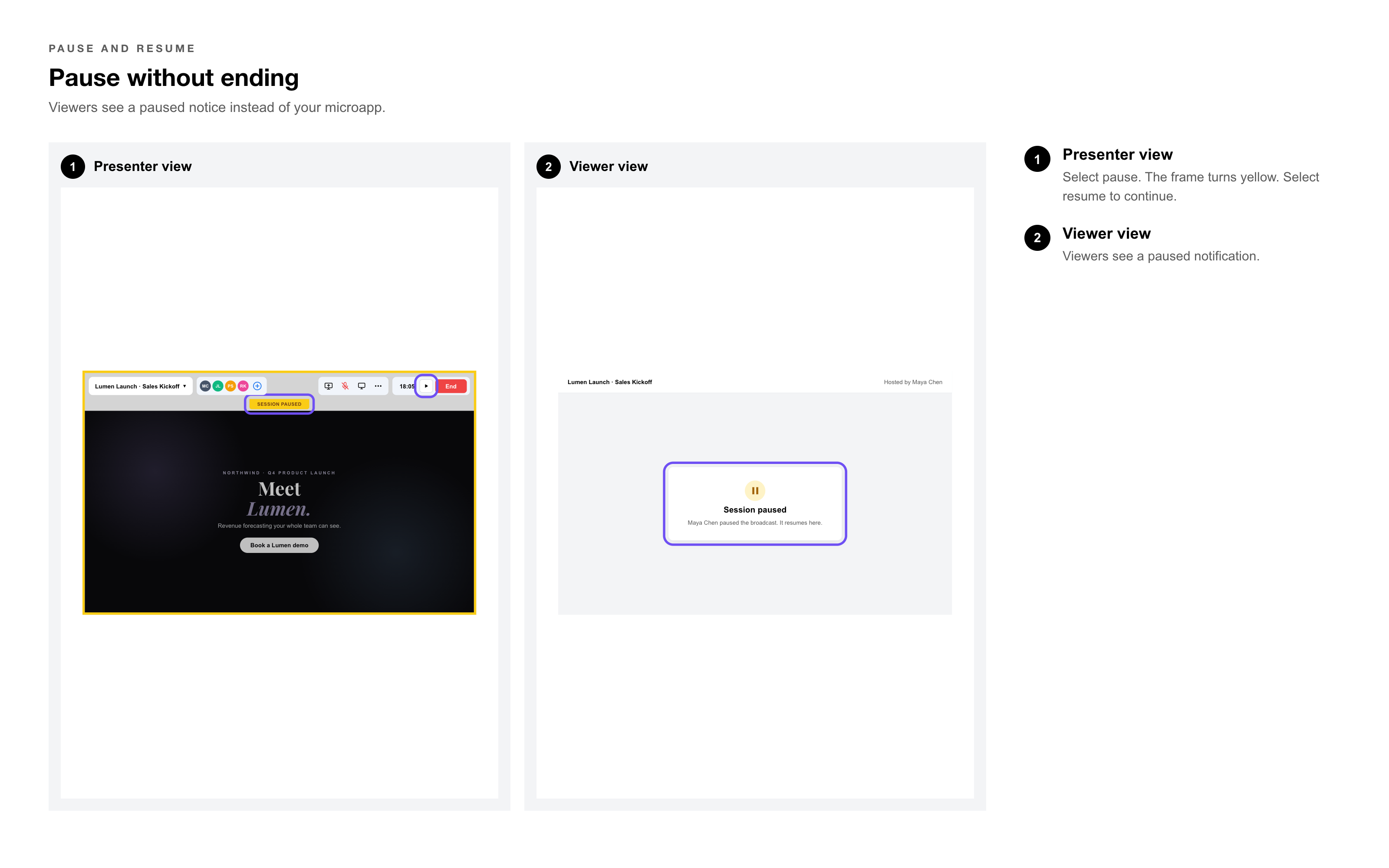
Select the pause button in the Broadcast menu to pause the session. Viewers see a notification that the session is paused rather than seeing your microapp or any other screen. Select the resume button when you’re ready to continue.
Switching Microapps Mid-Broadcast
You can switch to a different microapp during a broadcast without ending the session.
1. Select the Microapp button — on the left side of the Broadcast menu.
2. Select the desired microapp — from the dropdown list.
3. Choose a format — if more than one adaptive format is available, select the one you want to broadcast.
4. Select Update — viewers now see the new microapp.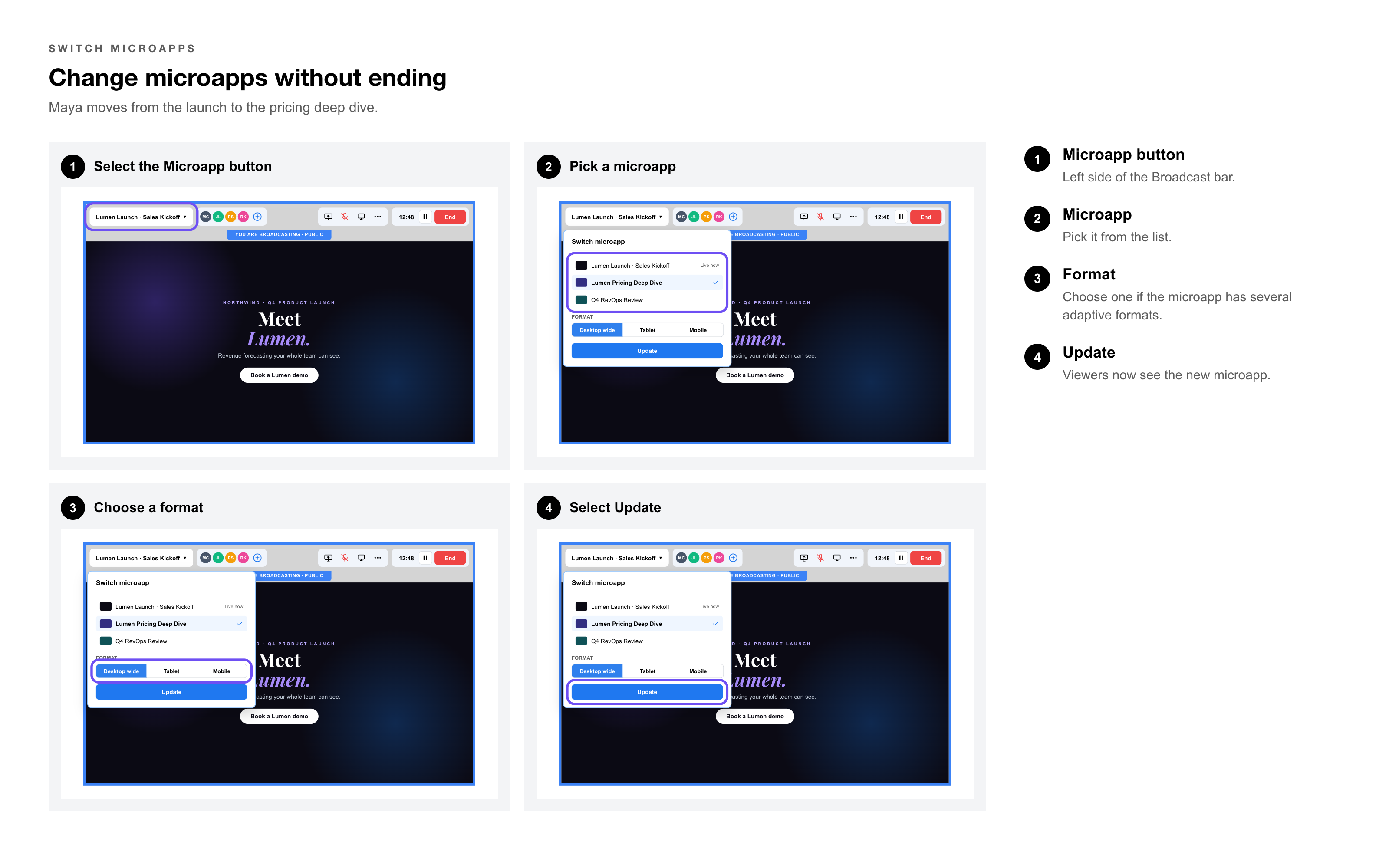
|
Pro Tip: Prepare all microapps you plan to use in a session before you start broadcasting. Switching is fast, but having them identified in advance avoids fumbling through your library mid-presentation. |
Screen Sharing
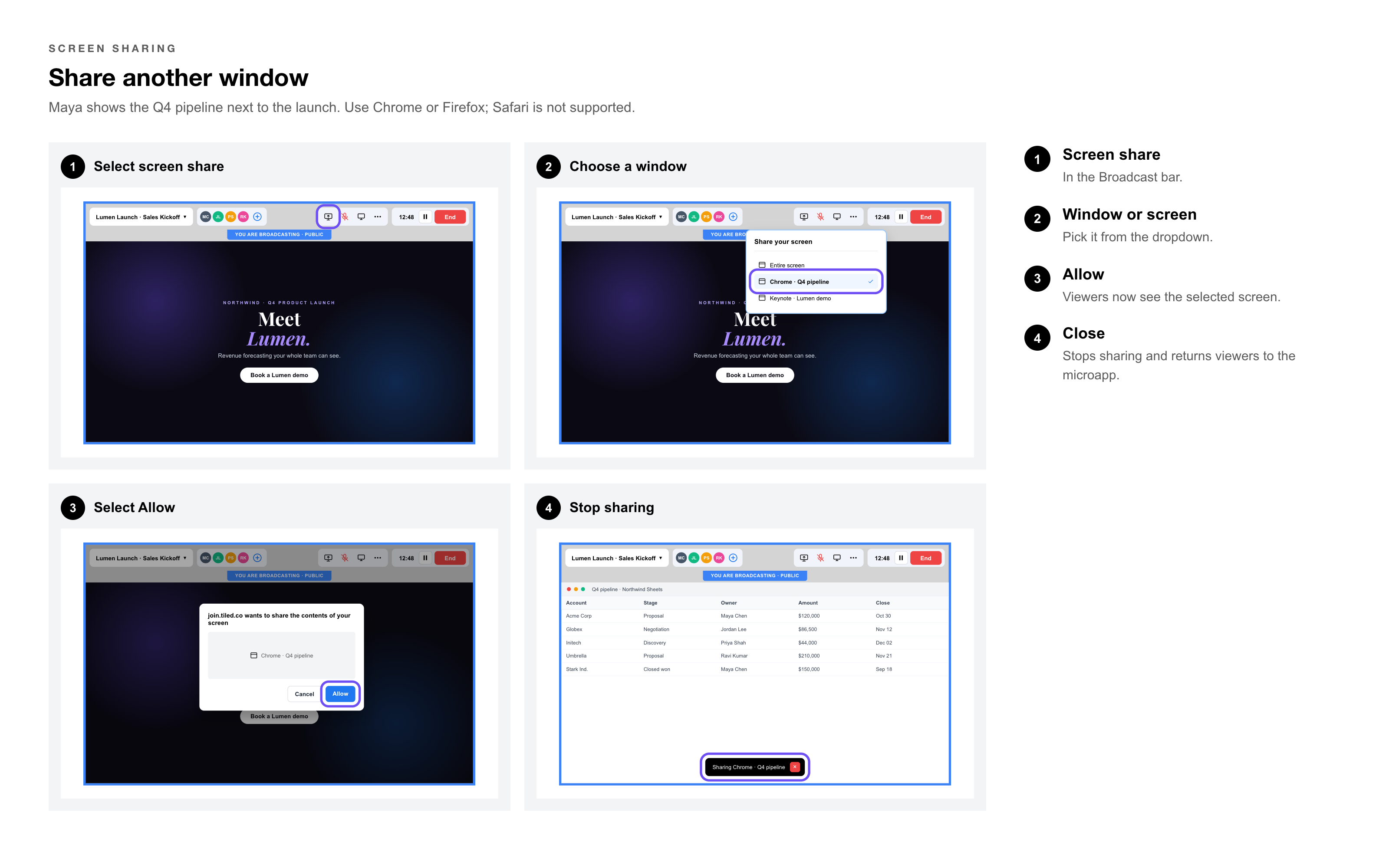
You can share additional windows or screens during a broadcast, similar to any screen sharing tool.
1. Select the screen share button — in the Broadcast menu.
2. Choose the window or screen — you want viewers to see from the dropdown.
3. Select Allow — viewers now see the selected screen.
4. Select the close button — to stop screen sharing and return viewers to the microapp.
|
Heads Up: Screen sharing is not supported in Safari. Use Chrome or Firefox if screen sharing is part of your broadcast plan. |
Ending the Session
Select the End button from the Broadcast menu bar to close the live session. Attendees receive a notification that the broadcast has ended. 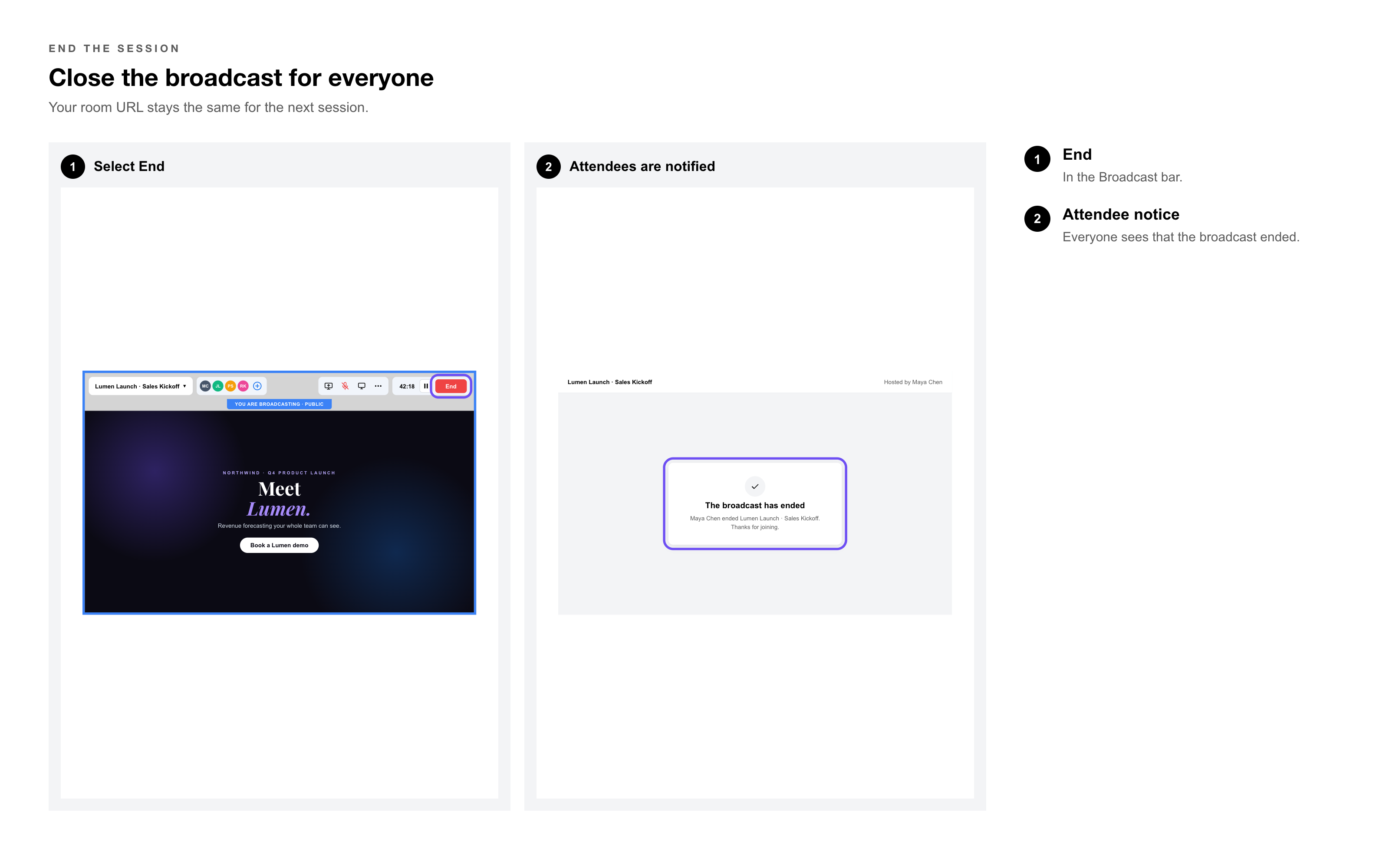
|
Pro Tip: Your broadcast room URL is static. If you use the same room URL for recurring events (a weekly demo, a recurring client session), the link stays the same — no need to regenerate or redistribute it each time. |
Broadcasting From a Mobile Device
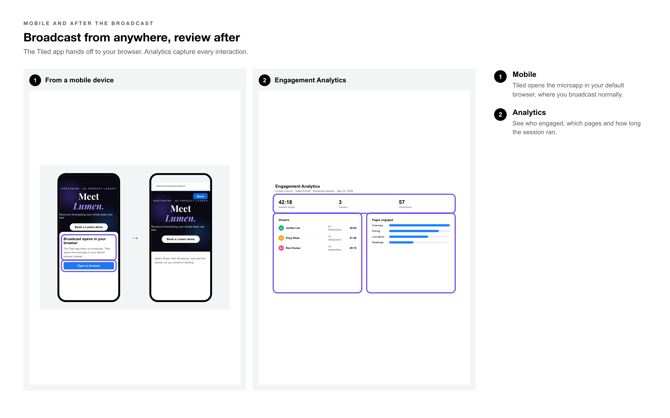
The Tiled app does not support broadcasting directly. If you open a microapp in the Tiled app and attempt to broadcast, Tiled automatically opens the microapp in your device’s default web browser, where you can broadcast normally.
 Engagement After the Broadcast
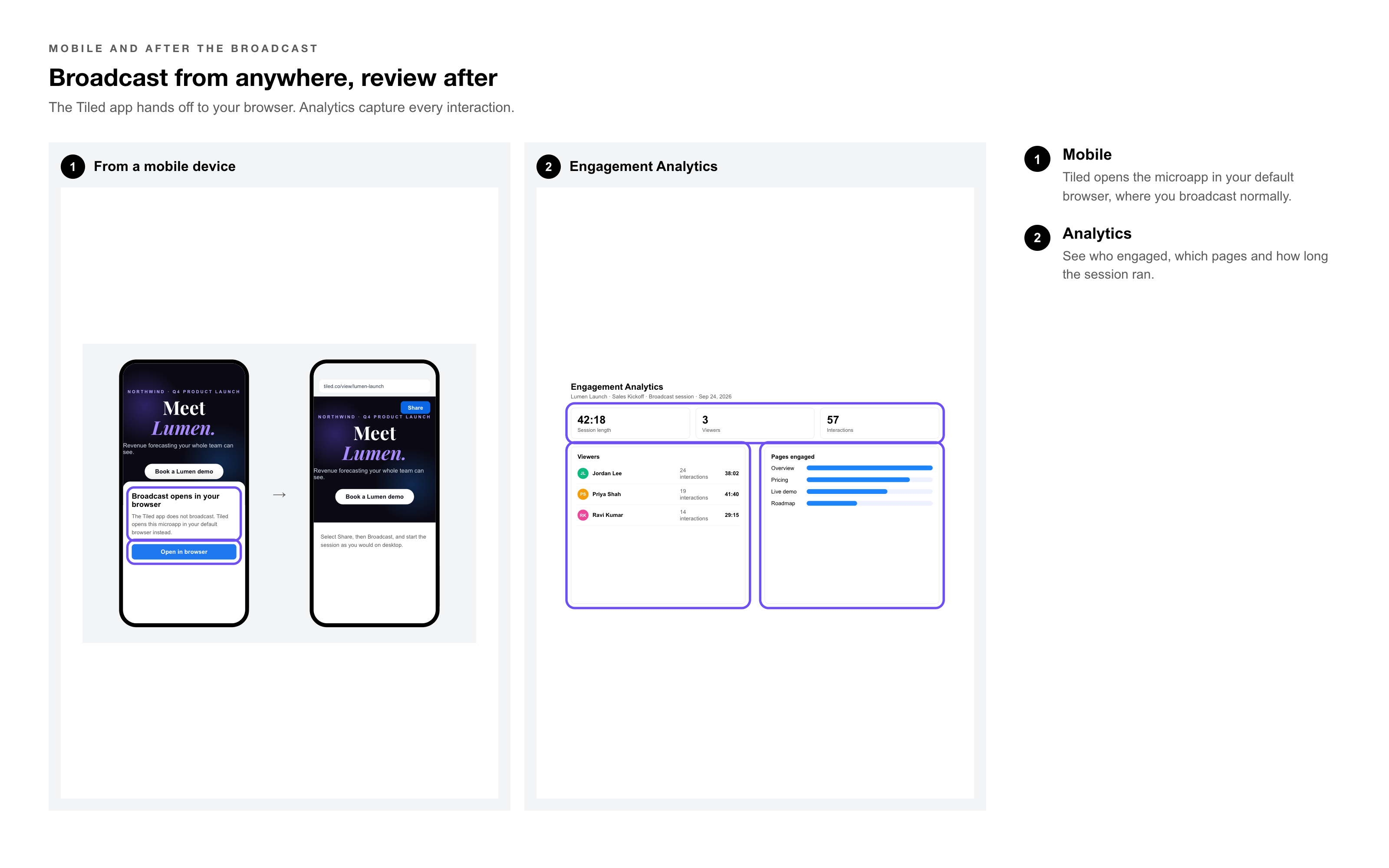
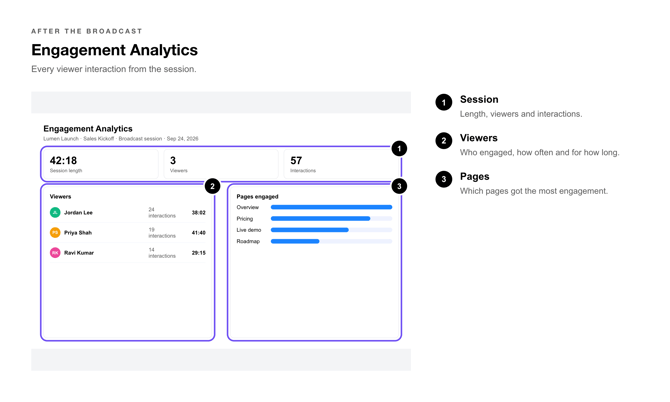
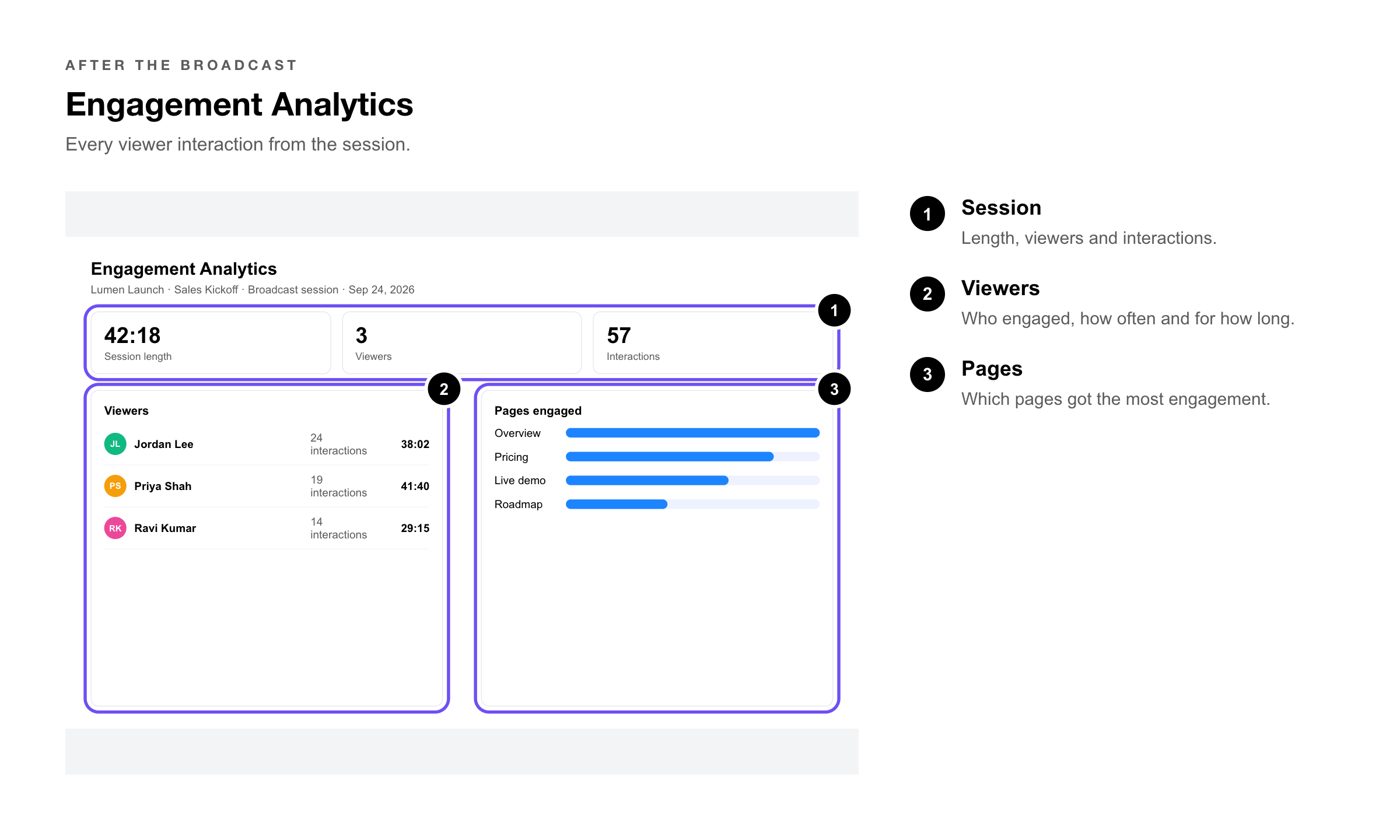
All viewer interactions during the session are captured and available in Tiled Engagement Analytics after the broadcast ends. You can see which viewers engaged, which pages they interacted with, and how long the session ran.
 Common Questions
|
Question |
Answer |
|
Does a viewer need a Tiled account to join a broadcast? |
No. Viewers join through the broadcast link in a web browser. No Tiled account or login is required unless the session is Private, in which case they need the PIN. |
|
Can I broadcast the same microapp to multiple groups simultaneously? |
Each room URL supports one active session at a time. For multiple simultaneous groups, you would need multiple room URLs, which requires your Account Admin to configure them. |
|
What happens if I lose my connection mid-broadcast? |
Viewers see a paused or disconnected state. Reconnecting and resuming is possible, but engagement data from the interrupted session is retained up to the point of disconnection. |
|
Can viewers record the broadcast? |
Tiled does not have a built-in broadcast recording feature. Viewers could use their own recording tools, but this is outside Tiled’s control. |
|
Does switching microapps mid-broadcast affect my session timer? |
No. The session timer continues running when you switch microapps. Engagement data is captured per microapp automatically. |
|
Why is screen sharing not working? |
Screen sharing is not supported in Safari. Switch to Chrome or Firefox to use this feature. |
|
Is the broadcast room URL reusable? |
Yes. The URL is static and can be reused for the same recurring event. Participants use the same link every time. |
Related Articles
• Engagement Analytics — Viewing session data captured during a broadcast.
• Sending a Direct Share Link — Sharing a microapp to individual recipients outside of a live session.
• Library Settings: General — Where Account Admins enable Broadcast and configure the custom room URL.
• Sharing a Microapp From the Tiled App — Mobile sharing options.