![logo-horizontal_w.png]](https://support.tiled.co/hs-fs/hubfs/logo-horizontal_w.png?height=30&name=logo-horizontal_w.png)
Contacts lists the people you’ve shared microapps with. Each person has a record showing their Tiled Score, their activity, and the microapps you’ve sent them — and you can share something new with them straight from that record. Contacts are added automatically, so there’s nothing to set up.
Where Contacts Come From
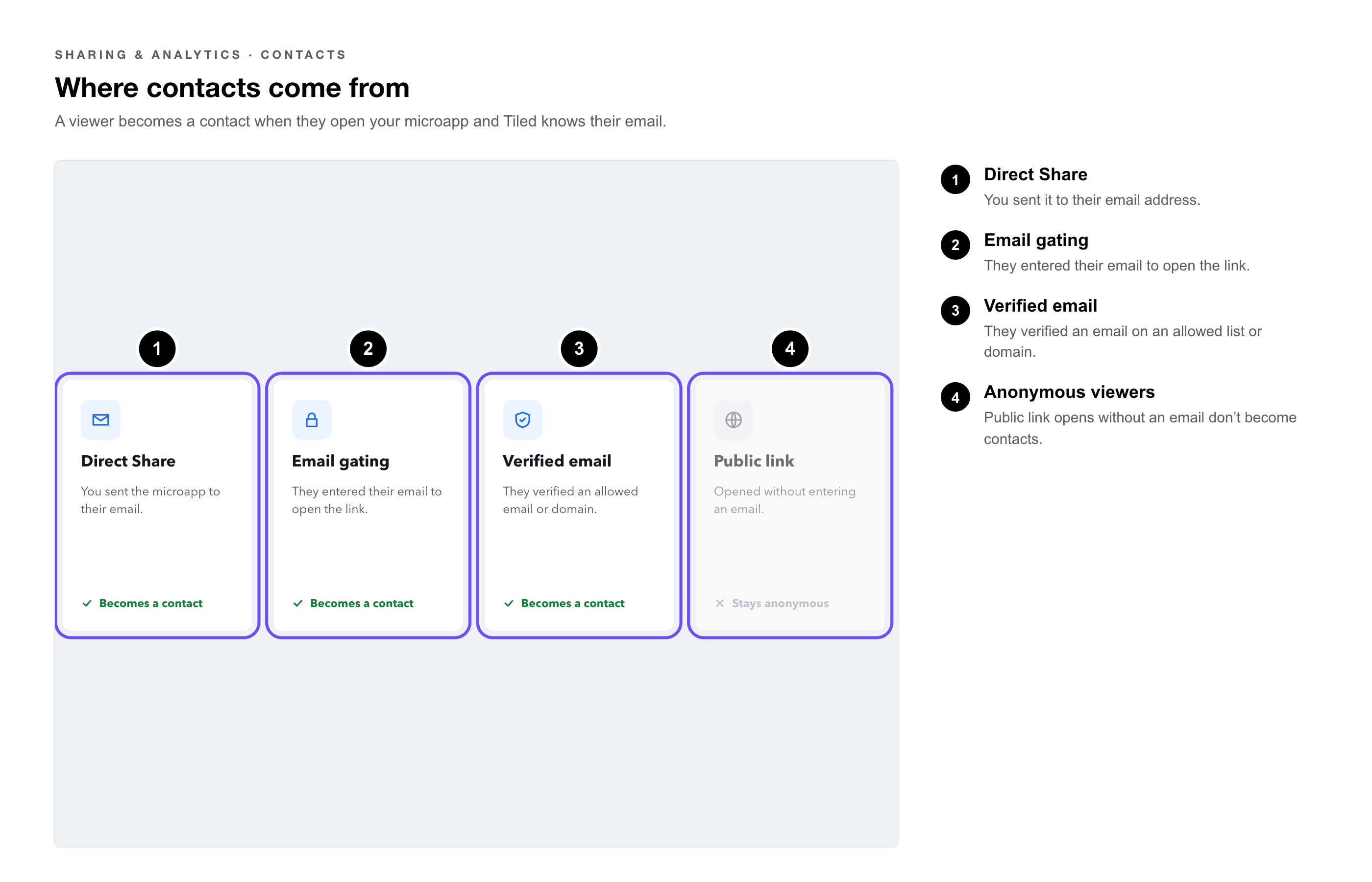
A person becomes a contact automatically when they open a microapp you shared and Tiled knows their email address. That happens when:
• You sent them a Direct Share.
• They entered their email to open a link with email gating.
• They verified their email to open a link restricted to specific emails or domains.
Anonymous viewers — for example, people who opened a Public link without entering an email — don’t become contacts.
|
Note: Contacts aren’t Tiled users. They don’t have a Tiled account or a role, and they don’t appear in User Management. |
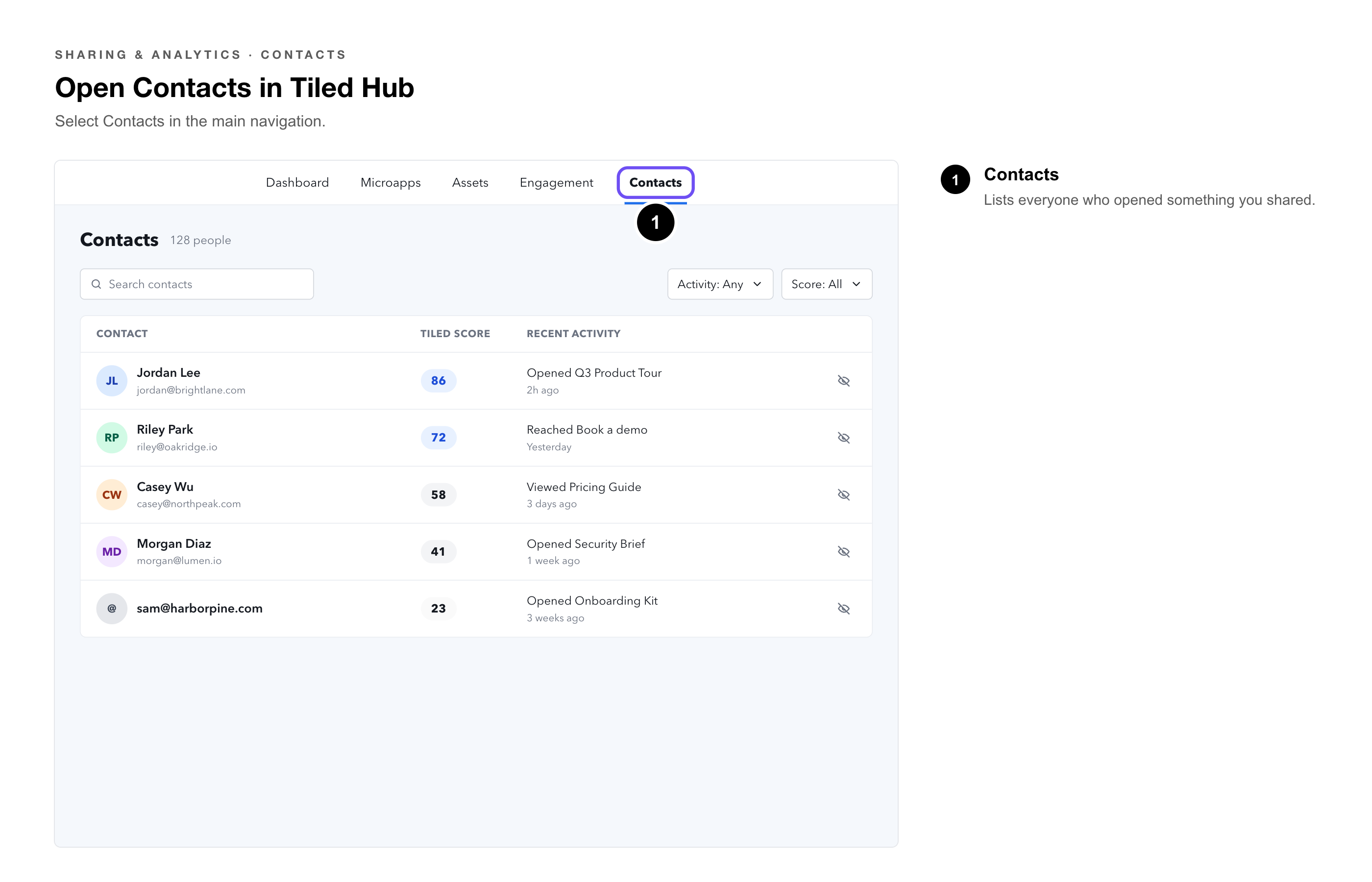
Opening Contacts
|
Where |
How |
|
Tiled Hub |
Select Contacts in the main navigation. |
|
Tiled for Desktop |
Select Contacts in the sidebar, next to My Shares. |
The Contact List
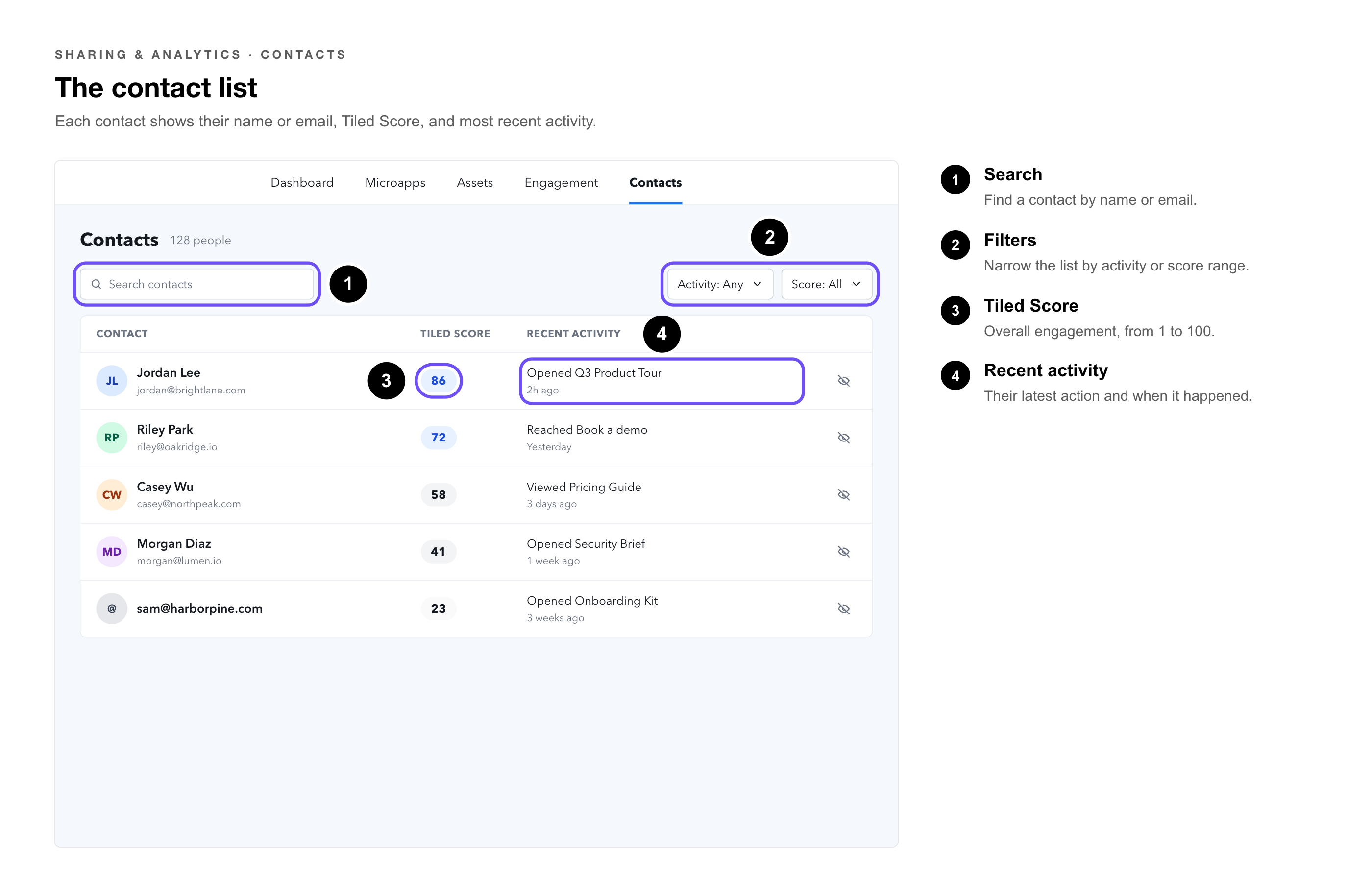
Each entry shows the contact’s name or email, their Tiled Score, and their most recent activity. Use search and filters to find someone or narrow the list by activity or score range.
|
Pro Tip: Sort or filter by Tiled Score to build a follow-up list. The score already accounts for how recently someone engaged, so the top of the list is who’s warm right now. |
A Contact’s Record
Select a contact to open their record:
|
Section |
What It Shows |
|
Tiled Score |
Their overall engagement across every microapp shared with them, from 1 to 100. |
|
Activity timeline |
Their sessions, microapps viewed, and engagement events. Filter it by activity type. |
|
Shared microapps |
Everything you’ve shared with them. |
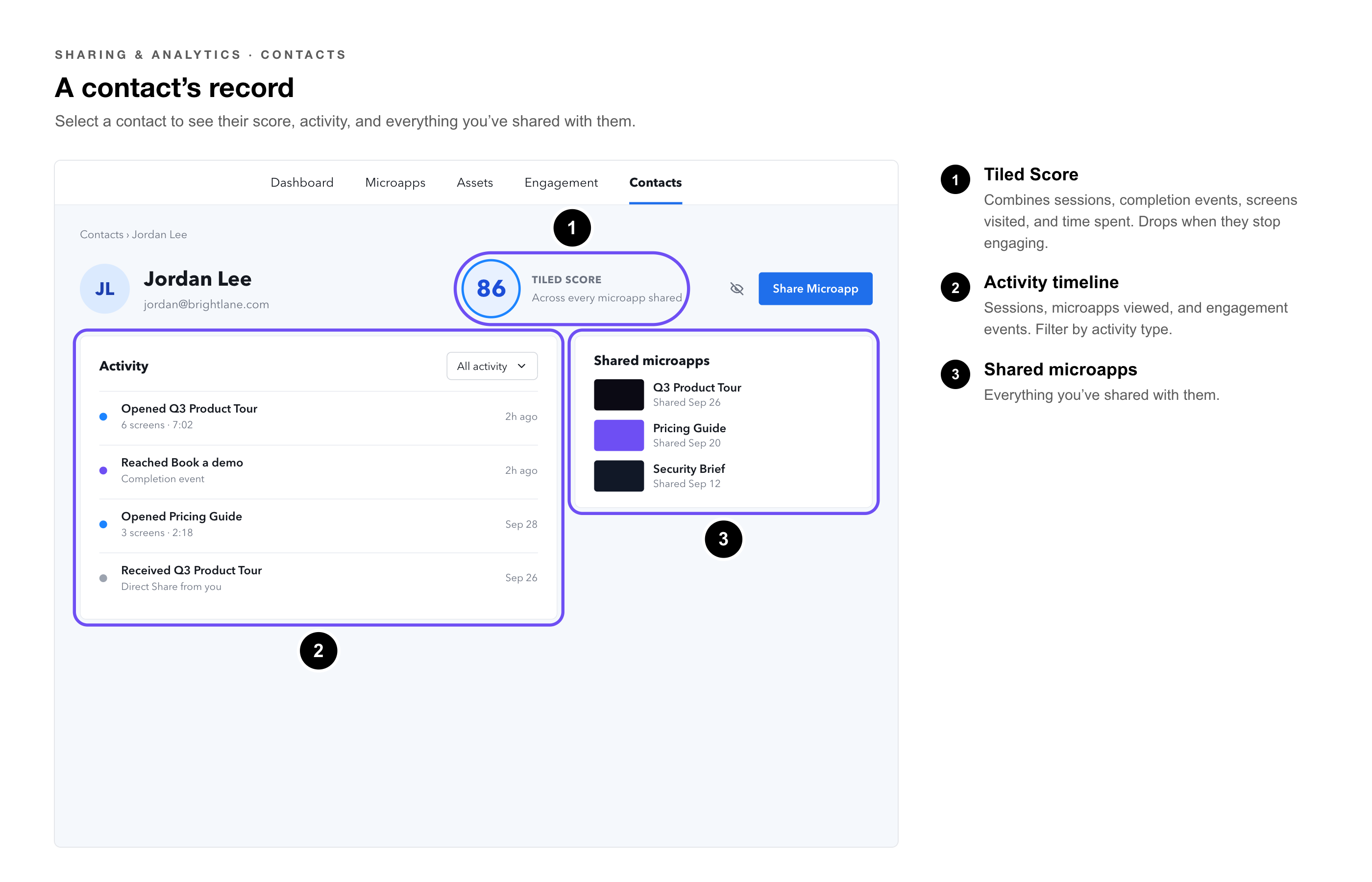
The Tiled Score combines sessions, completion events, screens visited, and time spent, and it goes down when someone stops engaging. See How to Read the Tiled Score.
Sharing From a Contact Record
1. Open the contact’s record. — Find them in the list and select their name.
2. Select Share Microapp. — The share form opens.
3. Choose the microapp — and set any options, such as email gating or password protection.
4. Send or copy the link. — The microapp is added to their record and their engagement is tracked.
Contacts in Tiled for Desktop
The desktop app has its own Contacts page, with these columns:
|
Column |
What It Shows |
|
Name |
The contact’s name, or their email if no name was captured. |
|
|
The address you shared with. |
|
Engagement |
Total views, number of microapps viewed, and time spent. |
|
Recent activity |
Their latest action and how long ago it happened. |
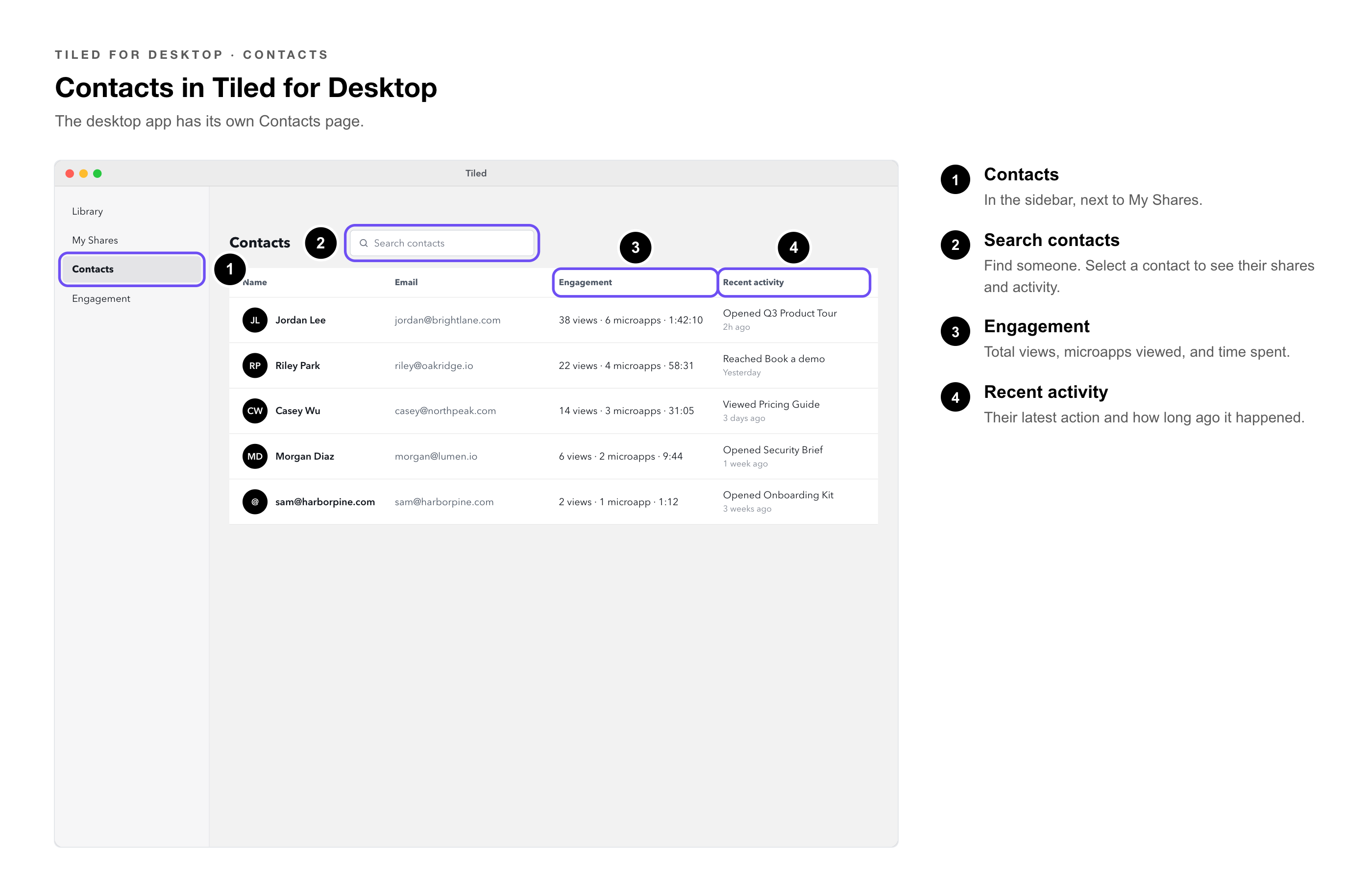
Use Search contacts to find someone, and select a contact to see their shares and activity.
Hiding a Contact
Hide a contact to take them off your list without losing their history.
1. Find the contact — in the list, or open their record.
2. Select the hide icon. — They no longer appear in the default list.
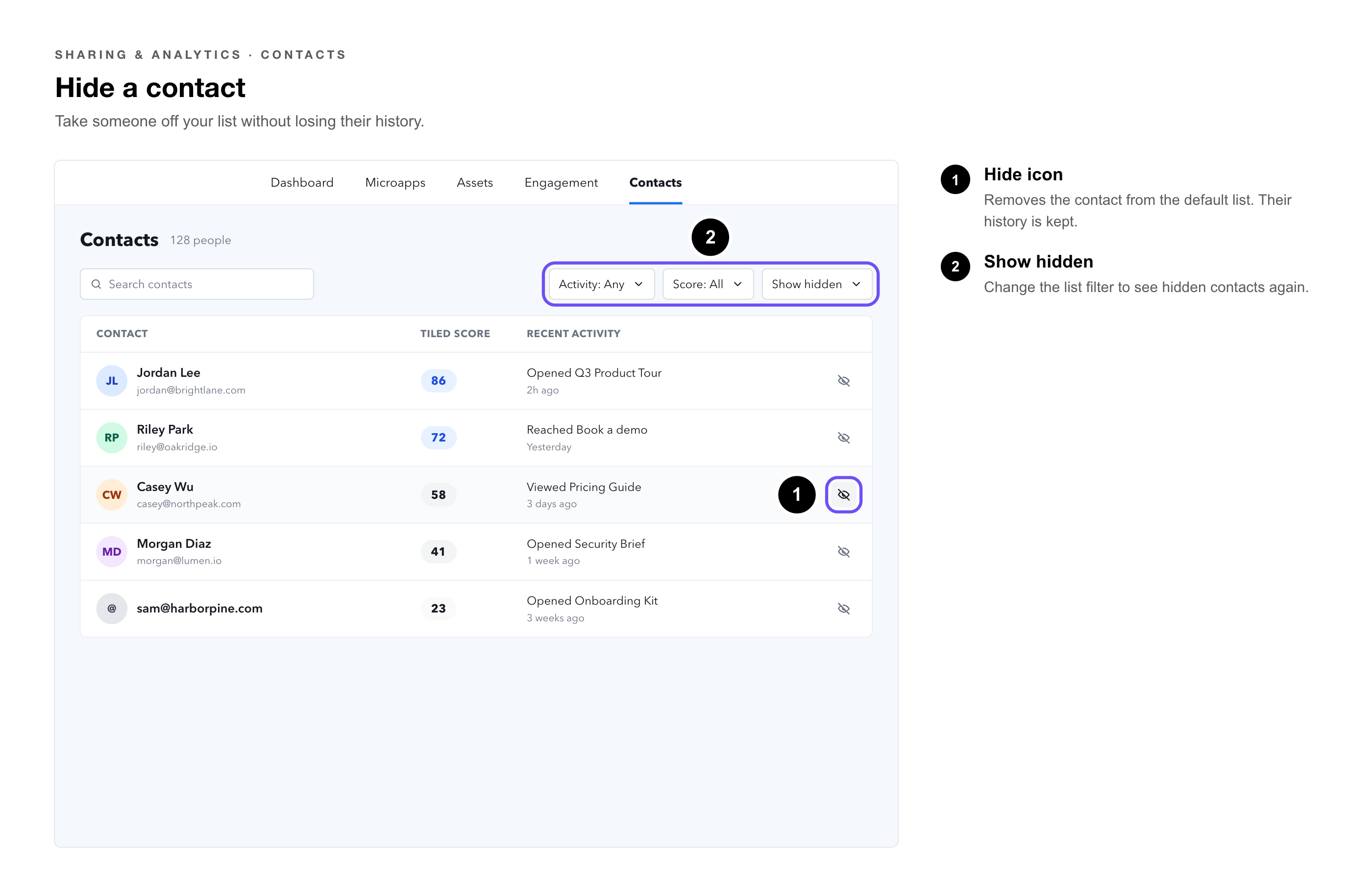
To see hidden contacts again, change the list filter to include them. A hidden contact’s history is kept, and their Tiled Score keeps updating if they engage.
|
Try It Yourself: Send yourself a Direct Share using an email that isn’t your Tiled login, open it, then find yourself in Contacts. It’s the quickest way to see what a contact record shows. |
Common Questions
|
Question |
Answer |
|
Do I need to add contacts myself? |
No. People are added automatically when they open something you shared and their email is known. |
|
Why isn’t someone in my contact list? |
Either they haven’t opened the microapp yet, or Tiled doesn’t have their email — for example, they opened a Public link without email gating. |
|
What does the Tiled Score measure? |
Sessions, completion events, screens visited, and time spent across every microapp shared with that person. It’s a relative score from 1 to 100 that decreases as their activity lapses. |
|
Does hiding a contact delete their data? |
No. Their history is kept and their Tiled Score keeps updating. Change the list filter to see hidden contacts. |
|
Can I share with someone who isn’t a contact yet? |
Yes. Share from the Library or Builder as usual and enter their email. They become a contact once they open it. |
|
Can I see my teammates’ contacts? |
Contacts shows the people you’ve shared with. For engagement across your whole account, use Engagement: Overall Activity. |
Related Articles
• How to Read the Tiled Score — How contact scores are calculated.
• Direct Share Links — Sharing with a specific person.
• Engagement: Pathway Analytics — One contact’s journey through one microapp.
• Engagement: My Activity — Engagement with everything you’ve shared.
• Tiled for Desktop — Contacts and more in the desktop app.
• Using the Share Form — Options available when you share.